A lot of everyday computer work happens in a web browser: checking whether a page has changed, copying a table out of a website into a spreadsheet, downloading a list of files one by one, typing the same details into the same form again and again. In Chapter 19 you fetched data from APIs, which are built for programs to use. This chapter goes further, into pages that were built for people, and shows how a program can read them and even fill them in.
It finishes with two recipes for looking after your own computer: a backup that runs every night and tidies up after itself, and a tracker that records a number every day and draws a chart of how it changes.
Install the two new libraries in your virtual environment:
pip install beautifulsoup4 playwright
playwright install chromium
Beautiful Soup (the package is beautifulsoup4, and you import it as bs4) reads the HTML that web pages are made of and lets you pick out the parts you want. Playwright controls a real web browser, clicking and typing just as you would. The second command downloads the browser it uses, a version of Chromium, the open-source browser that Chrome is built on. It’s a large download, so give it a few minutes.
#Before you start: scraping politely, and legally
Reading web pages with a program is called web scraping, and it comes with responsibilities. A website belongs to someone, and they pay for every page your program asks for. So before you point any recipe in this chapter at a real website, check three things.
First, does the site offer an API, or a download of the data? If it does, use that instead; it’s what the owners want programs to use, and it won’t break when they redesign the page. Second, what do the site’s terms of use say about automated access? Many sites allow light personal use and forbid copying their content at scale. Third, what does its robots.txt file say? Add /robots.txt to the end of the site’s address, as in example.com/robots.txt, to see which parts of the site the owners ask automated programs to stay out of.
And whatever the rules say, be gentle: ask for a page occasionally, not hundreds of times a minute, and identify your program honestly. The recipes do both. Never use these techniques on pages behind a login that you aren’t entitled to, or to collect people’s personal details.
To keep the practice safe and legal, every recipe here comes with a small web page of its own to work on. When a recipe works on its practice page, you can point it at a real page you’re allowed to use.
#Recipe 29.1: Copy a table from a web page into a spreadsheet
The job: A library publishes its new arrivals as a table on its website. You want them in a spreadsheet, so you can sort and filter them, and you’d like to do it again next month without any copying and pasting.
First, save this practice page as sample_page.html in your folder for this chapter. It’s a small, made-up web page with a table on it:
<!DOCTYPE html>
<html lang="en">
<head>
  <meta charset="utf-8">
  <title>Riverside Library: New Arrivals</title>
</head>
<body>
  <h1>New arrivals this month</h1>
  <p class="updated">Last updated: 3 November 2026</p>
  <table id="new-books">
    <thead>
      <tr><th>Title</th><th>Author</th><th>Section</th>
          <th>Copies</th></tr>
    </thead>
    <tbody>
      <tr><td>The Quiet Garden</td><td>Amina Yusuf</td>
          <td>Fiction</td><td>3</td></tr>
      <tr><td>Bread for Beginners</td><td>Tom Hart</td>
          <td>Cooking</td><td>2</td></tr>
      <tr><td>Stars Over the Bay</td><td>Mei Chen</td>
          <td>Science</td><td>1</td></tr>
      <tr><td>Python in a Weekend</td><td>Raj Kumar</td>
          <td>Computing</td><td>4</td></tr>
      <tr><td>Small Boats</td><td>Grace O'Neil</td>
          <td>Fiction</td><td>2</td></tr>
    </tbody>
  </table>
  <p>Opening hours: <span id="hours">Mon-Sat 9am-5pm</span></p>
</body>
</html>
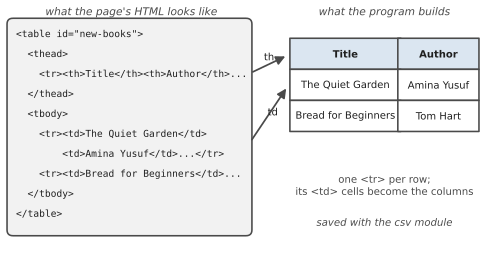
Double-click it and it opens in your browser like any web page. Web pages are written in HTML, which wraps every piece of content in tags: <p> for a paragraph, <table> for a table, <tr> for a table row, <th> for a heading cell and <td> for an ordinary cell. Tags can have attributes, like id="new-books", which give a particular element a name. Figure 29.1 shows how the table’s tags turn into rows and columns.
1# scrape_table.py - copy a table from a web page into a CSV file
2import csv
3import sys
4from pathlib import Path
5
6import requests
7from bs4 import BeautifulSoup
8
9HERE = Path(__file__).parent
10SOURCE = HERE / "sample_page.html"  # or a web address, as text
11OUTPUT = HERE / "new_books.csv"
12HEADERS = {"User-Agent": "learning-python-scraper (personal use)"}
13
14
15def get_html(source):
16    """Read a page from the web, or from a file on your computer."""
17    if str(source).startswith(("http://", "https://")):
18        response = requests.get(
19            source, headers=HEADERS, timeout=10
20        )
21        response.raise_for_status()
22        return response.text
23    return Path(source).read_text(encoding="utf-8")
24
25
26def table_rows(html, table_id):
27    """Return the header and the rows of the table with this id."""
28    soup = BeautifulSoup(html, "html.parser")
29    table = soup.find("table", id=table_id)
30    if table is None:
31        raise ValueError(
32            f"no table with id '{table_id}' on the page"
33        )
34    header = [
35        th.get_text(strip=True) for th in table.find_all("th")
36    ]
37    rows = []
38    for tr in table.find("tbody").find_all("tr"):
39        rows.append(
40            [td.get_text(strip=True) for td in tr.find_all("td")]
41        )
42    return header, rows
43
44
45def main():
46    source = sys.argv[1] if len(sys.argv) > 1 else SOURCE
47    try:
48        header, rows = table_rows(get_html(source), "new-books")
49    except (
50        requests.RequestException,
51        ValueError,
52        OSError,
53    ) as error:
54        print(f"Couldn't get the table: {error}")
55        return
56    with open(OUTPUT, "w", newline="", encoding="utf-8") as file:
57        writer = csv.writer(file)
58        writer.writerow(header)
59        writer.writerows(rows)
60    print(f"Saved {len(rows)} row(s) to {OUTPUT.name}")
61    for row in rows[:3]:
62        print("  " + " | ".join(row))
63
64
65if __name__ == "__main__":
66    main()
Saved 5 row(s) to new_books.csv
  The Quiet Garden | Amina Yusuf | Fiction | 3
  Bread for Beginners | Tom Hart | Cooking | 2
  Stars Over the Bay | Mei Chen | Science | 1
How it works: get_html() gets the page’s HTML as one big string. If you give it a web address, it uses requests (Chapter 19) with a timeout and a User-Agent header, a short line telling the website honestly what’s asking. If you give it a file, it simply reads the file. That’s why you can practise on a saved page and later use the real address, with python scrape_table.py https://..., without changing any code.
BeautifulSoup(html, "html.parser") turns the string into something you can search. soup.find("table", id="new-books") finds the table by its id; find_all("th") collects its heading cells, and for each <tr> row in the table body, find_all("td") collects the cells. get_text(strip=True) takes just the words out of each cell, without the tags or spare spaces. From there, it’s the CSV writing you’ve done since Chapter 15.
To find the right tags on a real page, open it in your browser, right-click the table and choose Inspect. The browser shows you the HTML for that part of the page, including any id you can use.
Make it yours:
- Scrape every table on a page, with
soup.find_all("table"), saving each one to its own CSV file. - Turn the number column into real numbers as you read it, so the spreadsheet can total it.
- Pick out other things: every link on a page is
soup.find_all("a"), and each one’s address islink["href"].
#Recipe 29.2: Get told when a web page changes
The job: You’re waiting for something to change on a web page: a course’s places opening up, a council notice, a product coming back in stock, opening hours over the holidays. Checking the page by hand every day is tedious, and you’ll forget. This recipe checks for you, on a schedule, and reports only when something has changed:
1# watch_page.py - tell me when part of a web page changes
2import hashlib
3import json
4import logging
5from datetime import datetime
6from pathlib import Path
7
8import requests
9from bs4 import BeautifulSoup
10
11HERE = Path(__file__).parent
12STATE = HERE / "watch_state.json"
13logging.basicConfig(
14    filename=HERE / "watch_page.log",
15    level=logging.INFO,
16    format="%(asctime)s %(levelname)s %(message)s",
17)
18log = logging.getLogger("watch")
19
20# What to watch: a page, and the part of it you care about,
21# picked out with a CSS selector (see "How it works").
22WATCHES = {
23    "library hours": (HERE / "sample_page.html", "#hours"),
24    "new books": (HERE / "sample_page.html", "#new-books tbody"),
25}
26
27
28def get_html(source):
29    if str(source).startswith(("http://", "https://")):
30        headers = {"User-Agent": "learning-python-watcher"}
31        response = requests.get(source, timeout=10, headers=headers)
32        response.raise_for_status()
33        return response.text
34    return Path(source).read_text(encoding="utf-8")
35
36
37def current_text(source, selector):
38    """The text of the watched part, or None if it's missing."""
39    soup = BeautifulSoup(get_html(source), "html.parser")
40    part = soup.select_one(selector)
41    return part.get_text(" ", strip=True) if part else None
42
43
44def main():
45    state = (
46        json.loads(STATE.read_text()) if STATE.exists() else {}
47    )
48    changes = []
49    for name, (source, selector) in WATCHES.items():
50        try:
51            text = current_text(source, selector)
52        except (requests.RequestException, OSError) as error:
53            log.warning("%s: couldn't check (%s)", name, error)
54            continue
55        if text is None:
56            log.warning(
57                "%s: '%s' not found; has the page changed "
58                "layout?",
59                name,
60                selector,
61            )
62            continue
63        fingerprint = hashlib.sha256(text.encode()).hexdigest()
64        before = state.get(name)
65        if before is None:
66            log.info("%s: now watching", name)
67        elif before["hash"] != fingerprint:
68            changes.append((name, before["text"], text))
69            log.info("%s: CHANGED", name)
70        state[name] = {
71            "hash": fingerprint,
72            "text": text,
73            "checked": datetime.now().isoformat(),
74        }
75    STATE.write_text(
76        json.dumps(state, indent=2), encoding="utf-8"
77    )
78
79    if not changes:
80        print("No changes.")
81    for name, old, new in changes:
82        print(
83            f"{name} has changed!\n"
84            f"  was: {old[:60]}\n"
85            f"  now: {new[:60]}"
86        )
87
88
89if __name__ == "__main__":
90    main()
Run it once, and it remembers what the watched parts say. Run it again and it reports No changes. Now open sample_page.html in VS Code, change the opening hours to Mon-Sun 9am-6pm, save, and run it a third time:
library hours has changed!
  was: Mon-Sat 9am-5pm
  now: Mon-Sun 9am-6pm
How it works: Watching a whole page doesn’t work well, because pages change constantly in ways you don’t care about: the date at the top, an advert, a “visitors online” counter. So each watch names just the part you care about, with a CSS selector, a short pattern for finding parts of a page. #hours means “the element whose id is hours”, and #new-books tbody means “the table body inside the element whose id is new-books”. soup.select_one() finds the first match.
Figure 29.2 shows the rest. The program fingerprints the text of each part with SHA-256, as Recipe 28.5 did with files, and compares it with the fingerprint saved last time in watch_state.json. Different fingerprints mean the text has changed. It saves the text as well as the fingerprint, which is how it can show you what the part said before and what it says now.
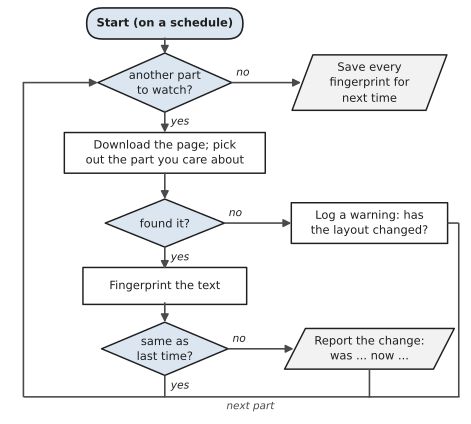
If a selector stops matching anything, the program logs a warning rather than reporting a change. That usually means the website has been redesigned and the selector needs updating, which is worth knowing; a watcher that silently watches nothing is worse than none.
Make it yours:
- Schedule it to run once or twice a day (Chapter 18). Checking every few minutes is rarely necessary, and it’s unkind to the website.
- Email yourself when something changes, using
build_message()andsend_all()from Recipe 27.1. - Watch for a particular word, such as “available”, instead of any change at all.
#Recipe 29.3: Download a list of files
The job: A website offers twelve monthly reports, each with its own download link. Clicking each one, waiting, and moving it out of the Downloads folder is the kind of job that takes twenty minutes and goes wrong when you lose your place. Give Python a list of the links instead.
To practise without touching a real website, you can run a tiny web server of your own. This script makes three practice files to serve:
1# make_practice_files.py - files for your own little web server
2from pathlib import Path
3
4HERE = Path(__file__).parent
5FOLDER = HERE / "practice_server"
6FOLDER.mkdir(exist_ok=True)
7for month in ["january", "february", "march"]:
8    (FOLDER / f"report_{month}.txt").write_text(
9        f"Monthly report for {month.title()}\n"
10        + "Lots of figures.\n" * 2000,
11        encoding="utf-8",
12    )
13print(
14    f"Made 3 files in {FOLDER.name}/. Now, in a second terminal:"
15)
16print(f"  cd {FOLDER}")
17print("  python -m http.server 8000")
Then open a second terminal in VS Code (the + button on the terminal panel), and start the server, which comes with Python:
cd practice_server
python -m http.server 8000
Leave it running. Your computer is now a small website at the address http://localhost:8000, where localhost means “this computer”. The list of files to fetch goes in urls.txt:
# One address per line. Lines starting with # are ignored.
# These work while "python -m http.server 8000" is running in
# the practice_server folder (see make_practice_files.py).
http://localhost:8000/report_january.txt
http://localhost:8000/report_february.txt
http://localhost:8000/report_march.txt
http://localhost:8000/no_such_file.txt
And here’s the recipe, run from the first terminal:
1# download_files.py - download a list of files, safely and politely
2import time
3from pathlib import Path
4from urllib.parse import urlparse
5
6import requests
7
8HERE = Path(__file__).parent
9URL_LIST = HERE / "urls.txt"
10FOLDER = HERE / "downloaded"
11TRIES = 3
12PAUSE = 1  # seconds between downloads
13
14
15def file_name_for(url):
16    """The last part of the address, like report_january.pdf."""
17    name = Path(urlparse(url).path).name
18    return name or "index.html"
19
20
21def download(url, target):
22    """Download url to target a chunk at a time, with retries."""
23    wait = 2
24    for attempt in range(1, TRIES + 1):
25        try:
26            with requests.get(
27                url, stream=True, timeout=20
28            ) as response:
29                response.raise_for_status()
30                partial = target.with_suffix(
31                    target.suffix + ".part"
32                )
33                with open(partial, "wb") as file:
34                    for chunk in response.iter_content(
35                        chunk_size=65536
36                    ):
37                        file.write(chunk)
38                partial.replace(target)  # only now is it complete
39                return True
40        except requests.HTTPError as error:
41            print(
42                f"  {error.response.status_code} for {url}:"
43                " not retrying"
44            )
45            return False
46        except requests.RequestException as error:
47            print(
48                f"  attempt {attempt} failed"
49                f" ({type(error).__name__})"
50            )
51            if attempt < TRIES:
52                time.sleep(wait)
53                wait *= 2
54    return False
55
56
57def main():
58    FOLDER.mkdir(exist_ok=True)
59    urls = [
60        line.strip()
61        for line in URL_LIST.read_text().splitlines()
62        if line.strip() and not line.startswith("#")
63    ]
64    got = skipped = failed = 0
65    for url in urls:
66        target = FOLDER / file_name_for(url)
67        if target.exists():
68            print(f"already have {target.name}")
69            skipped += 1
70            continue
71        print(f"downloading {target.name}")
72        if download(url, target):
73            got += 1
74        else:
75            failed += 1
76        time.sleep(PAUSE)
77    print(
78        f"Done: {got} downloaded, {skipped} already here, "
79        f"{failed} failed."
80    )
81
82
83if __name__ == "__main__":
84    main()
downloading report_january.txt
downloading report_february.txt
downloading report_march.txt
downloading no_such_file.txt
  404 for http://localhost:8000/no_such_file.txt: not retrying
Done: 3 downloaded, 0 already here, 1 failed.
Run it again and it says already have for the three it got, and downloads nothing. When you’ve finished, go back to the second terminal and press Ctrl+C to stop the server.
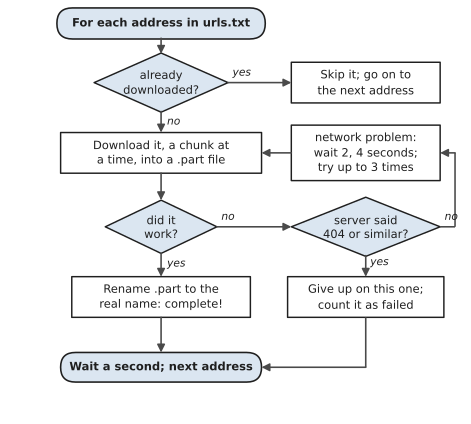
How it works: Figure 29.3 shows how each address is handled. Three details make this much sturdier than clicking links:
stream=Trueanditer_content()download the file a piece at a time, so even a very large file never has to fit in memory.- The file is written as
report_january.txt.partand only renamed to its real name when it’s complete, the safe-writing pattern from Chapter 9. If the connection drops halfway, you never end up with a half-downloaded file that looks finished, and the next run simply tries again. - Errors are treated differently depending on what they mean. A “404 Not Found” will be just as missing in a minute’s time, so there’s no point retrying. A dropped connection might work next time, so it’s retried with backoff, waiting 2 seconds and then 4, as in Exercise 19.10.
The one-second pause between files is politeness: twelve downloads a second apart are nothing to a website, while twelve at once from a script look like trouble.
Make it yours:
- Build the list of addresses with a loop instead of typing them, for links that follow a pattern like
report_2026_01.pdftoreport_2026_12.pdf. - Combine it with Recipe 29.1: scrape a page for every link ending in
.pdf, then download them all. - Show progress for big files, using the
Content-Lengthheader to work out how much is left.
#Recipe 29.4: Fill in a web form automatically
The job: A community group runs its volunteer sign-ups through a web form. After a planning meeting, someone has a spreadsheet of thirty volunteers and has to type each one into the form: name, email, shift, tick a box, submit, again and again. When a website has no API and no upload button, the only way in is through the form, which is exactly what Playwright is for.
Practise on this form, saved as signup_form.html. It’s a small page that pretends to sign people up and shows a thank-you message:
<!DOCTYPE html>
<html lang="en">
<head>
  <meta charset="utf-8">
  <title>Volunteer sign-up</title>
</head>
<body>
  <h1>Riverside Clean-Up Day: volunteer sign-up</h1>
  <form id="signup">
    <p><label>Full name
      <input id="name" name="name" required></label></p>
    <p><label>Email
      <input id="email" name="email" type="email" required>
    </label></p>
    <p><label>Shift
      <select id="shift" name="shift">
        <option value="morning">Morning (9-12)</option>
        <option value="afternoon">Afternoon (1-4)</option>
      </select></label></p>
    <p><label><input id="gloves" name="gloves" type="checkbox">
      I'll bring my own gloves</label></p>
    <p><button type="submit">Sign up</button></p>
  </form>
  <p id="result"></p>
  <script>
    const form = document.getElementById("signup");
    form.addEventListener("submit", event => {
      event.preventDefault();
      const name = document.getElementById("name").value;
      const shift = document.getElementById("shift").value;
      document.getElementById("result").textContent =
        "Thanks, " + name + "! You're signed up for the " +
        shift + " shift.";
    });
  </script>
</body>
</html>
The volunteers, in volunteers.csv:
name,email,shift,gloves
Ana Silva,ana@example.com,morning,yes
Raj Patel,raj@example.com,afternoon,no
Mei Lin,mei@example.com,morning,yes
1# fill_form.py - fill in a web form for every row of a spreadsheet
2import csv
3from pathlib import Path
4
5from playwright.sync_api import sync_playwright
6
7HERE = Path(__file__).parent
8FORM = (
9    (HERE / "signup_form.html").resolve().as_uri()
10)  # a local page
11PEOPLE = HERE / "volunteers.csv"
12SHOTS = HERE / "screenshots"
13SHOW_BROWSER = False  # True lets you watch it work
14
15
16def sign_up(page, person):
17    page.goto(FORM)
18    page.fill("#name", person["name"])
19    page.fill("#email", person["email"])
20    page.select_option("#shift", person["shift"])
21    if person["gloves"] == "yes":
22        page.check("#gloves")
23    page.click("button[type=submit]")
24    page.wait_for_selector("#result:not(:empty)")
25    return page.inner_text("#result")
26
27
28def main():
29    SHOTS.mkdir(exist_ok=True)
30    with open(PEOPLE, newline="", encoding="utf-8") as file:
31        people = list(csv.DictReader(file))
32    with sync_playwright() as p:
33        browser = p.chromium.launch(headless=not SHOW_BROWSER)
34        page = browser.new_page()
35        for person in people:
36            try:
37                message = sign_up(page, person)
38            except Exception as error:  # one failure, not all
39                print(f"  {person['name']}: FAILED ({error})")
40                continue
41            shot = SHOTS / f"{person['email'].split('@')[0]}.png"
42            page.screenshot(path=shot)  # proof it worked
43            print(f"  {message}")
44        browser.close()
45
46
47if __name__ == "__main__":
48    main()
  Thanks, Ana Silva! You're signed up for the morning shift.
  Thanks, Raj Patel! You're signed up for the afternoon shift.
  Thanks, Mei Lin! You're signed up for the morning shift.
Change SHOW_BROWSER to True and run it again. A browser window opens and you can watch the form fill itself in, which is one of the more satisfying things you’ll see a program do.
How it works: sync_playwright() starts Playwright, and p.chromium.launch() opens a browser. headless=True means the browser runs invisibly, which is faster and how scheduled scripts use it. page.goto() opens the form; for practice it’s a local file, turned into a file:// address by .resolve().as_uri().
Then each line does what a person would do. page.fill("#name", ...) types into the box whose id is name, using the same CSS selectors as Recipe 29.2. select_option() chooses from a drop-down list, check() ticks a checkbox, and click() presses the button. wait_for_selector("#result:not(:empty)") waits until the thank-you message appears, because a real website takes a moment to respond and a program that rushes ahead will fail. Finally, page.screenshot() saves a picture of the result for each person, so you have proof of what was submitted.
Each sign-up is wrapped in try, so if one fails (perhaps the website was slow, or a row in the spreadsheet is incomplete), the program says so and carries on with the rest, the pattern from Chapters 13 and 24.
Make it yours:
- Find the selectors for a real form with your browser’s Inspect tool, or try Playwright’s recorder:
playwright codegen https://example.comopens a browser and writes the code for whatever you click. - Log in first and save the session, so a scheduled script doesn’t have to log in every time; the Playwright documentation’s page on authentication shows how.
- Read results back off a page, with
page.inner_text(), for websites whose data only appears after you’ve clicked through some menus.
#Recipe 29.5: Nightly backups that look after themselves
The job: Sofia, from Chapter 13, learned the hard way that a backup nobody checks isn’t really a backup. This recipe zips an important folder every night, gives each zip the date and time in its name, checks the zip actually works, and keeps the last seven, deleting older ones so the backups don’t fill the disk:
1# backup_rotate.py - zip a folder daily; keep the last few zips
2import logging
3import shutil
4import zipfile
5from datetime import datetime
6from pathlib import Path
7
8HERE = Path(__file__).parent
9SOURCE = HERE / "important"  # the folder to protect
10BACKUPS = HERE / "backups"  # better: a different drive!
11KEEP = 7  # how many zips to keep
12
13logging.basicConfig(
14    filename=HERE / "backup.log",
15    level=logging.INFO,
16    format="%(asctime)s %(levelname)s %(message)s",
17)
18log = logging.getLogger("backup")
19
20
21def make_backup():
22    BACKUPS.mkdir(exist_ok=True)
23    stamp = datetime.now().strftime("%Y-%m-%d_%H%M%S")
24    base = BACKUPS / f"{SOURCE.name}_{stamp}"
25    archive = Path(
26        shutil.make_archive(str(base), "zip", root_dir=SOURCE)
27    )
28    with zipfile.ZipFile(archive) as z:  # check it really works
29        bad = z.testzip()
30        count = len(z.namelist())
31    if bad:
32        raise RuntimeError(f"{archive.name} is damaged at {bad}")
33    log.info(
34        "made %s (%d files, %.1f KB)",
35        archive.name,
36        count,
37        archive.stat().st_size / 1024,
38    )
39    return archive
40
41
42def remove_old_backups():
43    """Delete all but the newest KEEP zips made by this script."""
44    zips = sorted(
45        BACKUPS.glob(f"{SOURCE.name}_*.zip")
46    )  # oldest first
47    for old in zips[:-KEEP]:
48        old.unlink()
49        log.info("removed old backup %s", old.name)
50    return len(zips[:-KEEP])
51
52
53def main():
54    if not SOURCE.is_dir():
55        log.error("folder to back up is missing: %s", SOURCE)
56        print(f"{SOURCE} doesn't exist. Nothing backed up.")
57        return
58    try:
59        archive = make_backup()
60    except Exception:
61        log.exception("backup failed")
62        print("Backup FAILED. Details are in backup.log.")
63        return
64    removed = remove_old_backups()  # only after a good backup
65    print(
66        f"Backed up to {archive.name};"
67        f" removed {removed} old zip(s)."
68    )
69
70
71if __name__ == "__main__":
72    main()
Make a folder called important with a few files in it, and run the recipe several times. You’ll see dated zips appear in backups, and once there are more than seven, the oldest ones go:
Backed up to important_2026-11-06_015901.zip; removed 1 old zip(s).
How it works: Figure 29.4 shows the order of events, and the order is the whole point. shutil.make_archive() zips the entire folder in one line. Then zipfile.ZipFile(...).testzip() reads every file back out of the zip and checks it, returning the name of the first damaged one, or None if all is well. Only after a new backup has passed that test does remove_old_backups() delete anything. If the backup fails for any reason, the error goes in the log and the old backups are left exactly as they were.
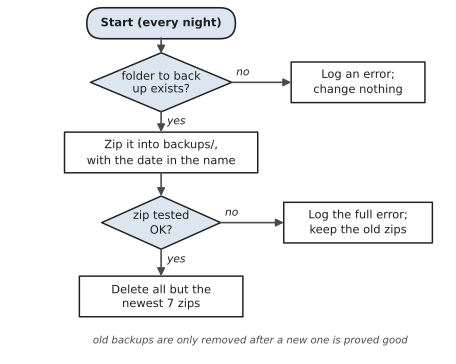
Deleting the old zips works because the names sort in date order: important_2026-11-01_... comes before important_2026-11-06_... alphabetically, so zips[:-KEEP] (everything except the last seven) is exactly the oldest ones. That’s one more reason to write dates as year-month-day (Chapter 18). The pattern in glob() makes sure the recipe only ever touches zips it made itself.
Make it yours:
- Back up several folders, each with its own zips, by making
SOURCEa list and looping over it. - Keep a week of daily backups and one per month for a year, by also copying the first backup of each month into a
monthlyfolder that’s never pruned. - Email yourself if a backup fails, using Recipe 27.1, so that a failure can’t go unnoticed for nine days as Sofia’s did.
#Recipe 29.6: Track a number every day, and chart it
The job: Some numbers are worth watching over time: an exchange rate before a holiday, a share price, your website’s visitors, the temperature in your greenhouse. One reading tells you very little; a month of them, drawn as a line, tells you a story. This recipe fetches the Australian dollar’s exchange rate from the free Frankfurter API you used in Chapter 19, adds it to a CSV file once a day, and draws a chart of the whole history:
1# track_rates.py - record an exchange rate every day, and chart it
2import csv
3import sys
4from datetime import date, timedelta
5from pathlib import Path
6
7import matplotlib
8
9matplotlib.use("Agg")  # draw to a file, not a window
10import matplotlib.pyplot as plt
11import requests
12
13HERE = Path(__file__).parent
14HISTORY = HERE / "rates.csv"
15CHART = HERE / "rates_chart.png"
16BASE, TARGET = "AUD", "USD"
17API = "https://api.frankfurter.dev/v1"
18
19
20def fetch(start=None):
21    """Return {date: rate}, for today or from start until today."""
22    period = f"{start.isoformat()}.." if start else "latest"
23    response = requests.get(
24        f"{API}/{period}",
25        timeout=10,
26        params={"from": BASE, "to": TARGET},
27    )
28    response.raise_for_status()
29    data = response.json()
30    if start:
31        return {
32            day: r[TARGET] for day, r in data["rates"].items()
33        }
34    return {data["date"]: data["rates"][TARGET]}
35
36
37def load_history():
38    if not HISTORY.exists():
39        return {}
40    with open(HISTORY, newline="", encoding="utf-8") as file:
41        return {
42            row["date"]: float(row["rate"])
43            for row in csv.DictReader(file)
44        }
45
46
47def save_history(history):
48    with open(HISTORY, "w", newline="", encoding="utf-8") as file:
49        writer = csv.writer(file)
50        writer.writerow(["date", "rate"])
51        for day in sorted(history):
52            writer.writerow([day, history[day]])
53
54
55def draw_chart(history):
56    days = sorted(history)
57    dates = [date.fromisoformat(d) for d in days]
58    rates = [history[d] for d in days]
59    fig, ax = plt.subplots(figsize=(8, 4))
60    ax.plot(dates, rates, color="#2f5d8a", linewidth=2)
61    ax.set_title(f"1 {BASE} in {TARGET}")
62    ax.set_ylabel(TARGET)
63    ax.grid(alpha=0.3)
64    fig.autofmt_xdate()  # tilt the dates so they fit
65    fig.tight_layout()
66    fig.savefig(CHART, dpi=150)
67    plt.close(fig)
68
69
70def main():
71    history = load_history()
72    try:
73        if "--backfill" in sys.argv:  # fill the last 60 days
74            new = fetch(start=date.today() - timedelta(days=60))
75        else:
76            new = fetch()
77        added = len(set(new) - set(history))
78        history.update(new)
79        save_history(history)
80        print(
81            f"Added {added} new day(s); {len(history)} in total."
82        )
83    except requests.RequestException as error:
84        print(
85            "Couldn't reach the rates service"
86            f" ({type(error).__name__})."
87        )
88        print("Charting the history I already have.")
89    if len(history) >= 2:
90        draw_chart(history)
91        print(f"Chart saved to {CHART.name}")
92    else:
93        print("Not enough history to chart yet. Try --backfill.")
94
95
96if __name__ == "__main__":
97    main()
The first time, run it with --backfill to fetch the last sixty days in one go, so there’s something to chart straight away:
python track_rates.py --backfill
After that, schedule it to run once a day without the flag. Open rates_chart.png whenever you’re curious.
How it works: Figure 29.5 shows the plan. The history lives in rates.csv as a dictionary in memory, with dates as the keys, which means a day can never be recorded twice: running the program three times on the same day just writes the same entry three times. history.update(new) merges the new readings in.
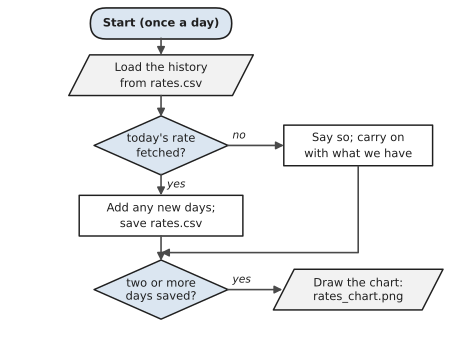
The chart is drawn with matplotlib, the library that drew every chart in this book. plt.subplots() makes a figure, ax.plot() draws the line through the dates and rates, and fig.savefig() saves it as an image. The line matplotlib.use("Agg") tells matplotlib to draw straight to a file without trying to open a window, which matters for a script run by a scheduler, when there’s no screen to open a window on. If the network is down, the program says so and still draws the chart from the history it already has.
Make it yours:
- Track a different pair of currencies, such as
"AUD"and"EUR", or several at once, with a line for each. - Add a horizontal line at a target rate with
ax.axhline(0.68), and email yourself when the rate crosses it. - Track something else entirely: the number of rows in a spreadsheet, the size of a folder, or a number scraped from a web page with Recipe 29.1.
#On the Job
How it shows up at work: Companies constantly need data that lives on websites: competitors’ prices, public records, product listings, job adverts, government statistics. They also need to move data into web systems that have no API, which is where browser automation earns its keep. Testing teams use Playwright every day to check that websites work, clicking through them exactly as customers would. And every organisation needs reliable backups and simple monitoring. Each recipe in this chapter is a small version of a job someone is paid to do.
What employers expect: Use an API when there is one. Scrape responsibly: respect terms of use and robots.txt, identify your program, and pace your requests. Write scrapers that fail loudly when a page’s layout changes, rather than quietly collecting nothing. Know the difference between a page whose HTML contains the data and a page that builds it with JavaScript, and choose requests and Beautiful Soup or Playwright accordingly.
Interview questions you might meet:
- “What’s the difference between scraping and using an API?” An API is designed for programs, documented, and stable. Scraping reads pages designed for people, so it breaks when the design changes, and it may not be allowed. Prefer the API.
- “The data you need doesn’t appear in the HTML you downloaded. Why not?” The page probably builds it with JavaScript after loading. Use a real browser, through Playwright, or find the API the page itself calls, using the browser’s developer tools.
- “How would you make sure a scheduled backup actually works?” Test the backup after making it, only remove old ones after a good backup, keep a log, alert on failure, and occasionally restore a file for real to prove it.
- “What’s a CSS selector?” A pattern for finding elements on a web page, like
#pricefor the element with id “price” ortable.results tdfor cells in a table with the class “results”. The same selectors are used by Beautiful Soup, Playwright and web designers. - “What is Playwright used for?” Controlling a browser from code: testing websites automatically, and automating tasks on sites that have no API.
Portfolio task: Build a small “price watcher” for a product on a website that allows it (or for your own practice page): scrape the price once a day, store the history, chart it, and email yourself when it drops below a target. It combines Recipes 29.1, 29.2 and 29.6 with Recipe 27.1, and it’s a project that’s easy to explain in an interview because everyone understands why it’s useful.
Professional habit: Write down, at the top of any scraper, which site it reads, what the site’s terms say about automated access, and when you checked. When someone asks “are we allowed to do this?”, you’ll have the answer ready.
#Exercises
Solutions are in solutions/chapter_29 in the book’s GitHub repository. They use the practice pages from this chapter, so they don’t depend on any real website. The Playwright solutions need Playwright and its browser installed.
Warm-up
Exercise 29.1. Using Beautiful Soup on sample_page.html, print the page’s title (the <title> tag), the main heading (<h1>), and the “last updated” line (the paragraph with class="updated", which you can find with soup.find("p", class_="updated")).
Exercise 29.2. Print every book title from the practice page’s table that’s in the Fiction section.
Exercise 29.3. Open the practice form with Playwright, fill in just your own name and email, submit it, and print the thank-you message.
Practice
Exercise 29.4. Change scrape_table.py so it also writes the table to an Excel file, with a bold header row, using openpyxl (Chapter 15).
Exercise 29.5. Add a third watch to watch_page.py for the “last updated” line, using the selector p.updated. Change the date on the practice page and check that the watcher notices.
Exercise 29.6. Write a script that reads urls.txt and checks each address without downloading the file, using requests.head(), printing its status code and, if the server says, its size from the Content-Length header.
Exercise 29.7. Change backup_rotate.py so it also writes a small manifest.txt inside each zip listing every file and its size. (Create the text, then add it to the zip with zipfile.ZipFile(archive, "a") and writestr().)
Exercise 29.8. Make fill_form.py skip any volunteer with an empty name or an email without an @, reporting them instead of submitting them.
Challenge
Exercise 29.9. Write restore.py, which lists the backups in the backups folder with their dates and sizes, asks which one to restore, and extracts it into a new folder called restored_<date>, never on top of the original.
Exercise 29.10. Make track_rates.py print a small summary every time it runs: today’s rate, the change since yesterday, and the highest and lowest rate in the history, with their dates.
Exercise 29.11. Combine Recipes 29.1 and 29.2 into a “new arrivals” alert: each time it runs, it scrapes the practice page’s table and reports any book that wasn’t there last time, by comparing the titles with a saved set.