This is the book’s first big project, so it’s a good moment to look back. Twelve chapters ago, a program was three lines that printed something. Since then you’ve picked up functions, error handling, files, modules and classes, one at a time. Real programs use all of them at once, and that’s what this chapter is about.
We’re going to build a personal automation toolkit: one program that runs a collection of small jobs for you. It’ll report what’s in a folder, find files nobody has touched for weeks, create a dated notes file for today and back up a folder. It’ll also be built the way professional tools are, so that you can keep adding jobs to it for years. Along the way, you’ll meet two things almost every serious program has. Configuration lets you change what the program does without editing its code, and logging keeps a record of what it did and what went wrong.
#Designing a real tool
Don’t start typing yet. Ten minutes of planning now saves hours later. Programs that skip this step tend to handle the first job nicely and then fight you on every job after it.
So, here’s the plan, in plain sentences. The toolkit runs a series of tasks. Each task does one job. Some tasks need settings, like which folder to look in. You should be able to switch tasks on and off, and change their settings, without touching any Python. When the toolkit runs, it records what happened, on screen and in a file. And if one task fails, the rest still run.
Now go back over those sentences and underline the nouns. Task is clearly a class: there are several kinds, they all share a shape, and each does its own thing. Settings suggests a configuration file. Records suggests a log file. And the thing that “runs” everything is our main program. Figure 13.1 shows how the pieces fit.
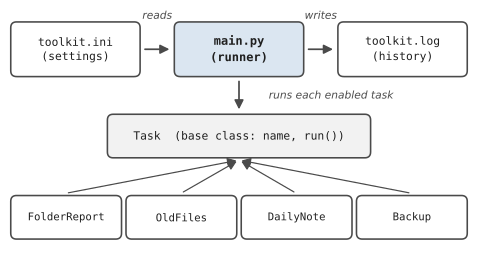
We’ll organise it as a small multi-file project, the way you learned in Chapter 10:
toolkit/
    main.py          the runner
    tasks.py         one class per task
    toolkit.ini      settings you can edit
    sample_files/    a folder to experiment on
#Each automation as a class
Every task has the same shape: it has a name, it receives some settings, and it can be run. That shared shape belongs in a parent class. Each specific task inherits from it and fills in its own run() method. This is a textbook case where inheritance fits well, because every specific task genuinely is a task.
Here’s tasks.py:
1# toolkit/tasks.py - one class per automation
2import logging
3import shutil
4import time
5from datetime import date
6
7log = logging.getLogger("toolkit")
8
9
10class Task:
11    """Base class. Every task has a name and a run() method."""
12    name = "task"
13
14    def __init__(self, settings, base_folder):
15        self.settings = settings     # its part of the config
16        self.base = base_folder      # where the toolkit lives
17
18    def path(self, key):
19        """Turn a folder setting into a full path."""
20        return self.base / self.settings.get(key, ".")
21
22    def run(self):
23        raise NotImplementedError("each task must define run()")
24
25
26class FolderReport(Task):
27    name = "folder_report"
28
29    def run(self):
30        folder = self.path("folder")
31        files = [p for p in folder.rglob("*") if p.is_file()]
32        kb = sum(p.stat().st_size for p in files) / 1024
33        return f"{len(files)} files, {kb:.1f} KB"
34
35
36class OldFiles(Task):
37    name = "old_files"
38
39    def run(self):
40        folder = self.path("folder")
41        days = self.settings.getint("days", 30)
42        cutoff = time.time() - days * 24 * 60 * 60
43        old = [p.name for p in folder.iterdir()
44               if p.is_file() and p.stat().st_mtime < cutoff]
45        for name in old:
46            log.info("  old file: %s", name)
47        return f"{len(old)} untouched for {days}+ days"
48
49
50class DailyNote(Task):
51    name = "daily_note"
52
53    def run(self):
54        folder = self.path("folder")
55        folder.mkdir(exist_ok=True)
56        today = date.today()
57        note = folder / f"{today:%Y-%m-%d}.txt"
58        if note.exists():
59            return f"{note.name} exists"
60        heading = f"Notes for {today:%A %d %B %Y}\n\n- "
61        note.write_text(heading, encoding="utf-8")
62        return f"created {note.name}"
63
64
65class Backup(Task):
66    name = "backup"
67
68    def run(self):
69        source = self.path("source")
70        stamp = date.today()
71        dest = self.path("destination") / f"{source.name}_{stamp}"
72        if dest.exists():
73            return "today's backup already exists"
74        shutil.copytree(source, dest)
75        return f"copied {source.name} to {dest.name}"
76
77
78ALL_TASKS = [FolderReport, OldFiles, DailyNote, Backup]
There’s a lot to notice here, and most of it you already know. The Task base class holds what every task shares. name is a class variable, the same for every instance of a task type, which makes sense: every FolderReport is called folder_report. The path() helper turns a folder name from the settings into a full path, built from the toolkit’s own location, the Path(__file__).parent trick from Chapter 9.
The base run() raises NotImplementedError. That’s a polite way of saying “children must replace this.” If someone writes a new task and forgets to give it a run() method, they’ll get a clear message instead of a mystery.
Each task’s run() returns a short message describing what it did. It doesn’t print anything. That’s a deliberate choice: the task does the work, and the runner decides how to report it. Keeping those jobs separate means you could later show results in a web page or an email without changing a single task.
A few new tools appear along the way. folder.rglob("*") finds every file in a folder and all the folders inside it (the “r” stands for recursive). p.stat() returns information about a file: st_size is its size in bytes, and st_mtime is the last time it was modified, measured in seconds. time.time() gives the current time in the same units, so subtracting 30 days’ worth of seconds gives us a cutoff. shutil.copytree() copies a whole folder and everything inside it. And in the f-strings, {today:%Y-%m-%d} formats a date directly, using the same codes as strftime.
Finally, ALL_TASKS is a list of classes, not objects. Python lets you store a class in a list like any other value, and create objects from it later. The runner will go through this list, so adding a new task to the toolkit takes two steps: write the class, and add it to the list.
#Logging and configuration
Configuration
Hard-coding values like folder = "sample_files" inside your Python code is fine while you’re experimenting. But once a tool is in daily use, you want to change settings without opening the code. Maybe you want to point it at your real Downloads folder, or switch the backup off for a week. A configuration file holds those settings separately, in a format that’s easy for a human to read and edit.
Python’s standard library includes configparser, which reads a simple format called INI, with sections in square brackets and key = value lines underneath. Here’s our toolkit.ini:
1; toolkit/toolkit.ini - edit these, not the Python code
2[general]
3log_file = toolkit.log
4
5[folder_report]
6enabled = yes
7folder = sample_files
8
9[old_files]
10enabled = yes
11folder = sample_files
12days = 30
13
14[daily_note]
15enabled = yes
16folder = notes
17
18[backup]
19enabled = no
20source = notes
21destination = backups
Lines starting with ; are comments. Each section’s name matches a task’s name, which is how the runner knows which settings belong to which task. Reading it takes two lines:
1import configparser
2
3config = configparser.ConfigParser()
4config.read("toolkit.ini")
5print(config["old_files"]["folder"])          # sample_files
6print(config["old_files"].getint("days"))     # 30
7print(config["backup"].getboolean("enabled")) # False
Every value in an INI file is text, so configparser gives you helpers to convert: getint() for numbers and getboolean(), which understands yes, no, true, false, on, off, 1 and 0. Each section works much like a dictionary, which is why our tasks can call self.settings.get(key, ".") and self.settings.getint("days", 30), with a fallback in case a setting is missing.
Logging
So far, when we wanted to know what a program was doing, we used print(). That works while you’re watching. But automation tools often run when nobody is watching, at 3am or in the background, and print output simply disappears. You need a record you can read later. That’s what logging is.
Sofia, who runs the office side of a small architecture practice, wrote a script to back up the shared project folder every night. It printed “Backup complete” at the end, which she never saw, because it ran while she was asleep. One Monday a partner deleted a drawing by accident and asked for Friday’s copy. There wasn’t one. There wasn’t Thursday’s either. The script had been failing for nine days, ever since someone renamed a folder, and every error message had been printed to a screen nobody was looking at. Sofia added logging that afternoon. Now every run leaves two or three lines in a file, and a failure leaves the full traceback. She checks the log every Monday morning with her first coffee, and it takes ten seconds.
Python’s logging module is built for exactly this. You set it up once, and from then on, any part of your program can write messages to it. Each message gets a timestamp and a level that says how serious it is:
| Level | Use it for |
|---|---|
DEBUG | tiny details, useful only when hunting a bug |
INFO | normal progress: “task finished,” “file created” |
WARNING | something odd, but the program can carry on |
ERROR | something failed |
Here’s how we set it up in the toolkit, so every message goes both to the screen and to a file:
1import logging
2
3logging.basicConfig(
4    level=logging.INFO,
5    format="%(asctime)s %(levelname)-7s %(message)s",
6    datefmt="%Y-%m-%d %H:%M",
7    handlers=[
8        logging.FileHandler("toolkit.log", encoding="utf-8"),
9        logging.StreamHandler(),
10    ],
11)
12log = logging.getLogger("toolkit")
13log.info("toolkit started")
level=logging.INFO means “record INFO and anything more serious, but ignore DEBUG.” The format describes what each line looks like, with placeholders for the time, the level, and the message. And the two handlers say where messages go: FileHandler writes them to a file, and StreamHandler prints them to the screen.
logging.getLogger("toolkit") gives you a named logger. Because every module that asks for "toolkit" gets the same logger, tasks.py can write log messages without any setup of its own. That’s what the log = logging.getLogger("toolkit") line near the top of tasks.py does.
You’ll notice log messages use a slightly old-fashioned style: log.info("old file: %s", name) instead of an f-string. The %s is a placeholder, filled in with name. Logging prefers this because it only builds the final text if the message is actually going to be recorded, but honestly, for small programs an f-string works fine too.
The best logging feature of all is log.exception(). Call it inside an except block, and it records your message plus the full traceback. The user sees a short line; the log file keeps everything you need to fix the problem later. That’s the “leave a trail for yourself” idea from Chapter 8, done properly.
#Clean execution flow
Now we can write the runner. Its job is simple to describe, as Figure 23.2 shows: load the settings, start logging, then go through each task, run it if it’s enabled, and record what happened. At the end, print a summary.
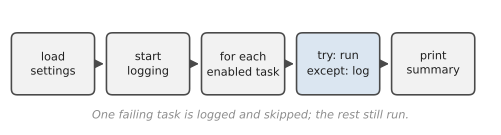
Here’s main.py:
1# toolkit/main.py - load settings, set up logging, run tasks
2import configparser
3import logging
4from pathlib import Path
5
6from tasks import ALL_TASKS
7
8HERE = Path(__file__).parent
9CONFIG_FILE = HERE / "toolkit.ini"
10
11
12def load_settings():
13    config = configparser.ConfigParser()
14    if not config.read(CONFIG_FILE, encoding="utf-8"):
15        raise SystemExit(f"Missing {CONFIG_FILE.name}. Stopping.")
16    return config
17
18
19def setup_logging(log_file):
20    logging.basicConfig(
21        level=logging.INFO,
22        format="%(asctime)s %(levelname)-7s %(message)s",
23        datefmt="%Y-%m-%d %H:%M",
24        handlers=[
25            logging.FileHandler(log_file, encoding="utf-8"),
26            logging.StreamHandler(),
27        ],
28    )
29    return logging.getLogger("toolkit")
30
31
32def is_enabled(config, name):
33    return name in config and config[name].getboolean("enabled")
34
35
36def main():
37    config = load_settings()
38    log = setup_logging(HERE / config["general"]["log_file"])
39    log.info("toolkit started")
40    counts = {"ok": 0, "failed": 0, "skipped": 0}
41
42    for task_class in ALL_TASKS:
43        name = task_class.name
44        if not is_enabled(config, name):
45            log.info("%-14s skipped (disabled)", name)
46            counts["skipped"] += 1
47            continue
48        task = task_class(config[name], HERE)
49        try:
50            message = task.run()
51        except Exception:
52            log.exception("%-14s FAILED", name)
53            counts["failed"] += 1
54        else:
55            log.info("%-14s %s", name, message)
56            counts["ok"] += 1
57
58    log.info("finished: %d ok, %d failed, %d skipped",
59             counts["ok"], counts["failed"], counts["skipped"])
60
61
62if __name__ == "__main__":
63    main()
Read main() from top to bottom and it tells the story of the program, almost in English. That’s the sign of a clean execution flow: the main function coordinates, and the details live elsewhere.
There’s one line that seems to break a rule from Chapter 8: except Exception:. We said not to catch everything, because it hides bugs. Here, it’s the right choice, and it’s worth understanding why. This is the very top of the program, the place where we’ve decided that any failure in a task should be recorded and then skipped, so the other tasks still run. And crucially, we don’t hide anything. log.exception() records the full traceback, so the bug is written down in detail. Catching everything is only dangerous when you swallow the error silently. At the top level of a runner, with full logging, it’s exactly what you want.
raise SystemExit(...) is another small new thing. It stops the program immediately with a message, which is the polite way to give up when there’s nothing sensible to do, like when the settings file is missing.
"%-14s" in the log messages pads the task name to 14 characters, left-aligned, so the results line up in neat columns, just like the < alignment in f-strings.
Running it
Make the toolkit folder with the three files, plus a sample_files folder containing a few files of your own. Then run main.py:
2026-11-05 09:14 INFO    toolkit started
2026-11-05 09:14 INFO    folder_report  4 files, 12.6 KB
2026-11-05 09:14 INFO    old_files      0 untouched for 30+ days
2026-11-05 09:14 INFO    daily_note     created 2026-11-05.txt
2026-11-05 09:14 INFO    backup         skipped (disabled)
2026-11-05 09:14 INFO    finished: 3 ok, 0 failed, 1 skipped
The same lines are now in toolkit.log. Run it again, and the daily note task says the file already exists, so it doesn’t overwrite today’s notes. That’s the “check before you overwrite” habit from Chapter 9.
Now let’s see the safety net work. Open toolkit.ini, set the backup to enabled = yes, and change its source to a folder that doesn’t exist, like nowhere. Run it again. The backup task fails, the log records the full traceback, and every other task still runs:
2026-11-05 09:20 INFO    daily_note     2026-11-05.txt exists
2026-11-05 09:20 ERROR   backup         FAILED
Traceback (most recent call last):
  ...
FileNotFoundError: [Errno 2] No such file or directory: ...
2026-11-05 09:20 INFO    finished: 3 ok, 1 failed, 0 skipped
Put the source back to notes, and the backup task copies today’s notes into a dated folder inside backups.
Finally, try days = 0 in the old_files section. Every file now counts as “old,” and you’ll see each one listed in the log. Changing behaviour without touching the code is the whole point of configuration.
Making it yours
The real test of a design is how easy it is to extend. Here’s how to add a new task, say, one that counts the lines in every text file in a folder:
1class LineCounter(Task):
2    name = "line_counter"
3
4    def run(self):
5        folder = self.path("folder")
6        total = 0
7        for p in folder.glob("*.txt"):
8            with open(p, encoding="utf-8") as file:
9                total += sum(1 for _ in file)
10        return f"{total} lines in .txt files"
Add it to ALL_TASKS, give it a [line_counter] section in toolkit.ini with enabled = yes and a folder, and run the toolkit. You didn’t touch the runner at all. (sum(1 for _ in file) counts the lines by adding 1 for each one; _ is the conventional name for a loop variable you don’t actually use.)
Some more ideas for tasks:
- A task that warns, at
WARNINGlevel, if a folder has grown bigger than a size set in the config. - A task that writes a list of today’s files to a text file.
- A “tidy” task that moves files into folders by type. Hold that thought, because it’s exactly what the next chapter is about.
That’s the end of Part 4. You’ve built a real tool with a clean design, settings a user can change, a proper log, and error handling that keeps it running when things go wrong. In Part 5, we’ll focus on the jobs themselves: automating files and folders, spreadsheets, text, PDFs, and scheduled tasks, the kinds of work that eat hours of people’s weeks.
#On the Job
How it shows up at work: This chapter is the shape of a great deal of real internal tooling: a runner, a settings file, a log, and a set of small jobs that can be switched on and off. Operations teams, data teams and IT departments all have scripts like this, usually written by one person and then looked after by several. When you join a team, you’ll probably be asked to add a task to something similar long before you’re asked to design one from scratch.
What employers expect: Settings in a config file rather than buried in code. Logging instead of print for anything that runs unattended, with sensible levels. One failing job shouldn’t bring down the rest. And a design where adding a feature means adding a piece, not rewriting the middle.
Interview questions you might meet:
- “Why use logging instead of print?” Logs have timestamps and levels, can go to a file as well as the screen, and can be turned up or down without changing code. They’re still there tomorrow.
- “What logging levels are there, and when would you use each?” DEBUG, INFO, WARNING, ERROR (and CRITICAL). Give a one-line example of each from the toolkit.
- “Why keep settings in a separate file?” So people can change behaviour without editing code, and so the same code can run with different settings on different machines.
- “How does your toolkit stop one failing task from breaking the others?” Each task runs inside its own
try/except, which logs the error withlog.exception()and moves on.
Portfolio task: This is your first project worth pinning to the top of your GitHub profile. Push the toolkit with at least one task of your own, and write a proper README: what it does, how to run it, how to configure it, and how to add a new task. Include a few lines of real log output. A project with good documentation looks like the work of someone who’s ready to join a team.
Professional habit: Make every scheduled or background job leave a trail. If it runs when you’re not watching, it logs. Sofia’s ten-second Monday check is worth copying exactly.
#Exercises
Solutions are in solutions/chapter_13 in the book’s GitHub repository. Each solution is a standalone file, so you can run it without the toolkit, but most are written so they could slot into it.
Warm-up
Exercise 13.1. Set up logging so that messages go to the screen with the format LEVEL: message. Log one message at each level from DEBUG to ERROR. Which ones appear? Change the level so that all of them do.
Exercise 13.2. Write a small settings file, app.ini, with a [user] section holding name and city, and a [display] section holding dark_mode = yes. Read it with configparser and print the values. Use getboolean() for dark_mode.
Exercise 13.3. Using log.exception() inside an except block, log the error from int("abc"). Look at what gets recorded compared with log.error().
Practice
Exercise 13.4. Write a program that logs to a file called activity.log as well as the screen. Run it three times. Open the log and check that it kept all three runs.
Exercise 13.5. Write a WordCount task in the toolkit’s style: a class with a name and a run() method that returns a message like 412 words in 3 .txt files. Give it a folder setting.
Exercise 13.6. Write a BigFiles task that logs a WARNING for every file bigger than a size limit (in KB) read from its settings, and returns how many it found.
Exercise 13.7. Make a settings file with a missing value, and write a function get_setting(config, section, key, default) that returns the default, and logs a WARNING, when the section or key doesn’t exist.
Exercise 13.8. Write a mini runner: a list of three functions, one of which deliberately raises an error. Run them all, logging success or failure for each, and print a final line like 2 succeeded, 1 failed.
Challenge
Exercise 13.9. Sofia’s backup, done properly. Write a function that copies a folder to backups/<today's date>/ with shutil.copytree, logs INFO on success and the full traceback on failure, and refuses (with a WARNING) to overwrite a backup that already exists for today.
Exercise 13.10. Add a --dry-run style setting to a task. Write a CleanTemp task that finds files ending in .tmp in a folder. If the setting dry_run = yes, it only logs what it would delete. Otherwise it moves them into a trash folder (moving is safer than deleting).
Exercise 13.11. Write a TaskRegistry class that tasks can be added to with a register(task_class) method, and that can run only the tasks whose names are listed as enabled in a config file. Use it with two simple tasks of your own.