Phones take thousands of photos. Downloads folders fill up with files called document (3).pdf. Somebody has to print forty certificates for a course, each with a different name on it. These jobs are dull, repetitive and easy to get slightly wrong by hand, which makes them perfect for Python.
This chapter has six recipes. Four work with photos, using a library called Pillow, the standard way to work with images in Python. The other two work with PDFs, using the reportlab and pypdf libraries you met in Chapter 17. As in the last chapter, each recipe explains the problem, shows the plan as a flowchart where there are decisions in it, and ends with ideas for making it your own.
Install Pillow first, in your virtual environment (Chapter 23):
pip install pillow
The package is called pillow, but in your code you write from PIL import Image. PIL was the name of the older library that Pillow grew out of, and the name stuck.
Practice photos
You may not want to experiment on your real photo library, and you shouldn’t, at least not until a recipe has proved itself. This script makes eight practice photos in a folder called photos, each as big as a phone photo, with a “date taken” recorded inside it just as a camera would. It also adds a text file, so the recipes have something to skip:
1# make_sample_photos.py - practice photos, with "date taken" info
2import random
3from datetime import datetime, timedelta
4from pathlib import Path
5
6from PIL import Image, ImageDraw, ExifTags
7
8random.seed(28)
9HERE = Path(__file__).parent
10FOLDER = HERE / "photos"
11FOLDER.mkdir(exist_ok=True)
12
13start = datetime(2026, 3, 14, 9, 30)
14for i in range(1, 9):
15    # a big, colourful picture, like a phone photo
16    img = Image.new(
17        "RGB",
18        (4000, 3000),
19        (
20            random.randint(40, 200),
21            random.randint(40, 200),
22            random.randint(40, 200),
23        ),
24    )
25    draw = ImageDraw.Draw(img)
26    for _ in range(25):
27        x, y = random.randint(0, 3600), random.randint(0, 2600)
28        size = random.randint(100, 600)
29        colour = tuple(random.randint(0, 255) for _ in range(3))
30        draw.ellipse([x, y, x + size, y + size], fill=colour)
31    taken = start + timedelta(
32        hours=random.randint(0, 72), minutes=random.randint(0, 59)
33    )
34    exif = Image.Exif()
35    exif.get_ifd(ExifTags.IFD.Exif)[
36        ExifTags.Base.DateTimeOriginal
37    ] = taken.strftime("%Y:%m:%d %H:%M:%S")
38    name = f"IMG_{4100 + i}.jpg" if i % 3 else f"DSC0{i:03d}.JPG"
39    img.save(FOLDER / name, quality=95, exif=exif)
40
41(FOLDER / "notes.txt").write_text(
42    "not a photo\n", encoding="utf-8"
43)
44print(f"Made 8 practice photos in {FOLDER.name}/")
That “date taken” lives in the photo’s EXIF information. EXIF is a small block of details that cameras and phones tuck inside every photo: when it was taken, which way up the camera was held, sometimes even where. You can’t see it in the picture, but programs can read it.
#Recipe 28.1: Resize a folder of photos
The job: You want to email thirty holiday photos to a relative, and each one is 4 MB. Or a website wants images no bigger than 2000 pixels. Opening each photo in an editor, resizing it and saving it takes an evening. This recipe takes a few seconds, and it never touches the originals: the smaller copies go into a separate folder.
1# resize_photos.py - shrink a folder of photos for email or the web
2from pathlib import Path
3
4from PIL import Image, ImageOps, UnidentifiedImageError
5
6HERE = Path(__file__).parent
7SOURCE = HERE / "photos"
8TARGET = HERE / "resized"
9MAX_SIZE = 1600  # longest side, in pixels
10QUALITY = (
11    85  # JPEG quality, 1-95; 85 looks the same, much smaller
12)
13PHOTO_TYPES = {".jpg", ".jpeg", ".png", ".webp"}
14
15
16def resize_one(path, target):
17    with Image.open(path) as img:
18        img = ImageOps.exif_transpose(
19            img
20        )  # turn sideways phone photos
21        img.thumbnail((MAX_SIZE, MAX_SIZE))  # keeps the shape
22        img = img.convert("RGB")  # JPEG has no transparency
23        img.save(target, "JPEG", quality=QUALITY, optimize=True)
24
25
26def main():
27    TARGET.mkdir(exist_ok=True)
28    before = after = count = 0
29    for path in sorted(SOURCE.iterdir()):
30        if path.suffix.lower() not in PHOTO_TYPES:
31            continue
32        target = TARGET / (path.stem + ".jpg")
33        try:
34            resize_one(path, target)
35        except (UnidentifiedImageError, OSError) as error:
36            print(f"  skipped {path.name}: {error}")
37            continue
38        before += path.stat().st_size
39        after += target.stat().st_size
40        count += 1
41    if count:
42        print(f"Resized {count} photo(s) into {TARGET.name}/")
43        print(
44            f"{before / 1e6:.1f} MB -> {after / 1e6:.1f} MB "
45            f"({100 - after / before * 100:.0f}% smaller)"
46        )
47    else:
48        print(f"No photos found in {SOURCE.name}/")
49
50
51if __name__ == "__main__":
52    main()
Resized 8 photo(s) into resized/
2.7 MB -> 0.4 MB (87% smaller)
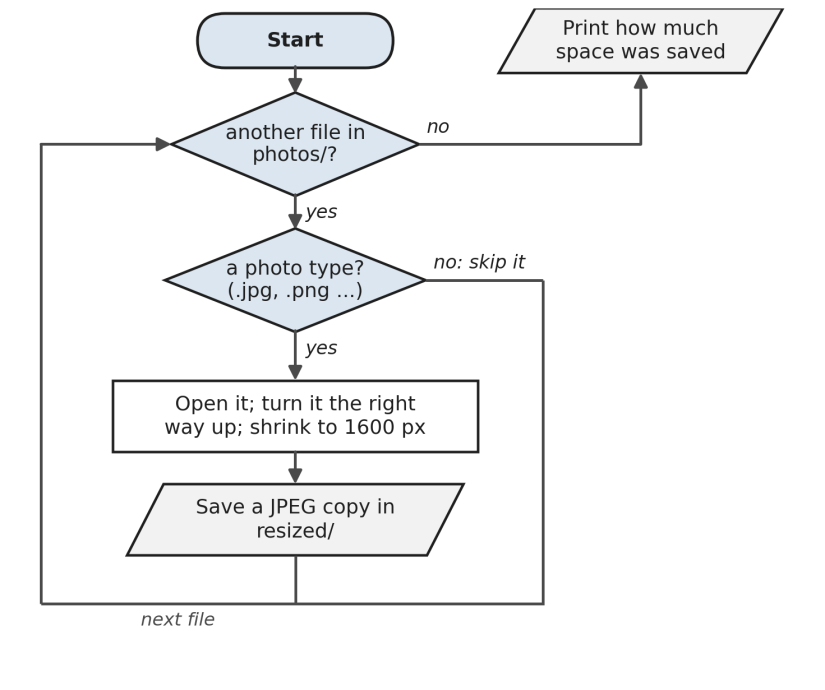
How it works: Figure 28.1 shows the loop. For each photo, Image.open() opens it, and three lines do the real work:
ImageOps.exif_transpose(img)turns the picture the right way up. Phones often save photos sideways and record “rotate this” in the EXIF information instead. Without this line, some of your resized photos would come out lying on their side, which is the classic bug in every photo script.img.thumbnail((MAX_SIZE, MAX_SIZE))shrinks the photo so that its longest side is at most 1600 pixels, keeping its shape. Despite the name, it isn’t just for thumbnails.img.save(..., quality=85, optimize=True)saves it as a JPEG. A quality of 85 looks the same as the original to almost everyone, and takes far less space.
Anything that Pillow can’t open, such as a damaged file, raises an error that’s caught and reported, so one bad file never stops the rest.
Make it yours:
- Change
MAX_SIZEto 800 for email, or 2000 for a website. - Make square thumbnails for a gallery with
ImageOps.fit(img, (300, 300)), which crops to fill the square. - Convert PNG screenshots to JPEG to save space, or the other way round when you need transparency.
#Recipe 28.2: Rename photos by the date they were taken
The job: Photos from a phone are called IMG_4101.jpg; photos from a camera are called DSC0003.JPG. Put them in one folder and they sort into a meaningless jumble. Name them after the moment they were taken, like 2026-03-14_093000.jpg, and they sort themselves into the order things happened, across every device:
1# rename_by_date.py - name photos after the moment they were taken
2import sys
3from datetime import datetime
4from pathlib import Path
5
6from PIL import Image, ExifTags, UnidentifiedImageError
7
8HERE = Path(__file__).parent
9FOLDER = HERE / "photos"
10PHOTO_TYPES = {".jpg", ".jpeg", ".png", ".heic", ".webp"}
11
12
13def date_taken(path):
14    """The camera's 'date taken', or else the file's modified
15    time."""
16    try:
17        with Image.open(path) as img:
18            exif = img.getexif().get_ifd(ExifTags.IFD.Exif)
19            text = exif.get(ExifTags.Base.DateTimeOriginal)
20        if text:
21            return (
22                datetime.strptime(text, "%Y:%m:%d %H:%M:%S"),
23                "camera",
24            )
25    except (UnidentifiedImageError, OSError, ValueError):
26        pass
27    return (
28        datetime.fromtimestamp(path.stat().st_mtime),
29        "file date",
30    )
31
32
33def free_name(path, taken):
34    """Return path, or path with _2, _3... if that name is taken."""
35    candidate, n = path, 2
36    while candidate.exists() or candidate in taken:
37        candidate = path.with_name(
38            f"{path.stem}_{n}{path.suffix}"
39        )
40        n += 1
41    return candidate
42
43
44def make_plan(folder):
45    plan, taken = [], set()
46    for path in sorted(folder.iterdir()):
47        if path.suffix.lower() not in PHOTO_TYPES:
48            continue
49        when, source = date_taken(path)
50        new = (
51            folder
52            / f"{when:%Y-%m-%d_%H%M%S}{path.suffix.lower()}"
53        )
54        if new.name == path.name:
55            continue  # already done
56        new = free_name(new, taken)
57        taken.add(new)
58        plan.append((path, new, source))
59    return plan
60
61
62def main():
63    plan = make_plan(FOLDER)
64    if not plan:
65        print("Nothing to rename.")
66        return
67    for old, new, source in plan:
68        print(f"  {old.name:<14} -> {new.name}   ({source})")
69    if "--apply" not in sys.argv:
70        print(
71            f"Dry run: {len(plan)} photo(s) would be renamed. "
72            "Run again with --apply."
73        )
74        return
75    for old, new, _ in plan:
76        old.rename(new)
77    print(f"Renamed {len(plan)} photo(s).")
78
79
80if __name__ == "__main__":
81    main()
  DSC0003.JPG    -> 2026-03-16_055000.jpg   (camera)
  DSC0006.JPG    -> 2026-03-15_144600.jpg   (camera)
  IMG_4101.jpg   -> 2026-03-16_124500.jpg   (camera)
  ...
Dry run: 8 photo(s) would be renamed. Run again with --apply.
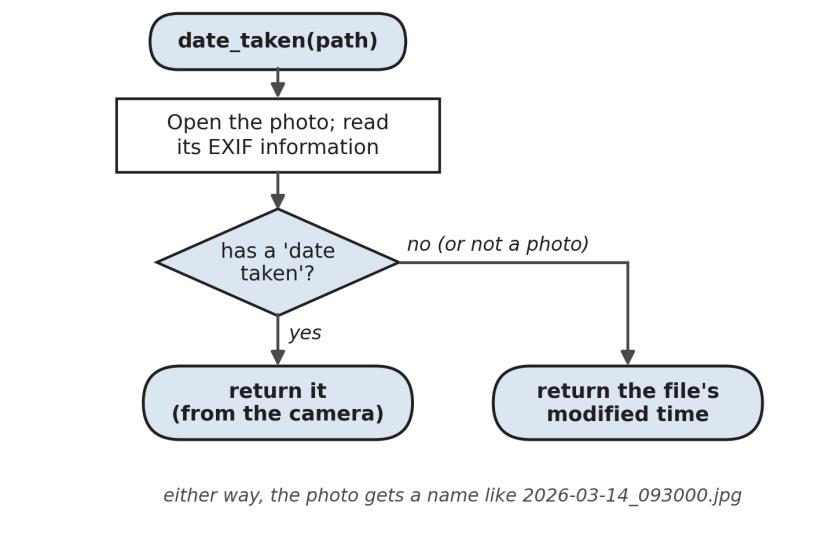
How it works: The heart of the recipe is date_taken(), shown in Figure 28.2. It opens the photo, reads its EXIF information, and looks for the DateTimeOriginal entry. Cameras write that date in an odd format, 2026:03:14 09:30:00, with colons in the date, so strptime is given that exact pattern to read it. If there’s no date taken (a screenshot, an image from the web, a file that isn’t really a photo), the function falls back to the file’s modified time and says so, so you can see which names to trust.
The rest is the safe-renaming pattern from Chapter 14: build the full plan first, show it, and only rename with --apply. Two photos taken in the same second, which happens with burst shots, would want the same name, so free_name() adds _2, _3 and so on. Notice that it checks names already planned as well as files already on disk, the lesson from Hannah’s two cameras in Chapter 14.
Make it yours:
- Sort the photos into folders by month, like
2026-03/, by making the plan’s destinationfolder / f"{when:%Y-%m}" / name. - Add a short word to every name, such as
2026-03-14_093000_lisbon.jpg, by asking for it withinput(). - Keep an undo log, as the organizer in Chapter 14 does.
#Recipe 28.3: Add a watermark to your photos
The job: Hannah, the photographer from Chapter 14, sends clients a preview of their photos before they choose which ones to buy. She wants her name in the corner of every preview, faint enough not to spoil the picture but there all the same:
1# watermark.py - put your name in the corner of every photo
2from pathlib import Path
3
4from PIL import Image, ImageDraw, ImageFont, ImageOps
5
6HERE = Path(__file__).parent
7SOURCE = HERE / "resized"  # watermark the smaller copies
8TARGET = HERE / "watermarked"
9TEXT = "© Hannah Lee Photography"
10OPACITY = 140  # 0 = invisible, 255 = solid
11
12
13def add_watermark(img, text):
14    img = ImageOps.exif_transpose(img).convert("RGBA")
15    layer = Image.new(
16        "RGBA", img.size, (0, 0, 0, 0)
17    )  # transparent
18    draw = ImageDraw.Draw(layer)
19    size = max(16, img.width // 30)  # scale with photo
20    font = ImageFont.load_default(size=size)
21    left, top, right, bottom = draw.textbbox(
22        (0, 0), text, font=font
23    )
24    margin = size
25    x = img.width - (right - left) - margin
26    y = img.height - (bottom - top) - margin
27    draw.text(
28        (x + 2, y + 2), text, font=font, fill=(0, 0, 0, OPACITY)
29    )
30    draw.text(
31        (x, y), text, font=font, fill=(255, 255, 255, OPACITY)
32    )
33    return Image.alpha_composite(img, layer).convert("RGB")
34
35
36def main():
37    if not SOURCE.exists():
38        print(
39            f"No {SOURCE.name}/ folder. Run resize_photos.py first,"
40        )
41        print("or change SOURCE to your own folder of photos.")
42        return
43    TARGET.mkdir(exist_ok=True)
44    count = 0
45    for path in sorted(SOURCE.glob("*.jpg")):
46        with Image.open(path) as img:
47            marked = add_watermark(img, TEXT)
48        marked.save(TARGET / path.name, quality=90)
49        count += 1
50    print(f"Watermarked {count} photo(s) into {TARGET.name}/")
51
52
53if __name__ == "__main__":
54    main()
How it works: Drawing straight onto the photo would make solid, heavy text. To make it see-through, the recipe draws on a separate, completely transparent layer the same size as the photo, using colours with a fourth number, the alpha, which controls how opaque they are: 0 is invisible and 255 is solid. Image.alpha_composite() then lays the text layer over the photo. The text is drawn twice, once in black shifted two pixels and once in white, so it shows up on both light and dark photos.
The font size is worked out from the photo’s width, img.width // 30, so the watermark looks the same size on a small preview and a big print. draw.textbbox() measures how wide and tall the text will be, which is how the recipe tucks it neatly into the bottom-right corner.

Make it yours:
- Use a logo instead of text: open a PNG with a transparent background and paste it with
img.paste(logo, (x, y), logo). - Put the watermark across the middle at a larger size for previews that mustn’t be used at all.
- Use a nicer font with
ImageFont.truetype("path/to/font.ttf", size). Your computer’s fonts are inC:\Windows\Fontson Windows and/Library/Fontson a Mac.
#Recipe 28.4: Certificates for everyone on a list
The job: A community college runs short courses, and every student gets a certificate at the end. Typing each name into a Word document and printing it, forty times a term, is how mistakes like misspelled names creep in. This recipe reads the class list and makes one PDF certificate per person, plus a single file containing all of them for printing.
The class list, attendees.csv:
name,course,date
Ana Silva,Introduction to Python,2026-11-20
Raj Patel,Introduction to Python,2026-11-20
Mei Lin,Introduction to Python,2026-11-20
Tomás Ortega,Introduction to Python,2026-11-20
1# certificates.py - a PDF certificate for everyone on a list
2import csv
3import unicodedata
4from datetime import date
5from pathlib import Path
6
7from pypdf import PdfWriter
8from reportlab.lib.pagesizes import A4, landscape
9from reportlab.pdfgen import canvas
10
11HERE = Path(__file__).parent
12ATTENDEES = HERE / "attendees.csv"
13OUTPUT = HERE / "certificates"
14WIDTH, HEIGHT = landscape(A4)
15ORGANISER = "Riverside Community Learning"
16
17
18def make_certificate(path, name, course, when):
19    c = canvas.Canvas(str(path), pagesize=(WIDTH, HEIGHT))
20    c.setLineWidth(3)
21    c.rect(30, 30, WIDTH - 60, HEIGHT - 60)  # a simple border
22    c.setLineWidth(1)
23    c.rect(40, 40, WIDTH - 80, HEIGHT - 80)
24    centre = WIDTH / 2
25    c.setFont("Helvetica", 20)
26    c.drawCentredString(
27        centre, HEIGHT - 150, "Certificate of Completion"
28    )
29    c.setFont("Helvetica", 14)
30    c.drawCentredString(
31        centre, HEIGHT - 210, "This is to certify that"
32    )
33    c.setFont("Helvetica-Bold", 36)
34    c.drawCentredString(centre, HEIGHT - 270, name)
35    c.setFont("Helvetica", 14)
36    c.drawCentredString(
37        centre, HEIGHT - 320, "has successfully completed"
38    )
39    c.setFont("Helvetica-Bold", 20)
40    c.drawCentredString(centre, HEIGHT - 355, course)
41    c.setFont("Helvetica", 12)
42    c.drawCentredString(
43        centre, 110, f"{ORGANISER}, {when:%d %B %Y}"
44    )
45    c.save()
46
47
48def safe_file_name(name):
49    """'Tomás Ortega' -> 'tomas_ortega', safe on any computer."""
50    plain = unicodedata.normalize("NFKD", name)
51    plain = plain.encode("ascii", "ignore").decode()  # á -> a
52    keep = "".join(
53        ch if ch.isalnum() else "_" for ch in plain.lower()
54    )
55    return keep.strip("_")
56
57
58def main():
59    OUTPUT.mkdir(exist_ok=True)
60    made = []
61    with open(ATTENDEES, newline="", encoding="utf-8") as file:
62        for row in csv.DictReader(file):
63            when = date.fromisoformat(row["date"])
64            path = (
65                OUTPUT
66                / f"certificate_{safe_file_name(row['name'])}.pdf"
67            )
68            make_certificate(
69                path, row["name"], row["course"], when
70            )
71            made.append(path)
72            print(f"  {path.name}")
73
74    everyone = PdfWriter()  # one file for printing
75    for path in made:
76        everyone.append(path)
77    everyone.write(OUTPUT / "all_certificates.pdf")
78    print(
79        f"Made {len(made)} certificate(s),"
80        " plus all_certificates.pdf"
81    )
82
83
84if __name__ == "__main__":
85    main()

How it works: reportlab draws on a page as if it were graph paper, with the point (0, 0) at the bottom-left corner, so text near the top of the page has a large y value. landscape(A4) turns the page sideways, rect() draws the double border, and drawCentredString() centres each line on the page, which is what makes a certificate look formal. Then pypdf’s PdfWriter from Chapter 17 joins all the certificates into one file for printing.
Notice safe_file_name(). Names with accents, like Tomás, are perfectly fine inside the PDF, but they can cause trouble in file names on some systems and when files are emailed or zipped. So the file name uses a plain version, certificate_tomas_ortega.pdf, while the certificate itself keeps the accent. unicodedata.normalize("NFKD", ...) splits “á” into “a” plus an accent mark, and encode("ascii", "ignore") drops the mark.
Make it yours:
- Add a logo with
c.drawImage("logo.png", x, y, width, height). - Email each person their own certificate, by combining this with the mail merge from Recipe 27.3.
- Add a unique certificate number to each one, so they can be checked later.
#Recipe 28.5: Find duplicate files
The job: After years of copying photos from phones, backing up the backup, and downloading the same attachment twice, the same file often exists three or four times under different names. This recipe finds files whose contents are identical, whatever they’re called and wherever they are in a folder:
1# find_duplicates.py - find identical files, whatever their names
2import hashlib
3import shutil
4import sys
5from pathlib import Path
6
7HERE = Path(__file__).parent
8FOLDER = HERE / "photos"
9DUPLICATES = HERE / "duplicates"
10
11
12def fingerprint(path):
13    """A SHA-256 hash of the file's contents, read in chunks."""
14    digest = hashlib.sha256()
15    with open(path, "rb") as file:
16        for chunk in iter(lambda: file.read(1024 * 1024), b""):
17            digest.update(chunk)
18    return digest.hexdigest()
19
20
21def find_groups(folder):
22    """Return lists of paths whose contents are exactly the same."""
23    by_size = {}
24    for path in folder.rglob("*"):
25        if path.is_file():
26            by_size.setdefault(path.stat().st_size, []).append(
27                path
28            )
29    groups = []
30    for same_size in by_size.values():
31        if len(same_size) < 2:
32            continue  # a unique size can't be a duplicate
33        by_hash = {}
34        for path in same_size:
35            by_hash.setdefault(fingerprint(path), []).append(path)
36        groups += [g for g in by_hash.values() if len(g) > 1]
37    return groups
38
39
40def main():
41    groups = find_groups(FOLDER)
42    if not groups:
43        print("No duplicates found.")
44        return
45    extra = 0
46    for group in groups:
47        group.sort(
48            key=lambda p: p.stat().st_mtime
49        )  # oldest first
50        keep, *copies = group
51        print(f"Keeping {keep.relative_to(FOLDER)}")
52        for copy in copies:
53            print(f"  duplicate: {copy.relative_to(FOLDER)}")
54            extra += copy.stat().st_size
55    print(f"{extra / 1e6:.1f} MB could be freed.")
56
57    if "--move" in sys.argv:
58        DUPLICATES.mkdir(exist_ok=True)
59        for group in groups:
60            for copy in group[1:]:
61                target = DUPLICATES / copy.name
62                n = 2
63                while target.exists():
64                    target = (
65                        DUPLICATES
66                        / f"{copy.stem}_{n}{copy.suffix}"
67                    )
68                    n += 1
69                shutil.move(str(copy), str(target))
70        print(
71            f"Moved the duplicates into {DUPLICATES.name}/. "
72            "Check them, then delete the folder yourself."
73        )
74    else:
75        print(
76            "Nothing moved. Run with --move to move the"
77            " copies aside."
78        )
79
80
81if __name__ == "__main__":
82    main()
Keeping IMG_4101.jpg
  duplicate: IMG_4101 (copy).jpg
Keeping IMG_4102.jpg
  duplicate: old/holiday.jpg
0.7 MB could be freed.
Nothing moved. Run with --move to move the copies aside.
How it works: Comparing every file with every other file, byte by byte, would take forever on a big folder. The recipe uses two tricks, shown in Figure 28.5. First, files of different sizes can’t possibly be the same, so it groups files by size, which is instant, and ignores any file whose size is unique. Only files that share a size are read at all.
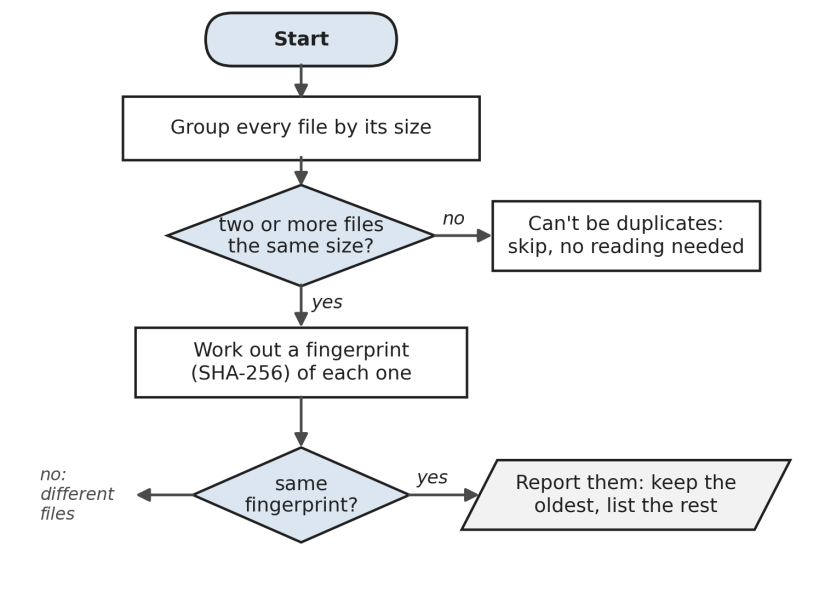
Second, for those, it works out a fingerprint with hashlib.sha256(). A hash function reads a file and produces a short string of 64 characters that depends on every byte in it. Change a single byte and the fingerprint changes completely; two files with the same fingerprint are, for all practical purposes, identical. The file is read in chunks of one megabyte, with iter(lambda: file.read(...), b""), so even a huge video never has to fit in memory at once.
For each group, the oldest file is kept and the rest are listed. With --move, the copies are moved to a duplicates folder rather than deleted, so that you can check them before deleting them yourself. A program that deletes your files on its own is a program that will one day delete the wrong one.
Make it yours:
- Point
FOLDERat your whole Pictures folder (it may take a few minutes the first time). - Write the results to a CSV file with columns for the group, the kept file and each duplicate, so you can review them in a spreadsheet.
- Only look at photos and videos, by checking
path.suffixbefore adding a file to the size groups.
#Recipe 28.6: Rename downloaded PDFs by what’s inside them
The job: Invoices arrive as document.pdf, document (1).pdf and scan_0001.pdf. Finding the one for Omar’s October job means opening them one by one. This recipe reads each PDF, finds the invoice number, the date and the client, and renames the file to say so: 2026-10-09_INV-1043_Omar-Haddad.pdf.
This script makes four practice PDFs with typical download names, written slightly differently from each other, as real invoices are:
1# make_sample_downloads.py - PDFs with typical download names
2from pathlib import Path
3
4from reportlab.lib.pagesizes import A4
5from reportlab.pdfgen import canvas
6
7HERE = Path(__file__).parent
8FOLDER = HERE / "downloads"
9FOLDER.mkdir(exist_ok=True)
10
11DOCS = [
12    (
13        "document.pdf",
14        [
15            "Invoice INV-1042",
16            "Date: 2026-10-03",
17            "Client: Lin Chen",
18            "Total: $880.00",
19        ],
20    ),
21    (
22        "document (1).pdf",
23        [
24            "TAX INVOICE  inv-1043",
25            "Issued 09/10/2026",
26            "Client: Omar Haddad",
27            "Amount due $1,200.00",
28        ],
29    ),
30    (
31        "scan_0001.pdf",
32        [
33            "Invoice number: INV-1044",
34            "Date: 2026-10-15",
35            "Client: Priya Nair",
36            "Total: $100.50",
37        ],
38    ),
39    (
40        "receipt.pdf",
41        [
42            "Thank you for shopping with us!",
43            "No invoice " "number on this one.",
44        ],
45    ),
46]
47
48for name, lines in DOCS:
49    c = canvas.Canvas(str(FOLDER / name), pagesize=A4)
50    y = 780
51    for line in lines:
52        c.drawString(72, y, line)
53        y -= 22
54    c.save()
55print(f"Made {len(DOCS)} PDFs in {FOLDER.name}/")
1# rename_pdfs.py - give downloaded PDFs names that say what they are
2import re
3import sys
4from datetime import datetime
5from pathlib import Path
6
7from pypdf import PdfReader
8
9HERE = Path(__file__).parent
10FOLDER = HERE / "downloads"
11
12INVOICE = re.compile(r"\bINV-(\d+)\b", re.IGNORECASE)
13ISO_DATE = re.compile(r"\b(\d{4})-(\d{2})-(\d{2})\b")
14AU_DATE = re.compile(r"\b(\d{1,2})/(\d{1,2})/(\d{4})\b")
15CLIENT = re.compile(r"Client:\s*(.+)")
16
17
18def first_page_text(path):
19    try:
20        return PdfReader(path).pages[0].extract_text() or ""
21    except Exception:
22        return ""
23
24
25def find_date(text):
26    m = ISO_DATE.search(text)
27    if m:
28        return datetime(*map(int, m.groups())).date()
29    m = AU_DATE.search(text)
30    if m:
31        day, month, year = map(int, m.groups())
32        return datetime(year, month, day).date()
33    return None
34
35
36def new_name(text):
37    """A name like 2026-10-03_INV-1042_Lin-Chen.pdf, or None."""
38    invoice = INVOICE.search(text)
39    when = find_date(text)
40    if not invoice or not when:
41        return None
42    parts = [when.isoformat(), f"INV-{invoice.group(1)}"]
43    client = CLIENT.search(text)
44    if client:
45        parts.append(re.sub(r"\W+", "-", client.group(1).strip()))
46    return "_".join(parts) + ".pdf"
47
48
49def main():
50    plan, unknown, planned = [], [], set()
51    for path in sorted(FOLDER.glob("*.pdf")):
52        name = new_name(first_page_text(path))
53        if name is None:
54            unknown.append(path.name)
55        elif name == path.name:
56            continue  # already named
57        elif (FOLDER / name).exists() or name in planned:
58            print(
59                f"  {path.name}: {name} already exists, so skipped"
60            )
61        else:
62            plan.append((path, FOLDER / name))
63            planned.add(name)
64    for old, new in plan:
65        print(f"  {old.name:<18} -> {new.name}")
66    for name in unknown:
67        print(
68            f"  {name:<18}    (no number or date found: left alone)"
69        )
70    if "--apply" in sys.argv:
71        for old, new in plan:
72            old.rename(new)
73        print(f"Renamed {len(plan)} file(s).")
74    else:
75        print("Dry run. Run again with --apply to rename.")
76
77
78if __name__ == "__main__":
79    main()
  document (1).pdf   -> 2026-10-09_INV-1043_Omar-Haddad.pdf
  document.pdf       -> 2026-10-03_INV-1042_Lin-Chen.pdf
  scan_0001.pdf      -> 2026-10-15_INV-1044_Priya-Nair.pdf
  receipt.pdf           (no number or date found: left alone)
Dry run. Run again with --apply to rename.
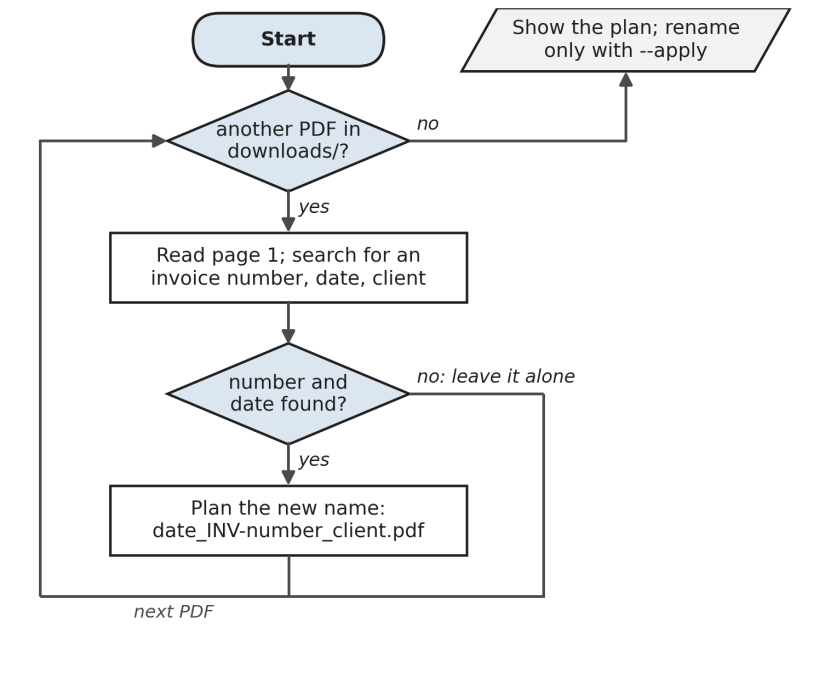
How it works: This recipe brings together Chapter 17’s PDF reading and Chapter 16’s regular expressions, as Figure 28.6 shows. first_page_text() extracts the text of page one. Then four patterns search it. INVOICE finds INV-1043 whether it’s written in capitals or not, thanks to re.IGNORECASE. There are two date patterns, because one supplier writes 2026-10-03 and another writes 09/10/2026, and find_date() tries both, turning either into a proper date. CLIENT picks up whatever follows “Client:”.
The new name puts the date first, so the files sort by date, then the invoice number, then the client’s name with any spaces or odd characters replaced by hyphens. A PDF where the number or the date can’t be found, like the shop receipt, is left alone and reported, rather than given a half-guessed name. Two PDFs that would end up with the same name are caught too, so nothing is ever renamed over another file.
Make it yours:
- Move each renamed file into a folder per client, or per month.
- Add a pattern for your own suppliers’ layouts, and try each pattern in turn, as Ruth did in Chapter 17.
- Write a CSV index of every invoice found, with its date, number, client and total, as you rename.
#On the Job
How it shows up at work: Every organisation handles images and documents in bulk. Marketing teams resize product photos for websites. Estate agents watermark property photos. Schools and training companies produce certificates every term. Accounts teams rename and file hundreds of PDFs a month. In technical jobs, the same skills appear in preparing image datasets for machine learning, generating PDF reports from data, and cleaning up shared drives that have grown out of control.
What employers expect: Never change originals: work on copies, write to a separate folder, or rename only after a dry run. Handle the files that aren’t what you expect, because there’s always one. Know that image and PDF processing can be slow, so test on a small folder before a big one. And think about privacy: photos can contain the location they were taken in, and invoices contain people’s details.
Interview questions you might meet:
- “How would you find duplicate files in a folder of 100,000 files?” Group by size first, then compare hashes only within groups of the same size. Explain why that’s much faster than comparing everything.
- “What is a hash?” A short fingerprint calculated from data. The same data always gives the same hash; any change gives a completely different one. Hashes are used to check files haven’t been changed, to find duplicates, and (with special slow hash functions) to store passwords.
- “Why do some photos come out sideways after resizing?” Phones often store the picture sideways and record the rotation in the EXIF information. You need to apply that rotation, with
ImageOps.exif_transpose()in Pillow, before resizing. - “What’s EXIF, and is there any privacy concern?” Information stored inside a photo, such as the camera, the date and sometimes the GPS location. Before publishing photos, it’s good practice to remove it.
Portfolio task: Combine three recipes into one photo tool with subcommands, using argparse from Chapter 24: photos rename, photos resize, and photos dupes. Include make_sample_photos.py so anyone can try it safely, and show before-and-after folder listings in the README.
Professional habit: For any batch job on files, keep a log of exactly what was changed: old name, new name, time. The day someone asks “what happened to my file?”, the log is the answer.
#Exercises
Solutions are in solutions/chapter_28 in the book’s GitHub repository. Each one makes its own practice files first, so it’s safe to run.
Warm-up
Exercise 28.1. Open a photo with Pillow and print its width, height, format (such as JPEG) and mode (such as RGB). Then print its size in megapixels.
Exercise 28.2. Make a black-and-white copy of a photo with img.convert("L") and save it with _bw added to the name.
Exercise 28.3. Print the date taken for every photo in the photos folder, using date_taken() from Recipe 28.2, sorted from oldest to newest.
Practice
Exercise 28.4. Make square 300 by 300 thumbnails of every photo, using ImageOps.fit(), and save them in a thumbnails folder.
Exercise 28.5. Make a contact sheet: a single image showing small versions of every photo in a grid, four across, with the file name under each. (Create a large blank image with Image.new() and paste() each thumbnail into it.)
Exercise 28.6. Change certificates.py so that names longer than 20 characters are printed in a smaller font, so they never run off the page.
Exercise 28.7. Write a script that strips all EXIF information from copies of your photos before you share them online. (Saving a copy without passing exif= leaves it out.) Check the result by reading the EXIF of a copy.
Exercise 28.8. Make find_duplicates.py write its results to duplicates.csv, with one row per duplicate: the file to keep, the duplicate, and its size in KB.
Challenge
Exercise 28.9. Write photos_by_month.py, which copies (not moves) every photo into folders named by the year and month it was taken, like 2026-03/, using date_taken(). It should never overwrite a file, and should report how many photos went into each folder.
Exercise 28.10. Make name badges for an event: read attendees.csv and make one A4 PDF with eight badges per page (two across, four down), each showing a name in large letters and the course underneath. Start a new page when one is full.
Exercise 28.11. Extend rename_pdfs.py so that, as well as renaming, it writes invoices.csv with the date, invoice number, client and total of every invoice it found. Add a pattern for the total, like \$([\d,]+\.\d{2}).