Open your Downloads folder. Go on, have a look. If it’s like most people’s, it’s full of PDFs you meant to read, installers you ran once, photos from two phones ago, and at least one file called final_v2_REAL (3).docx. Sorting it out by hand takes an afternoon, and a month later it’s back to the same state.
This is where programming starts paying for itself. Renaming three hundred holiday photos so they sort by date. Moving a messy folder’s files into subfolders by type. Doing it all again next Friday with one command. Each of these is a few dozen lines of Python, and you only write them once.
There’s a catch, though, and it’s better you hear it now. A program that moves and renames files can make a mess much faster than you ever could by hand. So half of this chapter is about the habits that make file automation safe: dry runs, asking for confirmation, handling name clashes and keeping an undo log. Please don’t skip that half.
#Setting up a playground
Rule one: never experiment on your real files. Before anything else, we’ll make a folder of fake ones, so a mistake costs nothing. This script creates a folder that looks a lot like a typical Downloads folder:
1# make_messy_folder.py - create practice files to organise
2from pathlib import Path
3
4HERE = Path(__file__).parent
5MESSY = HERE / "messy_downloads"
6
7names = ["report_final.pdf", "IMG_2041.jpg", "budget.xlsx",
8         "song.mp3", "IMG_2042.jpg", "notes.txt", "setup.zip",
9         "invoice_march.pdf", "photo.png", "slides.pptx",
10         "draft (1).docx", "IMG_2043.jpg"]
11
12MESSY.mkdir(exist_ok=True)
13for name in names:
14    (MESSY / name).write_text(f"pretend contents of {name}\n")
15print(f"Created {len(names)} files in {MESSY.name}/")
Run it, and you’ll have a messy_downloads folder with twelve files to play with. If you break something, run it again. That’s the beauty of a playground.
#Bulk renaming
Imagine those IMG_2041.jpg files are photos from a holiday, and you’d like them named lisbon_01.jpg, lisbon_02.jpg, and so on. Here’s the core of a renaming script:
1from pathlib import Path
2
3folder = Path("messy_downloads")
4photos = sorted(folder.glob("IMG_*.jpg"))
5
6for number, photo in enumerate(photos, start=1):
7    new_name = f"lisbon_{number:02d}{photo.suffix}"
8    photo.rename(photo.with_name(new_name))
9    print(f"{photo.name} -> {new_name}")
IMG_2041.jpg -> lisbon_01.jpg
IMG_2042.jpg -> lisbon_02.jpg
IMG_2043.jpg -> lisbon_03.jpg
Let’s take it apart. folder.glob("IMG_*.jpg") finds every file whose name matches the pattern, where * means “anything at all here.” We wrap it in sorted() so the photos are numbered in a predictable order. photo.suffix is the file’s extension, .jpg, so the new name keeps it. photo.with_name(new_name) gives the full path with just the file name swapped. And .rename() does the actual renaming.
The {number:02d} format pads the number with zeros to two digits, giving 01 instead of 1. That small detail matters more than it looks. Computers sort names letter by letter, so without padding, lisbon_10 sorts before lisbon_2, because “1” comes before “2.” With padding, lisbon_02 correctly sorts before lisbon_10. If you’ll have more than 99 files, use 03d.
Now, that script has a problem. It renames files the moment you run it. If you’ve got the pattern slightly wrong, you’ll find out after three hundred files have changed. The fix is the most important habit in this chapter: a dry run. Work out what would happen and show it, without changing anything. Then, only if it looks right, do it for real. Here’s the safer version:
1# rename_photos.py - bulk rename with a dry run first
2from pathlib import Path
3
4folder = Path(__file__).parent / "messy_downloads"
5prefix = input("New name prefix (e.g. lisbon): ").strip()
6
7photos = sorted(folder.glob("IMG_*.jpg"))
8plan = []
9for number, photo in enumerate(photos, start=1):
10    new_name = f"{prefix}_{number:02d}{photo.suffix}"
11    plan.append((photo, photo.with_name(new_name)))
12
13for old, new in plan:
14    print(f"  {old.name:<16} -> {new.name}")
15
16if not plan:
17    print("Nothing to rename.")
18elif input(f"Rename {len(plan)} files? (y/n) ").lower() == "y":
19    for old, new in plan:
20        if new.exists():
21            print(f"  skipped {old.name}: {new.name} exists")
22        else:
23            old.rename(new)
24    print("Done.")
25else:
26    print("No changes made.")
The program now runs in two phases. First it builds a plan, a list of (old, new) pairs, and prints it. Nothing on disk has changed at that point. Then it asks. Only after a “y” does it touch any files, and even then it refuses to overwrite a file that already exists. That new.exists() check is important, because on some systems, renaming onto an existing name silently replaces it.
Building a plan first and acting second feels like extra work. It’s the difference between a tool you trust and a tool you’re scared of.
#Sorting files
The next classic job is sorting files into folders. The simplest approach is by type: images in one folder, documents in another. The file extension tells you the type, so all you need is a dictionary from extension to folder name:
1CATEGORIES = {
2    "Images": [".jpg", ".jpeg", ".png", ".gif", ".heic"],
3    "Documents": [".pdf", ".docx", ".txt", ".pptx", ".md"],
4    "Spreadsheets": [".xlsx", ".csv"],
5    "Audio": [".mp3", ".wav", ".m4a"],
6    "Archives": [".zip", ".tar", ".gz"],
7}
8
9
10def category_for(path):
11    ext = path.suffix.lower()
12    for category, extensions in CATEGORIES.items():
13        if ext in extensions:
14            return category
15    return "Other"
path.suffix.lower() handles the photos that came off a phone as IMG_0012.JPG with capital letters. Anything we don’t recognise goes into “Other,” so no file is ever left without a home.
Moving a file into a folder uses shutil.move(), which works across drives and handles a few edge cases that .rename() doesn’t:
1import shutil
2
3target_folder = folder / category_for(file)
4target_folder.mkdir(exist_ok=True)
5shutil.move(file, target_folder / file.name)
Sorting by date is just as easy, using the modification time you met in Chapter 13. Each file’s stat().st_mtime can be turned into a readable date with datetime.fromtimestamp(), and then you can group files into folders like 2026-11:
1from datetime import datetime
2
3stamp = datetime.fromtimestamp(file.stat().st_mtime)
4month_folder = folder / f"{stamp:%Y-%m}"
That’s a lovely way to tame a folder of thousands of photos: one folder per month, created automatically.
#Safe automation strategies
We’ve already met dry runs and the “don’t overwrite” check. Let’s gather all the safety habits together, because a file-moving program should have every one of them. Figure 14.1 shows the shape.
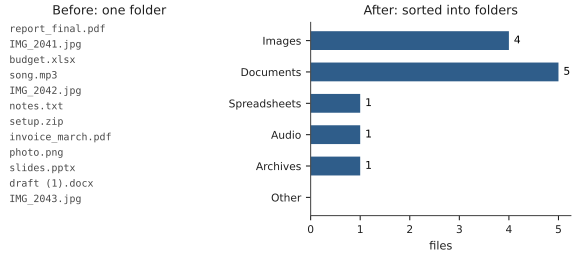
Plan, show, confirm, act: Never move or rename anything in the same loop that decides what to do. Build the full plan first, show it, and ask.
Handle name collisions: If Documents/notes.txt already exists and you move another notes.txt there, one of them disappears. The usual fix is to add a number: notes.txt, then notes_1.txt, then notes_2.txt. Here’s a function for that:
1def free_name(path):
2    """Return path, or path with _1, _2... if it's taken."""
3    candidate = path
4    n = 1
5    while candidate.exists():
6        new_name = f"{path.stem}_{n}{path.suffix}"
7        candidate = path.with_name(new_name)
8        n += 1
9    return candidate
Hannah, a wedding photographer, is the reason this function is in the book. She shot a wedding with two cameras, then ran a script to sort the photos into folders by hour. Both cameras numbered their files the same way, so there were two IMG_0412.jpgs, two IMG_0413.jpgs, and about six hundred other pairs. Luckily, her script did a dry run first. She was skimming the plan when she noticed the same target name appearing twice in a row, stopped, and added a collision check. Without the dry run, half the bride’s photos would have silently replaced the other half.
Leave things you didn’t create alone: Skip folders, skip hidden files (names starting with a dot, which often hold system settings), and skip the program’s own files.
Keep an undo log: Every time you move a file, write down where it came from and where it went. If something goes wrong, or you just change your mind, a second command can read the log and put everything back. Of all the habits, this is the one that lets you sleep at night.
Stop at the first sign of trouble: If moving a file fails, perhaps because it’s open in another program, it’s usually better to log the problem and skip that file than to crash halfway with half the files moved and no record.
#Project: Automatic File Organizer
Let’s put every one of those habits into a real tool. organizer.py sorts a folder by file type. It builds a plan, shows it as a dry run, asks before acting, avoids overwriting anything, records every move in an undo log, and can reverse the whole lot with one command:
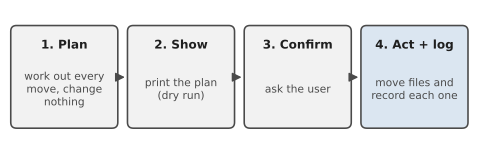
Figure 14.2 shows the program’s decisions. Look at how many ways it has to stop safely before a single file is moved: if the folder doesn’t exist, if there’s nothing to do, or if you answer anything other than y. Only the path all the way down the left-hand side actually changes anything.
1# organizer.py - sort a folder into subfolders by file type
2import csv
3import shutil
4import sys
5from pathlib import Path
6
7CATEGORIES = {
8    "Images": [".jpg", ".jpeg", ".png", ".gif", ".heic"],
9    "Documents": [".pdf", ".docx", ".txt", ".pptx", ".md"],
10    "Spreadsheets": [".xlsx", ".csv"],
11    "Audio": [".mp3", ".wav", ".m4a"],
12    "Archives": [".zip", ".tar", ".gz"],
13}
14UNDO_LOG = "organizer_undo.csv"
15
16
17def category_for(path):
18    ext = path.suffix.lower()
19    for category, extensions in CATEGORIES.items():
20        if ext in extensions:
21            return category
22    return "Other"
23
24
25def free_name(path):
26    candidate, n = path, 1
27    while candidate.exists():
28        new_name = f"{path.stem}_{n}{path.suffix}"
29        candidate = path.with_name(new_name)
30        n += 1
31    return candidate
32
33
34def make_plan(folder):
35    """Return the planned (source, destination) moves."""
36    plan = []
37    for item in sorted(folder.iterdir()):
38        if item.is_dir() or item.name.startswith("."):
39            continue
40        if item.name == UNDO_LOG:
41            continue
42        destination = folder / category_for(item) / item.name
43        plan.append((item, destination))
44    return plan
45
46
47def carry_out(plan, folder):
48    moved = 0
49    with open(folder / UNDO_LOG, "a", newline="") as log:
50        writer = csv.writer(log)
51        for source, destination in plan:
52            destination.parent.mkdir(exist_ok=True)
53            destination = free_name(destination)
54            try:
55                shutil.move(source, destination)
56            except OSError as error:
57                print(f"  could not move {source.name}: {error}")
58                continue
59            writer.writerow([source, destination])
60            moved += 1
61    return moved
62
63
64def undo(folder):
65    log_path = folder / UNDO_LOG
66    if not log_path.exists():
67        print("Nothing to undo.")
68        return
69    with open(log_path, newline="") as log:
70        moves = list(csv.reader(log))
71    for source, destination in reversed(moves):
72        if Path(destination).exists():
73            shutil.move(destination, free_name(Path(source)))
74    log_path.unlink()
75    for category in list(CATEGORIES) + ["Other"]:
76        sub = folder / category
77        if sub.is_dir() and not any(sub.iterdir()):
78            sub.rmdir()            # remove folders we emptied
79    print(f"Put back {len(moves)} file(s).")
80
81
82def main():
83    default = Path(__file__).parent / "messy_downloads"
84    folder = Path(sys.argv[1]) if len(sys.argv) > 1 else default
85    if not folder.is_dir():
86        print(f"{folder} is not a folder.")
87        return
88
89    choice = input("(o)rganise or (u)ndo? ").strip().lower()
90    if choice == "u":
91        undo(folder)
92        return
93
94    plan = make_plan(folder)
95    if not plan:
96        print("Nothing to organise.")
97        return
98    print(f"\nDry run for {folder.name}/:")
99    for src, dest in plan:
100        print(f"  {src.name:<20} -> {dest.parent.name}/")
101    if input(f"\nMove {len(plan)} files? (y/n) ").lower() == "y":
102        print(f"Moved {carry_out(plan, folder)} file(s). "
103              f"Run again and choose 'u' to undo.")
104    else:
105        print("No changes made.")
106
107
108if __name__ == "__main__":
109    main()
The functions mirror the safety pipeline exactly. make_plan() decides what should happen and changes nothing. main() shows the plan and asks. carry_out() does the moving, avoids collisions with free_name(), skips any file it can’t move, and records each successful move. undo() reads that record backwards, puts everything back where it came from, and removes any category folders it left empty.
Two small new tools appear. The undo log uses Python’s csv module, which writes and reads rows of values safely, even if a file name contains a comma. You’ll see much more of it in the next chapter. (The newline="" argument is something the csv module asks for when opening files; just include it.) And sys.argv holds any extra words typed after the program name on the command line. So python organizer.py ~/Downloads organises your real Downloads folder, while running it with no extra words uses the practice folder. That makes the tool usable from a terminal, a shortcut, or a scheduled task, all without changing the code.
Here’s a run on the practice folder:
(o)rganise or (u)ndo? o

Dry run for messy_downloads/:
  IMG_2041.jpg         -> Images/
  IMG_2042.jpg         -> Images/
  IMG_2043.jpg         -> Images/
  budget.xlsx          -> Spreadsheets/
  draft (1).docx       -> Documents/
  invoice_march.pdf    -> Documents/
  notes.txt            -> Documents/
  photo.png            -> Images/
  report_final.pdf     -> Documents/
  setup.zip            -> Archives/
  slides.pptx          -> Documents/
  song.mp3             -> Audio/

Move 12 files? (y/n) y
Moved 12 file(s). Run again and choose 'u' to undo.
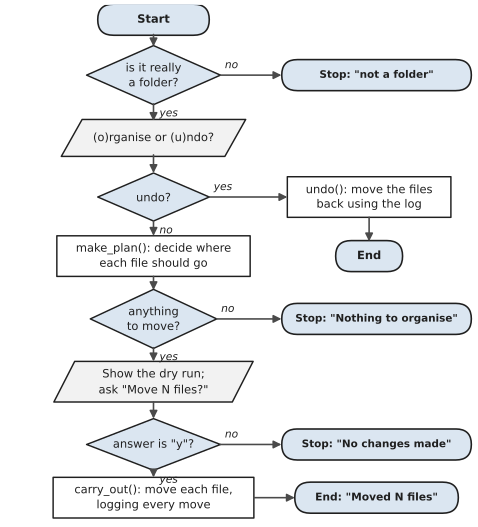
Figure 14.3 shows the result: twelve files in one folder became five tidy categories.
Now run it again and choose u. Everything goes back where it was. Run make_messy_folder.py and organizer.py a few times, organising and undoing, until you trust it. Only then point it at a real folder, and even then, the first time, maybe a copy of one.
Some ways to extend it:
- Add a choice to sort by month instead of by type, using the date code from earlier.
- Add your own categories, like “Code” for
.pyfiles or “Videos” for.mp4. - Add the organizer as a task in the automation toolkit from Chapter 13. You already have everything you need: a
run()method that callsmake_plan()andcarry_out(), with the folder read fromtoolkit.ini.
Files and folders are the foundation of almost every automation. Next, we’ll look inside the files themselves, starting with the format that runs half the world’s offices: spreadsheets.
#On the Job
How it shows up at work: File automation is one of the most common reasons people outside IT learn Python at all. Offices are full of jobs like “rename these scans to the client’s name and date,” “move last month’s invoices into an archive folder,” or “collect every report from these forty folders into one place.” In technical jobs, the same skills turn up in cleaning up data exports, managing log files, and preparing files for other systems.
What employers expect: Use pathlib and shutil confidently, and above all, be safe: a dry run by default, a confirmation before anything changes, collision handling, and a way to undo. Someone who automates a task but loses a file along the way has made things worse, and that’s how employers will see it.
Interview questions you might meet:
- “How would you find every
.csvfile in a folder and all its subfolders?”Path(folder).rglob("*.csv"). - “What’s the difference between
shutil.copy,shutil.moveandPath.rename?” Copy leaves the original in place. Move relocates it, even to another drive.renamechanges the name or location on the same drive, and on some systems silently overwrites an existing file. - “What’s a dry run, and why bother?” Showing exactly what a program would do, without doing it. It’s the cheapest safety check there is. Hannah’s story is a good example to have ready.
- “How would you make a file-moving script undoable?” Record every
(from, to)pair in a log as you go, and write a command that replays the log backwards.
Portfolio task: Push the file organizer, including its undo feature. In the README, show a before-and-after folder listing and the dry-run output. Then write a short “Safety” section listing the protections the program has. That section alone tells a reviewer a lot about how you think.
Professional habit: Never test file automation on real files first. Make a playground folder of fake files, as this chapter did, and only point the program at real data once it has behaved perfectly there.
#Exercises
Solutions are in solutions/chapter_14 in the book’s GitHub repository. Every solution builds its own playground folder of fake files to work on, so you can run them without risking anything of yours.
Warm-up
Exercise 14.1. Write a script that creates a folder called playground containing ten empty files with a mix of extensions: .txt, .jpg, .pdf and .csv.
Exercise 14.2. List every file in playground, with its size in bytes, sorted by name.
Exercise 14.3. Count how many files of each extension there are in playground. Print the results like .txt: 3.
Practice
Exercise 14.4. Rename every .txt file in playground so its name is in lower case with spaces replaced by underscores. Do a dry run first that prints each old -> new pair, and only rename after the user types y.
Exercise 14.5. Add a date prefix to every file, so that report.pdf becomes 2026-11-05_report.pdf, using the date each file was last modified. Skip files that already start with a date.
Exercise 14.6. Write a script that moves every image (.jpg, .jpeg, .png) from playground into playground/Images, creating the folder if needed, and uses free_name() so nothing is ever overwritten.
Exercise 14.7. Find duplicate file names across a folder and all its subfolders: print any name that appears in more than one place, with every location.
Exercise 14.8. Write a script that numbers photos in order of their modification time: holiday_001.jpg, holiday_002.jpg, and so on. The user chooses the word at the start.
Challenge
Exercise 14.9. Hannah’s problem. Create a playground with two subfolders, camera_a and camera_b, each containing IMG_0001.jpg to IMG_0005.jpg. Write a script that gathers every photo into one all_photos folder, renaming them so none is lost (for example, a_IMG_0001.jpg). Check at the end that the number of files matches.
Exercise 14.10. Write an “archive old files” script: files not modified in the last N days (the user chooses N) are moved into archive/<year>-<month>/ folders, based on their modification date. Record every move in a CSV file, moves.csv.
Exercise 14.11. Write the matching undo script for Exercise 14.10. It reads moves.csv and puts every file back, in reverse order, skipping (and reporting) any file that’s no longer where the log says it should be.
Exercise 14.12. Write a folder-size report: for each subfolder of a folder, print its total size in KB and how many files it contains, biggest first.