Every program you’ve written so far has had the same flaw. The moment it ends, everything it knew is gone. Your expense tracker forgets every coffee. Your calculator forgets every sum. It’s like a waiter with a perfect memory for exactly one evening, who arrives at work the next day having forgotten every regular customer.
Programs remember things the same way people do when their memory isn’t enough: they write things down. On a computer, writing things down means files. A file outlives the program that wrote it. You can close the program, switch off the computer, come back next week, and the file is still there, ready to be read.
Files are also where automation really begins. Most of the boring work people do on computers is file work: renaming, sorting, copying, pulling data out of one file and putting it into another. In this chapter you’ll read text files, all at once or line by line, and write and add to them. You’ll learn how file paths work, which is the bit that trips people up most often. And because files hold things people care about, we’ll spend some time on the habits that stop a program from destroying data.
#Reading files
Let’s start with a file to read. In your project folder, create a plain text file called shopping.txt (in VS Code, File > New File, then save it with that name) and type in a few lines:
milk
eggs
bread
tea
Now, in a Python file in the same folder:
1with open("shopping.txt") as file:
2    contents = file.read()
3
4print(contents)
open() finds the file and gives you a way to work with it. The with line is the important habit here. It says: open this file, call it file while we’re using it, and close it again automatically as soon as the indented block ends, even if an error happens halfway through. You could open and close files by hand, but forgetting to close one is easy and causes strange problems later. with makes forgetting impossible.
.read() gives you the whole file as one big string. That’s fine for small files, but often you want to deal with one line at a time. A file object can be looped over directly, and each round gives you the next line:
1with open("shopping.txt") as file:
2    for line in file:
3        print(f"- {line.strip()}")
Why .strip()? Each line read from a file still has its newline character, the invisible \n that marks the end of a line, attached to the end. Print it as it is and you’ll get double-spaced output, because print adds its own newline as well. .strip() removes it.
There’s another common pattern: read all the lines into a list, cleaning them as you go, with the comprehension you met in Chapter 7:
1with open("shopping.txt") as file:
2    items = [line.strip() for line in file if line.strip()]
3
4print(items)        # ['milk', 'eggs', 'bread', 'tea']
5print(len(items), "things to buy")
The if line.strip() at the end skips blank lines, which almost every real file has somewhere.
If the file isn’t where you said it was, open() raises a FileNotFoundError. Now that you know try and except, you can deal with that politely:
1try:
2    with open("shopping.txt") as file:
3        print(file.read())
4except FileNotFoundError:
5    print("No shopping list yet. Lucky you!")
#Writing files
To write a file, you open it with a second argument, a mode, which tells Python what you plan to do:
1with open("greeting.txt", "w") as file:
2    file.write("Hello from Python!\n")
3    file.write("This line came second.\n")
"w" means write. If the file doesn’t exist, Python creates it. If it does exist, Python empties it first and starts from nothing. Read that sentence again, because it’s the most dangerous thing in this chapter. Opening an existing file in "w" mode erases its contents immediately, before you’ve written a single character.
Notice that .write() doesn’t add a newline for you, unlike print. If you want each piece on its own line, you add \n yourself.
When you want to add to the end of a file without destroying what’s already there, use "a", for append:
1with open("log.txt", "a") as file:
2    file.write("Program started\n")
Run that three times and log.txt will have three lines. That’s exactly how log files work, and we’ll use this in our project.
There are three modes you’ll use constantly:
| Mode | Meaning | If the file exists | If it doesn’t |
|---|---|---|---|
"r" | read (the default) | reads it | FileNotFoundError |
"w" | write | erases it, then writes | creates it |
"a" | append | adds to the end | creates it |
One more detail is worth adopting now. Text can be stored in different ways, called encodings, and different computers have different defaults. A file with an accented name or an emoji, written on one machine, can come out garbled on another. To avoid that, tell Python to use UTF-8, the modern standard that handles every language:
1with open("notes.txt", "a", encoding="utf-8") as file:
2    file.write("Café meeting at 3pm ☕\n")
It’s a few extra characters, and it saves you from a whole category of baffling bugs. We’ll use it in all our file code from now on.
#File paths explained
So far we’ve used bare file names like "shopping.txt". Python looked for them in the current working directory, the folder your program is running “from.” Most of the time, that’s your project folder, so everything works. But sometimes it isn’t, and then your perfectly correct program can’t find a file that’s sitting right there. To understand why, you need to understand paths.
A path is a file’s address. Like a street address, it can be written in full, or relative to where you’re standing. Figure 30.1 shows both.
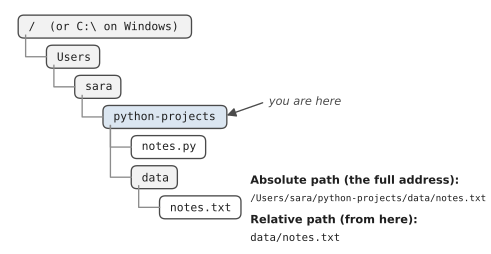
An absolute path is the full address, starting from the very top of the computer’s filing system. On a Mac or on Linux the top is /, so a full path looks like /Users/sara/python-projects/data/notes.txt. Windows starts with a drive letter instead: C:\Users\Sara\python-projects\data\notes.txt. Absolute paths work from anywhere on your computer. The trouble starts when you send the program to a friend, because their computer has no folder called /Users/sara.
A relative path is more like directions from where you’re standing. data/notes.txt means “from here, go into the data folder and find notes.txt.” That travels well between computers, but only if “here” is the right place, which is exactly what goes wrong when a program can’t find its file. .. means “go up one folder,” the same as in the terminal.
You might also have spotted that Windows uses backslashes and everyone else uses forward slashes. Don’t worry about that. Python has a module called pathlib that deals with it for you, on every system:
1from pathlib import Path
2
3data_folder = Path("data")
4notes_file = data_folder / "notes.txt"
5
6print(notes_file)            # data/notes.txt (or data\notes.txt)
7print(notes_file.exists())   # True or False
8print(notes_file.suffix)     # .txt
9print(notes_file.stem)       # notes
No, that / isn’t division. pathlib borrows the slash to mean “join these two parts of a path,” and it quietly uses the right separator for the computer it’s running on. Path objects also know a few handy things about themselves, like .exists(), .name, and .parent (the folder the file sits in).
Here’s the trick that solves the “it can’t find my file” problem for good. Every Python file knows its own location, stored in a special variable called __file__. So you can build paths relative to where your script lives, rather than where it happens to have been run from:
1from pathlib import Path
2
3HERE = Path(__file__).parent
4notes_file = HERE / "data" / "notes.txt"
Now your program finds its data whether you run it from VS Code, from a terminal in another folder, or from a scheduled task at 3am (which we’ll do in Chapter 18).
Path objects can create folders and list what’s inside them, too:
1folder = HERE / "data"
2folder.mkdir(exist_ok=True)      # create it if it's missing
3
4for item in folder.iterdir():
5    print(item.name)
exist_ok=True means “don’t complain if it’s already there,” which is almost always what you want. And Path objects can be passed straight to open(), or you can use their own shortcuts: notes_file.read_text(encoding="utf-8") reads a whole file in one line, and notes_file.write_text(...) writes one.
#Avoiding data loss
Files hold things people care about, sometimes years of them. A program that damages a file can do far more harm than one that merely crashes. So let’s talk about the habits that keep data safe.
Be suspicious of "w": Every time you open a file in write mode, ask yourself whether it might already contain something important. If you’re adding to a file, you almost certainly want "a". If you’re replacing it, make sure you meant to.
Mei kept a log of every book she’d read for three years, one line per book, in a file called books.txt. She wrote a small script to add new entries, and it worked beautifully for a week. Then she tidied the code, and somewhere in the tidying, an "a" became a "w". The next time she added a book, the file contained exactly one line: the book she’d just finished. Three years of entries were gone, and she had no backup. She rebuilt about half the list from memory and old library receipts. Mei now has a rule that you’re about to see in this chapter’s project: the program makes a copy of the file before it changes anything.
Check before you overwrite: A one-line if can save someone’s afternoon:
1report = HERE / "report.txt"
2if report.exists():
3    answer = input("report.txt exists. Overwrite? (y/n) ")
4    if answer.lower() != "y":
5        print("Leaving it alone.")
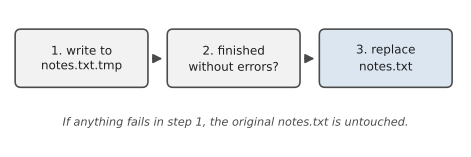
Write to a temporary file, then swap: Imagine your program is halfway through rewriting an important file when the power cuts out. The file is now half old, half new, and wholly useless. The safe pattern is to write the new version to a separate temporary file first, and only when that’s finished successfully, replace the original with it. Figure 14.1 shows the idea.
In code:
1def save_safely(path, text):
2    """Write text to path without risking a half-written file."""
3    temp = path.with_suffix(path.suffix + ".tmp")
4    temp.write_text(text, encoding="utf-8")
5    temp.replace(path)
.replace() swaps the files in a single step that the operating system guarantees won’t be interrupted halfway. Either the old file is there or the new one is, never half of each.
Keep a backup before big changes: Python’s shutil module can copy files in one line:
1import shutil
2shutil.copy(report, HERE / "report_backup.txt")
Before any operation that changes lots of data, a quick backup turns a disaster into a minor inconvenience. You’ll lean on this heavily in Chapter 14, when we start renaming and moving files in bulk.
#Project: File-Based Note or Log System
Let’s build a little journal you can run from the terminal. It saves every note to a file with the date and time, so your notes survive between runs. You can list them, search them, and clear them, and clearing makes a backup first, just in case. Save it as journal.py:
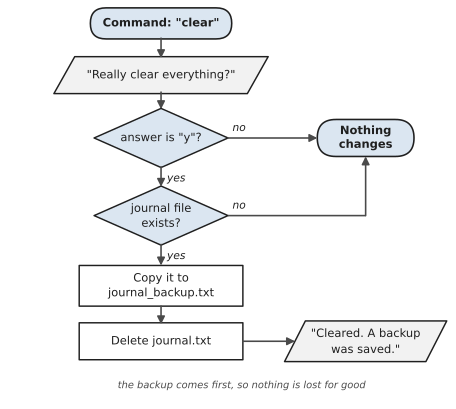
The journal’s menu loop works like the ones you’ve already seen. The part worth studying is the clear command, because it’s the only one that destroys anything. Figure 9.3 shows how carefully it works: it asks first, checks the file is really there, and makes a backup before it deletes.
1# journal.py
2# A simple journal that keeps its notes in a text file.
3import shutil
4from datetime import datetime
5from pathlib import Path
6
7HERE = Path(__file__).parent
8DATA = HERE / "data"
9JOURNAL = DATA / "journal.txt"
10
11
12def add_note(text):
13    DATA.mkdir(exist_ok=True)
14    stamp = datetime.now().strftime("%Y-%m-%d %H:%M")
15    with open(JOURNAL, "a", encoding="utf-8") as file:
16        file.write(f"{stamp} | {text}\n")
17
18
19def read_notes():
20    """Return a list of notes, or an empty list if none exist."""
21    if not JOURNAL.exists():
22        return []
23    with open(JOURNAL, encoding="utf-8") as file:
24        return [line.rstrip("\n") for line in file
25                if line.strip()]
26
27
28def search_notes(word):
29    word = word.lower()
30    return [n for n in read_notes() if word in n.lower()]
31
32
33def clear_notes():
34    if JOURNAL.exists():
35        backup = DATA / "journal_backup.txt"
36        shutil.copy(JOURNAL, backup)
37        JOURNAL.unlink()      # delete the file
38        print(f"Cleared. A backup was saved to {backup.name}.")
39
40
41def show(notes):
42    if not notes:
43        print("  (nothing to show)")
44    for note in notes:
45        print(" ", note)
46
47
48print("Journal. Commands: add, list, search, clear, quit")
49while True:
50    command = input("\n> ").strip().lower()
51    if command == "add":
52        text = input("Note: ").strip()
53        if text:
54            add_note(text)
55            print("Saved.")
56    elif command == "list":
57        show(read_notes())
58    elif command == "search":
59        show(search_notes(input("Search for: ")))
60    elif command == "clear":
61        if input("Really clear everything? (y/n) ") == "y":
62            clear_notes()
63    elif command == "quit":
64        break
65    else:
66        print("Commands: add, list, search, clear, quit")
There’s one new import here, datetime, which knows about dates and times. datetime.now() gives you the current moment, and .strftime("%Y-%m-%d %H:%M") formats it as text like 2026-11-05 14:32. The % codes stand for year, month, day, hour, and minute. Chapter 18 is all about time, so we’ll leave the details there.
Look at how the program is organised. Each function does one file job, and the loop at the bottom only deals with talking to the user. The file location is defined once, at the top, from Path(__file__).parent. Notes are appended, never overwritten, so adding a note can’t damage the ones already there. Reading checks whether the file exists first. And the only destructive command, clear, asks for confirmation and makes a backup before deleting anything. .unlink(), by the way, is pathlib‘s rather odd name for deleting a file.
Here’s a session spread over two runs:
Journal. Commands: add, list, search, clear, quit

> add
Note: Started chapter 9. Files finally make sense.
Saved.

> add
Note: Remember to back up the expense data.
Saved.

> quit
And later, after running it again:
Journal. Commands: add, list, search, clear, quit

> list
  2026-11-05 14:32 | Started chapter 9. Files finally make sense.
  2026-11-05 14:33 | Remember to back up the expense data.

> search
Search for: backup
  (nothing to show)

> search
Search for: back up
  2026-11-05 14:33 | Remember to back up the expense data.
The notes survived. That’s the whole point. Open data/journal.txt in your editor, too. It’s just a text file, readable by people as well as programs, which is one of the nice things about plain text.
Some ways to take it further:
- Add a
todaycommand that only shows notes from today. (Hint: every note starts with the date, sonote.startswith(...)will help.) - Make the expense tracker from Chapter 6 save each expense to a file as a line like
5.20,food,Flat white, and load them all again when it starts. - Add a
countcommand that tells you how many notes you’ve written in total.
Your programs can now remember things between runs, which changes what they can be used for. But journal.py is already getting long, and the next few projects will be longer still. In the next chapter, we’ll learn how to split a program across several files so it stays easy to work with.
#On the Job
How it shows up at work: Files are where most automation jobs start and end. A typical request sounds like “every morning we get a text file from the supplier; can you pull out the totals?” or “can the script write a summary to a file the manager can open?” Logs, which are text files that programs write about what they’ve done, are how teams find out what went wrong overnight. Reading a log file and finding the one interesting line among thousands is a skill you’ll use constantly.
What employers expect: Open files with with so they’re always closed, use encoding="utf-8", and build paths with pathlib instead of gluing strings together. Most of all, they expect you not to destroy data: append when you mean append, check before overwriting, and back up before big changes. A developer who loses a client’s file once is remembered for it.
Interview questions you might meet:
- “What’s the difference between modes
"r","w"and"a"?” Read, write (which empties the file first) and append (which adds to the end). - “Why use
with open(...)?” It closes the file automatically, even if an error happens halfway through. - “How would you read a very large file without running out of memory?” Loop over it line by line,
for line in file:, instead of reading it all with.read(). - “Why does my script find the file when I run it from VS Code but not from the terminal?” Relative paths are relative to the folder you run the program from, not the folder the script is in.
Path(__file__).parentfixes it.
Portfolio task: Push journal.py with the count command added. Add a sample notes file to the repository too, so anyone who looks at it can try the program straight away. (Never commit files with real personal information. Make the sample up.)
Professional habit: Before running any new code that writes or deletes files, try it on a copy of the data in a test folder first. It takes a minute, and it’s the minute you’ll be most grateful for.
#Exercises
Solutions are in solutions/chapter_09 in the book’s GitHub repository. Some exercises need a text file to work on. The solutions folder includes a sample file, poem.txt, and the solutions that need it use it. You can make your own with any text you like.
Warm-up
Exercise 9.1. Write a program that creates a file called hello.txt containing three lines of text, then reads the file back and prints it.
Exercise 9.2. Add a fourth line to hello.txt without losing the first three. Print the file again to check.
Exercise 9.3. Using pathlib, print the name, the suffix (extension) and the parent folder of the path reports/2026/summary.txt. The file doesn’t need to exist.
Exercise 9.4. Write a program that asks for a filename and says whether it exists in the same folder as the program.
Practice
Exercise 9.5. Read poem.txt and print each line with its line number in front, like 3: I count the minutes, then I count the cup,.
Exercise 9.6. Count the lines, words and characters in poem.txt, like a tiny version of the wc command.
Exercise 9.7. Ask the user for a word and print every line of poem.txt that contains it, ignoring capitals. If no lines match, say so.
Exercise 9.8. Keep asking for items until the user types done, then save them to shopping.txt, one per line. When the program runs again, it should show the saved list before asking for new items, and add the new ones to the end.
Exercise 9.9. Copy poem.txt to poem_upper.txt with every line in capital letters.
Exercise 9.10. Write a program that saves a high score. It reads the current best from best_score.txt (or uses 0 if the file doesn’t exist yet), asks for a new score, and updates the file only if the new score is higher.
Challenge
Exercise 9.11. Mei’s safe book log. Write a program that adds a book title to books.txt, but first copies the existing file to books_backup.txt. Use "a" mode for the new entry, and print how many books are now in the log.
Exercise 9.12. Write save_safely(path, text) from this chapter, and use it to save a settings file with three lines of name=value pairs. Then write load_settings(path) that reads the file back into a dictionary.
Exercise 9.13. Write a program that reads poem.txt and writes word_counts.txt, listing each word and how many times it appears, most common first. Strip commas and full stops from the ends of words with .strip(",.").