Your programs so far have the memory of a goldfish. They print something, and the moment the line is done, it’s gone. Real programs need to hold on to things: a name someone typed, a price, a running total, the number of files left to process. This chapter is about how Python remembers.
It’s also the chapter where code starts to feel less like copying and more like writing. By the end, you’ll have built a small program that asks a person about themselves and prints a tidy little profile card. To get there, we’ll look at what a variable really is (it’s simpler than the word suggests), the handful of data types you’ll use every day, arithmetic, joining text together, and how to make output look neat instead of cramped. We’ll finish with the mistakes nearly everyone makes at first, so you can recognise them when they happen to you.
#Variables explained intuitively
Picture a cloakroom at a theatre. You hand over your coat, and the attendant gives you a small ticket with a number on it. The ticket isn’t the coat. It’s a way of finding the coat again later. Python’s variables work the same way. A variable is a name you attach to a value so you can find that value again.
Here’s what that looks like:
1name = "Sara"
2age = 29
3height = 1.68
Read the = sign as “now refers to,” not as “equals.” The first line says, “the name name now refers to the text Sara.” Once that line has run, anywhere you write name, Python fetches “Sara” for you:
1print(name)
2print(age)
Sara
29
A lot of books describe variables as boxes that hold things. That picture works for a while, but it breaks later, so we prefer labels. The value sits somewhere in the computer’s memory, and the variable is a tag tied to it, as in Figure 3.1.
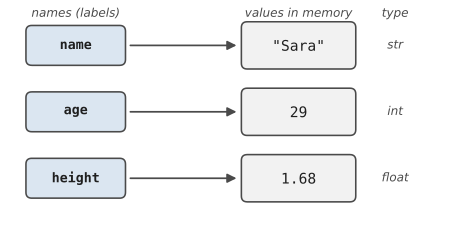
Labels can move. If you write a new value under an existing name, Python simply ties the label to the new value:
1score = 10
2score = 15
3print(score)
This prints 15. The old value 10 hasn’t been edited; the label score just points somewhere else now (Figure 3.2). And because the right-hand side is always worked out first, you can even use a variable to update itself:
1score = score + 5 # take the current score, add 5, re-label
If that line looks like bad algebra, that’s because it is. It’s not algebra at all. It’s an instruction: work out score + 5, then make score refer to the answer.
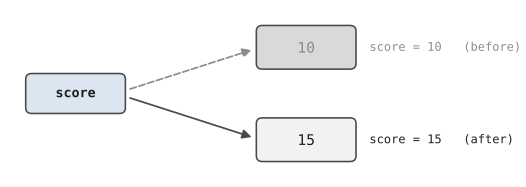
You get to choose your variable names, within a few rules. Names can contain letters, digits and underscores, but they can’t start with a digit, and they can’t contain spaces. total_price is fine. 2nd_place and total price are not. Python also treats capital letters as different letters, so Name and name are two separate labels, which causes more confusion than you’d expect.
#Numbers and strings
Not all values are the same kind of thing. A phone number, a temperature, and a person’s name are all “data,” but you’d never add two names together or ask for the uppercase version of a temperature. Python keeps track of what kind of thing each value is. That kind is called its type.
You’ll meet four types constantly, shown in Figure 3.3:
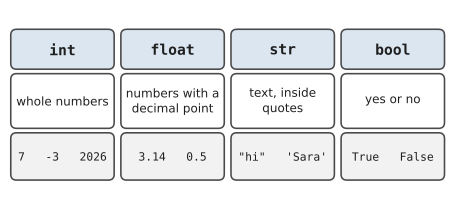
Whole numbers are called integers, written int in Python. Numbers with a decimal point are floats, float. Text is a string, str, and always sits inside quotation marks. Finally, True and False are booleans, bool, which you’ll lean on heavily in the next chapter when programs start making decisions.
You can ask Python what type something is with type():
1print(type(29))
2print(type(1.68))
3print(type("Sara"))
4print(type(True))
<class 'int'>
<class 'float'>
<class 'str'>
<class 'bool'>
Strings can use single quotes or double quotes. 'hello' and "hello" mean exactly the same thing. Having both is handy when your text contains one of them: "It's raining" works nicely, while 'It's raining' confuses Python, because the apostrophe looks like the end of the string.
Here’s the detail that trips people up for weeks. The quotation marks change everything:
1a = 5
2b = "5"
a is the number five. b is a piece of text that happens to contain the character 5, like the 5 printed on a football shirt. You can do arithmetic with the first. The second is just a symbol. Keep that in the back of your mind, because it comes back in a few pages wearing a disguise.
#Basic operations
Python is a very good calculator. Open the interactive shell and try a few of these:
>>> 7 + 3
10
>>> 7 - 3
4
>>> 7 * 3
21
>>> 7 / 2
3.5
>>> 7 // 2
3
>>> 7 % 2
1
>>> 2 ** 10
1024
The first four are what you’d expect, with * for multiplication. The others deserve a sentence each. // divides and throws away the remainder, so 7 // 2 is 3. % gives you only the remainder, so 7 % 2 is 1, which turns out to be surprisingly useful: any number % 2 is 0 when the number is even. And ** means “to the power of.”
One quirk: ordinary division with / always gives you a float, even when the answer is whole. 10 / 2 is 5.0, not 5. Python does this so you never lose information without noticing.
Brackets work just like they did at school. 2 + 3 * 4 is 14, because multiplication happens first, and (2 + 3) * 4 is 20. When in doubt, add brackets. They cost nothing and they make your intention obvious to anyone reading.
Strings have operations too, just fewer of them. + glues strings together, and * repeats them:
1first = "Hands-On"
2second = "Python"
3print(first + " " + second)
4print("-" * 20)
Hands-On Python
--------------------
Now, the disguise we warned you about. What do you think this does?
1age = 29
2print("I am " + age + " years old")
It crashes:
TypeError: can only concatenate str (not "int") to str
Python refuses to glue text to a number because it can’t be sure what you want. Did you mean to treat 29 as text? Or did you expect “I am “ to become a number somehow? Rather than guess, it stops. The fix is to convert the number to text yourself with str():
1print("I am " + str(age) + " years old")
Conversion works in the other direction too. int("42") turns the text “42” into the number 42, and float("3.5") does the same for decimals. You’ll need this constantly, for one big reason: input() always gives you a string. Even if someone types a number. Here’s how to turn the answer into a number you can do maths with:
1birth_year = input("What year were you born? ")
2age = 2026 - int(birth_year)
Without that int(), Python would try to subtract text from a number and complain. With it, everything works.
#Printing clean output
print() is more flexible than it first appears. Give it several things separated by commas and it prints them all, with a space between each:
1name = "Sara"
2age = 29
3print("Name:", name, "Age:", age)
Name: Sara Age: 29
Notice that the commas let you mix text and numbers without any str() fuss. That’s often the quickest way to print a few values.
The tidiest approach, though, and the one you’ll see everywhere in modern Python, is the f-string. Put the letter f just before the opening quote, then drop variables straight into the text inside curly braces:
1print(f"My name is {name} and I am {age} years old.")
My name is Sara and I am 29 years old.
It reads almost like a sentence with blanks filled in, which is exactly what it is. You can even put small calculations inside the braces, like {age + 1}.
f-strings can also tame numbers. Money looks odd with nine decimal places, so you can ask for two:
1price = 19.0
2tax = price * 0.1
3print(f"Tax: ${tax:.2f}")
Tax: $1.90
The :.2f part means “show this as a float with 2 decimal places.” There’s a matching trick for lining things up in columns. {item:<12} pads the value to 12 characters and keeps it on the left, and {amount:>8.2f} puts a number on the right, which is how receipts manage to look so neat:
1print(f"{'Coffee':<12}{4.5:>8.2f}")
2print(f"{'Croissant':<12}{5.25:>8.2f}")
Coffee          4.50
Croissant       5.25
Two smaller tools round things out. Inside a string, \n means “start a new line,” so print("one\ntwo") prints on two lines. And print() with nothing inside prints an empty line, which is the simplest way to give your output some breathing room.
#Writing readable code early
Here’s something nobody tells beginners. You’ll spend far more time reading code than writing it, and most of that code will be your own, written weeks ago by a version of you who remembered things you’ve since forgotten. Write for that future person.
Compare these two snippets. They do the same thing:
1x = 120
2y = x * 0.15
3print(y)
1bill_total = 120
2tip = bill_total * 0.15
3print(tip)
The second one explains itself. Good names are the cheapest documentation there is.
Comments help too, but use them to explain why, not what. # multiply by 0.15 is useless, because the code already says that. # 15% is the usual tip here tells you something the code can’t.
Leave a space around = and around operators like +, so total = price + tax rather than total=price+tax. Leave a blank line between the different parts of a program, the way you’d split an essay into paragraphs. And when a value is fixed and meaningful, give it a name in capitals near the top of your file:
1TAX_RATE = 0.1
2
3price = 50
4tax = price * TAX_RATE
Capital letters are a polite signal to other programmers: this value isn’t supposed to change. If the tax rate ever does change, you edit one line instead of hunting through your whole program for every 0.1.
#Common beginner mistakes
Every mistake in this section has been made by every programmer you admire. Probably more than once. Knowing them in advance won’t make you immune, but it’ll make the error messages feel familiar instead of hostile.
Forgetting the quotes: Writing print(Hello) instead of print("Hello") makes Python look for a variable called Hello. It won’t find one, so you’ll see a NameError.
Using a variable before giving it a value: Python reads top to bottom. If line 3 uses total and total is only created on line 7, line 3 has no idea what you mean.
Doing maths on text: This is the input() trap again. If you ask for two numbers and add them without converting, "5" + "5" gives you "55". No error at all, just a wrong answer, which is the sneakiest kind.
Here’s how that tends to play out. Leila volunteers at a community food bank, and she wrote her first script to add up the week’s donations as people read them out. Five donors, five amounts: 5, 10, 15, 20, 10. The program announced a total of 510152010 dollars. For a happy few seconds she thought the food bank had been left a fortune. Then she spotted it: she’d joined five pieces of text end to end instead of adding five numbers. One int() around each input() fixed it. She still keeps a screenshot of the “fortune” on her phone.
Mixing up capital letters: Total and total are different names. So are Print and print, and only one of those exists.
Curly quotes: If you copy code from a word processor or some websites, the straight quotes " can turn into curly ones like the ones you see in printed books. Python doesn’t recognise curly quotes, and the error message can be baffling. If code you’ve pasted won’t run for no visible reason, retype the quotes.
#Mini Project: Personal Information Program
Let’s put the whole chapter to work. You’re going to write a program that asks someone a few questions and prints a profile card, doing a little arithmetic along the way. Create a file called personal_info.py:
Before writing any code, it helps to see the plan as a picture. Figure 3.4 is a flowchart: a drawing of the steps a program takes, in order. You’ll see one for almost every project from here on, and they always use the same four shapes, shown in the key. Read it from the top, following the arrows. This first one is a straight line, because the program simply does one thing after another. The flowcharts in later chapters will have questions in them, and the arrows will start to branch and loop back.
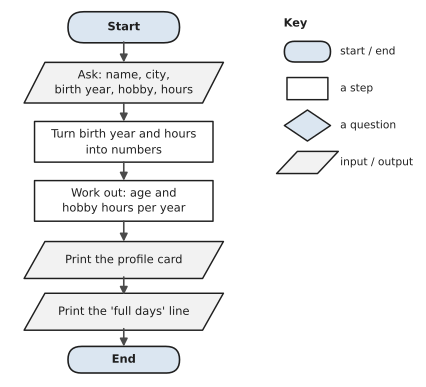
Here’s the code:
1# personal_info.py
2# Ask a few questions and print a tidy profile card.
3
4CURRENT_YEAR = 2026
5WEEKS_PER_YEAR = 52
6
7print("Let's build your profile card.")
8print()
9
10name = input("Your first name: ")
11city = input("Which city do you live in? ")
12birth_year = int(input("What year were you born? "))
13hobby = input("A hobby you enjoy: ")
14hours = float(input(f"Hours per week spent on {hobby}: "))
15
16age = CURRENT_YEAR - birth_year
17hobby_hours_year = hours * WEEKS_PER_YEAR
18
19print()
20print("=" * 34)
21print(f"{'PROFILE CARD':^34}")
22print("=" * 34)
23print(f"{'Name:':<14}{name}")
24print(f"{'City:':<14}{city}")
25print(f"{'Age (about):':<14}{age}")
26print(f"{'Hobby:':<14}{hobby}")
27print(f"{'Per year:':<14}{hobby_hours_year:.0f} hours")
28print("=" * 34)
29print(f"That's {hobby_hours_year / 24:.1f} full days of {hobby}!")
A few things are new. {'PROFILE CARD':^34} centres the title in a space 34 characters wide, the same way < aligns left and > aligns right. int(input(...)) asks the question and converts the answer in one go, reading from the inside out. And the age is “about” because the program doesn’t know whether the person has had their birthday yet this year. We’ll be able to fix that once our programs can make decisions.
Here’s a sample run:
Let's build your profile card.

Your first name: Sara
Which city do you live in? Melbourne
What year were you born? 1997
A hobby you enjoy: guitar
Hours per week spent on guitar: 3.5

==================================
           PROFILE CARD
==================================
Name:         Sara
City:         Melbourne
Age (about):  29
Hobby:        guitar
Per year:     182 hours
==================================
That's 7.6 full days of guitar!
Run it with your own answers. Then try typing nineteen ninety when it asks for your birth year. The program crashes with a ValueError, because int() can’t make sense of words. That’s fine for now. In Chapter 8, you’ll learn to catch problems like that and ask the user politely to try again.
Before moving on, try a couple of changes yourself:
- Add a question for the person’s favourite food and show it on the card.
- Work out roughly how many days old the person is (multiply the age by 365).
- Change
CURRENT_YEARto next year and watch every age update at once. That’s the payoff for naming it.
You now know how to store values, work with numbers and text, convert between them, and print results that look like someone cared. That’s the raw material of every program you’ll write. Right now, though, your programs run every line, every time, in the same order. In the next chapter, they’ll learn to choose.
#On the Job
How it shows up at work: Nearly every business task that involves a computer starts with getting values in, converting them to the right type, and showing a result that people can read. A shop’s sales total, an invoice line, a summary email to a manager: all of it is variables, arithmetic and formatting. The most common bug in real data work is exactly the one Leila hit. Spreadsheets and web forms hand you numbers that are secretly text, and someone has to notice.
What employers expect: You should know the four basic types (int, float, str, bool) and when each is used, convert between them without thinking, and format output with f-strings. Clear variable names matter more than you’d guess. Reviewers notice total_price versus tp straight away.
Interview questions you might meet:
- “What’s the difference between
/and//?”/always gives a float.//divides and drops the remainder. Bonus point:%gives that remainder, andn % 2 == 0checks for an even number. - “Why does
"5" + "5"give"55"?” Because both values are strings, so+joins them. Convert withint()first. - “How would you print a price with exactly two decimal places?”
f"{price:.2f}".
Portfolio task: Add personal_info.py to your learning-python repository, plus one extra feature of your own, such as the favourite-food question. In the repository, create a file called README.md with one line about what the program does. Every project you share from now on should have a README; it’s the first thing a hiring manager opens.
Professional habit: Name things for a stranger. Before you save a file, read your variable names aloud. If you’d need to explain one, rename it.
#Exercises
The solutions are in solutions/chapter_03 in the book’s GitHub repository. Your answers don’t have to match them line for line. If your program gives the right output and you can read it next week, it’s a good answer.
Warm-up
Exercise 3.1. What type is each of these values: 42, "42", 4.2, True, "True"? Check each with type().
Exercise 3.2. Predict what each line prints, then run them to check: print(17 // 5), print(17 % 5), print(2 ** 5), print(10 / 5).
Exercise 3.3. Which of these are valid variable names? total_cost, 2nd_place, my-name, _count, class, firstName. For the invalid ones, say why.
Exercise 3.4. This program crashes. Fix it in two different ways:
1score = 95
2print("Your score is " + score)
Practice
Exercise 3.5. Write a program that asks for a temperature in Celsius and prints it in Fahrenheit, to one decimal place. The formula is F = C * 9 / 5 + 32.
Exercise 3.6. Ask for the width and length of a room in metres, then print its area and how many boxes of flooring you’d need if one box covers 2.2 square metres. (Hint: you can’t buy part of a box. Look at what // does, then think about adding 1.)
Exercise 3.7. Ask for a bill total and the number of people sharing it. Print what each person pays, with exactly two decimal places.
Exercise 3.8. Ask for a number of minutes, such as 135, and print it as hours and minutes: 135 minutes is 2 hours and 15 minutes. Use // and %.
Exercise 3.9. Print this receipt using f-strings so the prices line up on the right:
Coffee          4.50
Banana bread    6.00
Water           3.25
--------------------
Total          13.75
Exercise 3.10. Swap the values of two variables, a = 5 and b = 9, so that a is 9 and b is 5. Then find out how to do it in one line.
Challenge
Exercise 3.11. Write a simple pay calculator. Ask for hours worked and an hourly rate. Take 15% off for tax, and print the gross pay, the tax and the take-home pay in a neat little table.
Exercise 3.12. Ask for a whole number of seconds and print it as days, hours, minutes and seconds. For example, 100000 should give 1 day(s), 3 hour(s), 46 minute(s), 40 second(s).
Exercise 3.13. Leila’s donation counter, done properly. Ask for five donation amounts one at a time (whole dollars), and print the total and the average to two decimal places. You haven’t met loops yet, so it’s fine to write five input() lines. When you reach Chapter 5, come back and shorten it.