Since Chapter 15, we’ve been typing pip install every time a project needed something new: openpyxl, pypdf, python-docx, requests, pytest. Each time, we said “Chapter 23 explains this properly.” Well, here we are.
Those commands worked, and for learning, they were fine. But they were piling everything into one shared place on your computer. That causes trouble sooner or later. Imagine two of your projects need different versions of the same library: an old script written for an older version, and a new one that needs features from the latest. With everything installed in one place, you can only have one version, so one project will break. Or imagine sharing a project with a friend. Which packages does it need? Which versions? You’ve installed dozens by now; you’ve probably forgotten.
The professional solution is simple: give every project its own private set of packages, and keep a written list of what it needs. That’s what this chapter covers: why virtual environments exist, how to create, activate and use one, how to install, list and remove packages with pip, and how to record a project’s requirements so anyone can recreate them.
#Why environments exist
Think of a professional kitchen where several chefs share one spice rack. It works until one chef needs smoked paprika and another needs the sweet kind, and there’s only room for one jar labelled “paprika.” Someone’s dish is going to taste wrong. The fix is obvious: give each chef their own small spice rack for their own dishes.
A virtual environment is a private spice rack for one project. It’s a folder, usually called .venv, inside your project, holding a private copy of pip and whatever packages that project needs. When the environment is active, pip install puts packages there, and Python looks for packages there, ignoring everything installed elsewhere. Figure 23.1 shows three projects, each with its own environment, all sharing the same Python underneath.
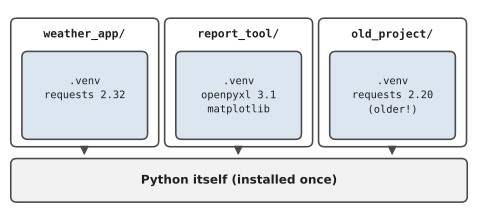
Virtual environments solve three problems at once. Projects stop interfering with each other, so upgrading a library for one can’t break another. Your main Python installation stays clean. And because each environment contains only what its project needs, you can write down exactly what that is, which makes sharing easy.
There’s also a practical reason you may run into soon. On newer versions of macOS (with Python from Homebrew) and many Linux systems, running pip install outside a virtual environment gives an error mentioning an externally managed environment. It’s the operating system protecting its own Python from being changed by accident, and it’s telling you, quite reasonably, to use a virtual environment. This chapter is how.
#Creating virtual environments
Creating an environment is one command, run from inside your project folder. Python comes with a module called venv for exactly this:
python -m venv .venv
On macOS and Linux, use python3. The -m venv part means “run the venv module,” and .venv is the name of the folder to create. You could call it anything, but .venv is the common convention, and many tools look for that name automatically. The dot at the start makes the folder hidden on macOS and Linux, which keeps it out of your way.
Creating the environment doesn’t switch it on. You have to activate it, and the command depends on your system:
# macOS and Linux
source .venv/bin/activate

# Windows (Command Prompt)
.venv\Scripts\activate

# Windows (PowerShell)
.venv\Scripts\Activate.ps1
When it works, your terminal prompt changes to show the environment’s name at the start, something like (.venv) sara@laptop python-projects %. That little label is how you know the environment is active. From now on, in this terminal, python and pip mean the environment’s private copies. On every system, even macOS and Linux, you can just type python while an environment is active; it points at the right version.
On Windows PowerShell you might see an error saying scripts are disabled on this system. That’s a security setting. You can either use Command Prompt instead, or allow scripts for your user account by running Set-ExecutionPolicy -Scope CurrentUser RemoteSigned once in PowerShell.
When you’re done working on the project, type deactivate to switch the environment off. Closing the terminal does the same. Next time you work on the project, activate it again; the packages you installed are still there.
VS Code understands virtual environments too. Open the project folder, then open the Command Palette (Ctrl+Shift+P, or Cmd+Shift+P on a Mac), type Python: Select Interpreter, and choose the one inside .venv. VS Code will then use the environment when you press Run, and new terminals will activate it automatically. Often, VS Code notices a new .venv folder and offers to switch by itself.
#Installing packages with pip
With an environment active, installing a package looks exactly as before:
pip install requests
The difference is where it goes: into .venv, for this project only. pip downloads packages from the Python Package Index, known as PyPI, a huge public library of over half a million packages written by people all over the world. If you can think of a task, someone has probably published a package for it.
pip has a handful of commands you’ll use regularly:
pip install requests          # install the latest version
pip install requests==2.32.3  # install one exact version
pip install --upgrade requests
pip list                      # what's installed here?
pip show requests             # details about one package
pip uninstall requests
Installing one package often brings others along with it. requests, for example, depends on a few smaller packages to do its job, and pip installs those automatically. They’re called dependencies. You’ll see them appear in pip list even though you never asked for them by name.
A word of caution about where packages come from. Anyone can publish to PyPI, and occasionally people upload harmful packages with names deliberately close to popular ones, hoping someone makes a typo. Copy package names from official documentation rather than typing them from memory, and be a little suspicious of packages with very few downloads that claim to do something important.
#Avoiding dependency chaos
Once your project works, write down exactly which packages it uses. pip can do this for you:
pip freeze > requirements.txt
pip freeze lists every package in the active environment with its exact version, and the > sends that list into a file instead of the screen. The result looks like this:
certifi==2025.8.3
charset-normalizer==3.4.3
idna==3.10
requests==2.32.5
urllib3==2.5.0
That file, requirements.txt, is a recipe for recreating your environment. Anyone who gets your project, including you on a new computer next year, can make their own environment and install exactly the same packages with one command:
python -m venv .venv
source .venv/bin/activate          # or the Windows version
pip install -r requirements.txt
Yusuf, an analyst at a logistics company, can tell you what life is like without that file. He’d written a report script that the operations team ran every Friday, and it ran fine for a year. Then, on a Thursday, IT upgraded every package on the shared reporting computer. On Friday, the script stopped with an error about a function that no longer existed; the newer version of a library had renamed it. Worse, nobody knew which version the script had been written for. Yusuf spent his Friday afternoon installing older versions one by one until it worked again. The following week, he gave the script its own environment and a requirements.txt with exact version numbers. The next upgrade passed it by completely.
Figure 23.2 shows the whole routine. It quickly becomes second nature.
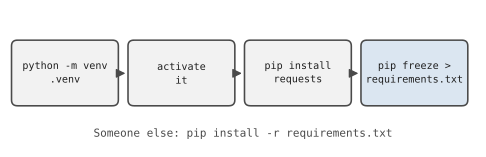
You can also write a requirements.txt by hand, listing only the packages you chose, and letting pip work out the dependencies. A version can be exact (requests==2.32.5), a minimum (requests>=2.31), or left out entirely (requests). Exact versions are safest for something that must keep working unchanged; minimums are friendlier for learning projects, where you’d rather get recent fixes. The repository that comes with this book has a hand-written requirements.txt that covers every chapter, so you can install everything at once.
A few more habits keep things tidy.
Never share the .venv folder itself: It’s large, and it only works on the computer that created it, because it contains paths and files specific to that machine. Share requirements.txt instead, and let each person build their own environment. If you use Git and GitHub, add .venv/ to a file called .gitignore so it’s never uploaded. The book’s repository already does this.
If an environment gets into a mess, delete it: Because everything about it is described by requirements.txt, an environment is disposable. Delete the .venv folder, create a fresh one, and reinstall. It’s often faster than untangling what went wrong.
Update deliberately: Upgrading every package at once on a project that works is a good way to make it stop working. Upgrade when you need something, run your tests (Chapter 22 again), and then refreeze your requirements.
You may also come across newer tools that do the same jobs faster, such as uv, which can create environments and install packages in one step. They’re well worth exploring once you’re comfortable. But they’re built on the same ideas you’ve just learned: one environment per project, and a written list of what it needs. Learn the basics with venv and pip, and every other tool will make sense.
Let’s put it into practice. Pick one of your projects from Part 5, say the report generator from Chapter 15. In its folder, create and activate a virtual environment, then try running the program. It fails with ModuleNotFoundError: No module named 'openpyxl', because the new environment is empty. That error is the environment doing its job, keeping projects separate. Now pip install openpyxl, run it again, and it works. Finish with pip freeze > requirements.txt, and that project is ready to share.
That’s the end of Part 7. You now have the professional habits that keep programs working: a calm method for finding bugs, tests that catch them early, and environments that keep each project’s tools in order. In Part 8, the final part of the book, you’ll put everything together in a capstone project, then take two first steps into the most exciting areas of modern Python: web apps and machine learning.
#On the Job
How it shows up at work: Every Python project on a professional team has its own environment and a list of its dependencies, whether that’s a requirements.txt or a newer format like pyproject.toml. Your first day on a project almost always starts with “clone the repository, create an environment, install the requirements.” Servers, automated tests and colleagues all rely on that list being right. “It works on my machine” is a joke among developers precisely because missing dependencies are so common.
What employers expect: Create and activate a virtual environment without looking it up, install from and write a requirements file, and keep .venv out of Git with a .gitignore. Know how to tell which Python and which environment you’re running. You’ll meet other tools too, such as conda, Poetry and uv, but they all solve the same problem, and the ideas carry straight over.
Interview questions you might meet:
- “What’s a virtual environment, and why use one?” A private folder of packages for one project, so projects can’t break each other and their requirements can be recorded exactly.
- “How do you share a project’s dependencies?”
pip freeze > requirements.txt, and the other person runspip install -r requirements.txtin their own environment. - “Should
.venvgo into Git?” No. It’s large, specific to one computer, and can be rebuilt fromrequirements.txt. Put it in.gitignore. - “A script works for you but not for a colleague. What would you check?” The Python version, whether their environment is active, and whether their installed packages match the requirements file. Yusuf’s story makes the point well.
Portfolio task: Go back through your repository and give every project that uses an outside package its own requirements.txt, plus a single .gitignore at the top containing .venv/ and __pycache__/. Then follow your own README on a fresh environment to make sure it really works. Reviewers sometimes do exactly that.
Professional habit: Activate the environment before you install anything. If you’re not sure whether it’s active, run python -c "import sys; print(sys.prefix)", and look for .venv in the answer.
#Exercises
Most of this chapter’s exercises happen in the terminal rather than in Python files. The answers, including the commands, are in solutions/chapter_23/answers.md in the book’s GitHub repository, and the few exercises that need code have Python solutions alongside.
Warm-up
Exercise 23.1. Create a new folder called venv_practice, create a virtual environment in it, and activate it. How can you tell from the prompt that it’s active?
Exercise 23.2. With the environment active, run pip list. How many packages are there? Why so few?
Exercise 23.3. Deactivate the environment, then reactivate it. Which command does each?
Practice
Exercise 23.4. In the environment, install requests. Run pip list again. Why are there now several new packages, not just one?
Exercise 23.5. Write a short script, where_am_i.py, that prints which Python is running (sys.executable) and whether it’s inside a virtual environment. (Inside one, sys.prefix is different from sys.base_prefix.) Run it with the environment active and then deactivated.
Exercise 23.6. Save the environment’s packages to requirements.txt. Then delete the .venv folder, create a new environment, and rebuild it from the file. Check with pip list that everything came back.
Exercise 23.7. Uninstall requests with pip. Does it remove the other packages that came with it? Check with pip list.
Exercise 23.8. Write a .gitignore file for a Python project that keeps out the environment folder, __pycache__ folders, log files and a secrets.txt file.
Challenge
Exercise 23.9. Write a script that reads a requirements.txt file and, for each line, prints whether that package is installed in the current environment and whether its version matches. (importlib.metadata.version("requests") gives the installed version, and raises PackageNotFoundError if it isn’t installed.)
Exercise 23.10. Yusuf’s problem. Create two environments in two folders. Install requests==2.31.0 in one and the latest version in the other. Write a one-line script that prints requests.__version__, and run it from each environment to show that both versions live happily on the same computer.
Exercise 23.11. Write a script that prints the installed version of every package your Chapter 15 report generator imports, ready to paste into a requirements file with exact versions (openpyxl==3.1.5, for example).