The cover of this book makes a promise: automate everyday tasks. You’ve already automated plenty, from tidying folders to building spreadsheets and reading invoices. This part of the book keeps that promise more directly. It’s a collection of recipes: complete, ready-to-run programs for the jobs people most often wish a computer would just do for them.
Each recipe follows the same pattern, so you always know where to look. It starts with the problem in plain words, then shows a flowchart of the plan, the complete code, and a walk-through of how it works. It ends with Make it yours, a few ideas for adapting the recipe to your own life. You can read the recipes in any order. Everything they use, you’ve already learned.
This chapter is about email and the office jobs that go with it. Email is where a great deal of everyday admin lives: sending reports, chasing payments, reminding people about things. A program that can write and send email turns into a surprisingly capable assistant.
#Before you start: email from Python, safely
Sending email from a program is powerful, and that’s exactly why it needs some care. An email can’t be unsent. A loop with a mistake in it could send the same message to someone fifty times, or send everyone the wrong person’s details. So every recipe in this chapter works the same cautious way, shown in Figure 27.1. By default, it does a dry run: instead of sending anything, it saves each email as a file in a folder called outbox. Only when you’ve looked at those files and you’re happy do you run it again with --send, and the emails go out for real.
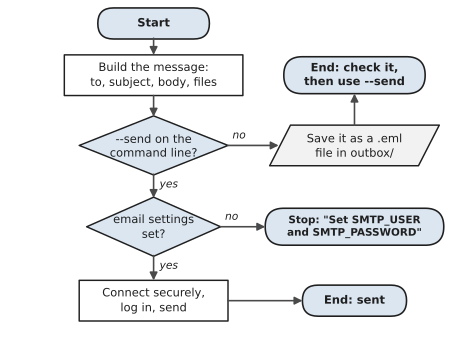
The saved files end in .eml, which is the standard format for a single email. Double-click one and it opens in your email app (Mail on a Mac, Outlook or the Mail app on Windows), looking exactly as the person will see it, attachments and all. Checking a few of those before sending is the email version of the dry runs you used for moving files in Chapter 14.
Setting up your email account
To send real email, Python logs in to your email provider’s SMTP server, the computer that sends mail on your behalf, just as your email app does. You need three things: the server’s address, a port number, and a username and password. The recipes use Gmail’s settings by default, because Gmail is common and works well for this, but any provider that allows SMTP will do.
For Gmail, you don’t use your normal password. Google requires you to create an app password, a separate 16-character password just for one program:
- Turn on 2-Step Verification for your Google account, if it isn’t on already. App passwords only exist for accounts that have it.
- In your Google Account settings, search for App passwords, create one, and give it a name like “Python scripts”.
- Google shows the password once. Copy it somewhere safe; you’ll need it in the next step. If you use a different provider, search the web for its name plus “SMTP
settings” to find the server address and port, and whether it needs an app password too. Work and university accounts sometimes don’t allow programs to send email at all; if yours doesn’t, use a personal account for practice, or ask your IT team.
Now store the settings as environment variables, so they never appear in your code (the habit you learned in Chapter 19). In VS Code’s terminal on macOS or Linux:
export SMTP_USER="you@gmail.com"
export SMTP_PASSWORD="abcdabcdabcdabcd"
On Windows, VS Code’s terminal is usually PowerShell, where the commands are:
$env:SMTP_USER = "you@gmail.com"
$env:SMTP_PASSWORD = "abcdabcdabcdabcd"
(In the older Command Prompt, it’s set SMTP_USER=you@gmail.com instead.) These only last until you close the terminal, which is a good thing while you’re learning. Chapter 23’s virtual environments and Chapter 18’s scheduling both have ways to make them permanent once you’re ready.
A small helper module
All the recipes in this chapter share one module, mailer.py, so the email details live in one place. Create a folder for this chapter’s recipes, and save this in it:
1# mailer.py - build emails; send them, or save them to check first
2import mimetypes
3import os
4import smtplib
5import ssl
6from email.message import EmailMessage
7from pathlib import Path
8
9HERE = Path(__file__).parent
10OUTBOX = HERE / "outbox"
11
12# Your email settings come from environment variables, never from
13# the code itself (see Chapter 19). Gmail's values are the defaults.
14SMTP_HOST = os.environ.get("SMTP_HOST", "smtp.gmail.com")
15SMTP_PORT = int(os.environ.get("SMTP_PORT", "465"))
16SMTP_USER = os.environ.get("SMTP_USER", "")
17SMTP_PASSWORD = os.environ.get("SMTP_PASSWORD", "")
18
19
20def build_message(to, subject, body, attachments=()):
21    """Return an EmailMessage, with any files attached."""
22    msg = EmailMessage()
23    msg["From"] = SMTP_USER or "you@example.com"
24    msg["To"] = to
25    msg["Subject"] = subject
26    msg.set_content(body)
27    for path in attachments:
28        path = Path(path)
29        kind, _ = mimetypes.guess_type(path.name)
30        main, sub = (kind or "application/octet-stream").split(
31            "/"
32        )
33        msg.add_attachment(
34            path.read_bytes(),
35            maintype=main,
36            subtype=sub,
37            filename=path.name,
38        )
39    return msg
40
41
42def save_to_outbox(msg):
43    """Save the email as a .eml file you can open and check."""
44    OUTBOX.mkdir(exist_ok=True)
45    number = len(list(OUTBOX.glob("*.eml"))) + 1
46    name = msg["To"].split("@")[0].replace(".", "_")
47    path = OUTBOX / f"{number:03d}_{name}.eml"
48    path.write_bytes(bytes(msg))
49    return path
50
51
52def send_all(messages):
53    """Send a list of messages over one secure connection."""
54    if not SMTP_USER or not SMTP_PASSWORD:
55        raise SystemExit(
56            "Set SMTP_USER and SMTP_PASSWORD first "
57            "(see Recipe 27.1)."
58        )
59    context = ssl.create_default_context()
60    with smtplib.SMTP_SSL(
61        SMTP_HOST, SMTP_PORT, context=context
62    ) as server:
63        server.login(SMTP_USER, SMTP_PASSWORD)
64        for msg in messages:
65            server.send_message(msg)
There are three functions, each with one job. build_message() creates an email using Python’s email module. An EmailMessage works a bit like a dictionary: you set its "To" and "Subject", call set_content() for the text, and add_attachment() for each file. The mimetypes module guesses what kind of file each attachment is from its name, so a spreadsheet arrives as a spreadsheet and a photo as a photo.
save_to_outbox() is the dry run. bytes(msg) turns the whole email, attachments included, into the standard .eml format, and the function saves it with a number at the front so the files stay in order.
send_all() does the real sending. smtplib.SMTP_SSL opens a secure, encrypted connection to the server; ssl.create_default_context() makes sure the server is who it says it is. Then the function logs in once and sends every message. The with block closes the connection afterwards, just as it closes files.
#Recipe 27.1: Send an email
The job: Send a single email from a program. It’s the “hello world” of email automation, and once it works, everything else in this chapter is a variation:
1# send_email.py - send one email (or, by default, save it to check)
2import sys
3
4from mailer import build_message, save_to_outbox, send_all
5
6to = "friend@example.com"
7subject = "Sent by Python"
8body = """Hi!
9
10This message was written and sent by a Python program.
11Not bad for a beginner, right?
12"""
13
14message = build_message(to, subject, body)
15
16if "--send" in sys.argv:
17    send_all([message])
18    print(f"Sent to {to}.")
19else:
20    path = save_to_outbox(message)
21    print(
22        f"Dry run: saved to {path.name}. Open it to check, then"
23    )
24    print("run again with --send to send it for real.")
Run it, and nothing is sent. Instead you’ll see:
Dry run: saved to 001_friend.eml. Open it to check, then
run again with --send to send it for real.
Open outbox/001_friend.eml and have a look. When you’re happy, change to to your own address, so the first real email you send is to yourself, and run it again with the flag:
python send_email.py --send
A few seconds later, the message arrives in your inbox.
How it works: The program builds one message with build_message(), then checks sys.argv, the list of words typed after python on the command line (you met it in Chapter 14). If --send is there, it sends; otherwise it saves to the outbox. That one if is all it takes to make every recipe safe by default.
Make it yours:
- Ask for the recipient, subject and message with
input(), so the program works like a tiny email app. - Send to several people at once by setting
msg["To"]to a string of addresses separated by commas. - Add
msg["Cc"] = "someone@example.com"to copy someone in.
#Recipe 27.2: Email a report as an attachment
The job: Every week you make a report, then open your email, find the file, attach it, write the same two lines, and send it. Let Python do the last part:
1# email_report.py - email a file to someone, with a short message
2import sys
3from datetime import date
4from pathlib import Path
5
6from mailer import build_message, save_to_outbox, send_all
7
8HERE = Path(__file__).parent
9REPORT = HERE / "weekly_report.xlsx"  # any file will do
10TO = "manager@example.com"
11
12if not REPORT.exists():
13    sys.exit(
14        f"Can't find {REPORT.name}. Make it first,"
15        " or change REPORT."
16    )
17
18size_kb = REPORT.stat().st_size / 1024
19subject = f"Weekly report, {date.today():%d %B %Y}"
20body = f"""Hello,
21
22Please find this week's report attached
23({REPORT.name}, {size_kb:.0f} KB).
24
25Best wishes,
26The report robot
27"""
28
29message = build_message(TO, subject, body, attachments=[REPORT])
30
31if "--send" in sys.argv:
32    send_all([message])
33    print(f"Sent {REPORT.name} to {TO}.")
34else:
35    print(f"Dry run: saved {save_to_outbox(message).name}")
How it works: The program checks that the report exists before doing anything, because emailing a missing file would crash halfway. It works out the file’s size in kilobytes with .stat().st_size / 1024 and mentions it in the message, which is a small courtesy that tells the reader what to expect. Then attachments=[REPORT] is all it takes to attach the file.
To try it, copy any spreadsheet into the folder and name it weekly_report.xlsx, or change REPORT to point at a file you have, such as the Excel report from Chapter 15.
Make it yours:
- Attach several files by listing them all:
attachments=[REPORT, CHART]. - Put the date in the file name before sending, with
shutil.copy(), so the person receiving it getsreport_2026-11-06.xlsxrather than the same name every week. - Combine this with Recipe 27.6, which makes the report itself, and the whole weekly job disappears.
#Recipe 27.3: Personal emails from a spreadsheet (mail merge)
The job: Zainab runs the bookings for a small art studio. Every few weeks she emails each student about their course: a thank-you, plus a note of anything still to pay. Forty students meant forty almost-identical emails, each with a different name, course and amount, and every so often she’d paste the wrong amount into the wrong message. This is called a mail merge: one template, one row of data per person, and a personal email for each.
Here’s the data, saved as contacts.csv in the same folder:
name,email,course,amount_due,due_date
Ana Silva,ana@example.com,Watercolour for Beginners,45.00,2026-11-20
Raj Patel,raj@example.com,Pottery Weekend,120.00,2026-11-18
Mei Lin,mei@example.com,Watercolour for Beginners,0.00,2026-11-20
Tom Byrne,tom@example.com,Life Drawing,60.00,2026-11-25
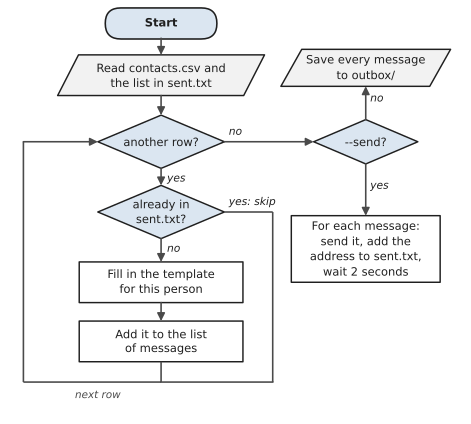
Figure 27.2 shows the plan, and here’s the code:
1# mail_merge.py - a personal email for every row of a spreadsheet
2import csv
3import sys
4import time
5from pathlib import Path
6
7from mailer import build_message, save_to_outbox, send_all
8
9HERE = Path(__file__).parent
10CONTACTS = HERE / "contacts.csv"
11SENT_LOG = HERE / "sent.txt"  # remembers who already got one
12
13SUBJECT = "Your place on {course}"
14TEMPLATE = """Dear {first_name},
15
16Thank you for booking {course}.
17We're looking forward to seeing you.
18
19{payment_line}
20
21Kind regards,
22Riverside Art Studio
23"""
24
25
26def payment_line(row):
27    amount = float(row["amount_due"])
28    if amount == 0:
29        return (
30            "You've paid in full, so there's nothing more to do."
31        )
32    return (
33        f"There's ${amount:.2f} still to pay, due on "
34        f"{row['due_date']}."
35    )
36
37
38def main():
39    send_for_real = "--send" in sys.argv
40    already = set()
41    if SENT_LOG.exists():
42        already = set(
43            SENT_LOG.read_text(encoding="utf-8").split()
44        )
45
46    with open(CONTACTS, newline="", encoding="utf-8") as file:
47        rows = list(csv.DictReader(file))
48
49    messages, addresses = [], []
50    for row in rows:
51        email = row["email"].strip().lower()
52        if email in already:
53            print(f"  skipping {email}: already sent")
54            continue
55        details = {
56            **row,
57            "first_name": row["name"].split()[0],
58            "payment_line": payment_line(row),
59        }
60        msg = build_message(
61            email,
62            SUBJECT.format(**details),
63            TEMPLATE.format(**details),
64        )
65        messages.append(msg)
66        addresses.append(email)
67
68    if not send_for_real:
69        for msg in messages:
70            save_to_outbox(msg)
71        print(
72            f"Dry run: {len(messages)} email(s) saved to outbox/."
73        )
74        print("Check a few, then run again with --send.")
75        return
76
77    for msg, email in zip(messages, addresses):
78        send_all([msg])
79        with open(SENT_LOG, "a", encoding="utf-8") as log:
80            log.write(email + "\n")
81        print(f"  sent to {email}")
82        time.sleep(2)  # be gentle with the mail server
83    print(f"Done: {len(messages)} sent.")
84
85
86if __name__ == "__main__":
87    main()
Run it without --send first, and open a couple of the files in outbox. Raj’s looks like this:
Dear Raj,

Thank you for booking Pottery Weekend.
We're looking forward to seeing you.

There's $120.00 still to pay, due on 2026-11-18.

Kind regards,
Riverside Art Studio
How it works: The template is ordinary text with {name}-style slots, filled in with .format(**details), the same trick as the letters in Chapter 17. details starts as a copy of the row, with two extra entries added: the first name, and a payment line that depends on whether anything is owed. Working that sentence out in a small function keeps the template simple.
The most important part is sent.txt. Each time an email really goes out, the program adds that address to the file straight away, before moving on to the next one. When the program starts, it reads the file and skips anyone already in it. So if your internet connection drops after twenty emails, you can simply run the program again: the first twenty are skipped, and nobody gets a message twice. The two-second pause between emails keeps the program well within the limits that email providers set to stop spam.
Make it yours:
- Add an
attachmentcolumn to the spreadsheet with a file name, such as each person’s invoice, and pass it tobuild_message(). - Only email people who owe money, by adding
if float(row["amount_due"]) == 0: continue. - When you want to send a fresh round later, rename
sent.txtto something likesent_october.txt, so the next round starts from an empty list.
#Recipe 27.4: Reminders for bills and birthdays
The job: Car registration, the electricity bill, a parent’s birthday, the dentist. Each one is easy to remember a week before and easy to forget on the day. This recipe keeps them all in one spreadsheet and sends you one email each morning listing whatever is coming up in the next seven days.
Save this as reminders.csv:
what,date,repeat
Car registration,2026-11-28,yearly
Mum's birthday,1960-12-03,yearly
Electricity bill,2026-11-15,monthly
Dentist,2026-11-10,once
Council rates,2026-12-01,once
1# reminders.py - one email listing everything due this week
2import csv
3import sys
4from datetime import date, timedelta
5from pathlib import Path
6
7from mailer import build_message, save_to_outbox, send_all
8
9HERE = Path(__file__).parent
10REMINDERS = HERE / "reminders.csv"
11DAYS_AHEAD = 7
12TO = "me@example.com"
13
14
15def next_date(start, repeat, today):
16    """The next time this reminder falls on or after today."""
17    if repeat == "once":
18        return start
19    if repeat == "yearly":
20        try:
21            this_year = start.replace(year=today.year)
22        except ValueError:  # 29 February
23            this_year = date(today.year, 3, 1)
24        if this_year < today:
25            this_year = this_year.replace(year=today.year + 1)
26        return this_year
27    if repeat == "monthly":
28        day = min(start.day, 28)  # safe in every month
29        this_month = today.replace(day=day)
30        if this_month < today:
31            month = today.month % 12 + 1
32            year = today.year + (today.month == 12)
33            this_month = date(year, month, day)
34        return this_month
35    raise ValueError(f"unknown repeat '{repeat}'")
36
37
38def due_soon(today):
39    """Return (date, what) pairs due within DAYS_AHEAD days."""
40    due = []
41    with open(REMINDERS, newline="", encoding="utf-8") as file:
42        for row in csv.DictReader(file):
43            start = date.fromisoformat(row["date"])
44            when = next_date(start, row["repeat"], today)
45            if (
46                today
47                <= when
48                <= today + timedelta(days=DAYS_AHEAD)
49            ):
50                due.append((when, row["what"]))
51    return sorted(due)
52
53
54def main():
55    today = date.today()
56    if len(sys.argv) > 1 and sys.argv[1] != "--send":
57        today = date.fromisoformat(sys.argv[1])  # try other dates
58    due = due_soon(today)
59    if not due:
60        print("Nothing due this week.")
61        return
62    lines = [f"{when:%a %d %b}  {what}" for when, what in due]
63    body = (
64        "Coming up in the next week:\n\n"
65        + "\n".join(lines)
66        + "\n"
67    )
68    print(body)
69    message = build_message(
70        TO, f"{len(due)} reminder(s) this week", body
71    )
72    if "--send" in sys.argv:
73        send_all([message])
74        print("Emailed.")
75    else:
76        print(f"Dry run: saved {save_to_outbox(message).name}")
77
78
79if __name__ == "__main__":
80    main()
You can test it for any day you like by giving a date on the command line, which is much quicker than waiting for real life to catch up:
python reminders.py 2026-11-26
Coming up in the next week:

Sat 28 Nov  Car registration
Tue 01 Dec  Council rates
Thu 03 Dec  Mum's birthday

Dry run: saved 001_me.eml
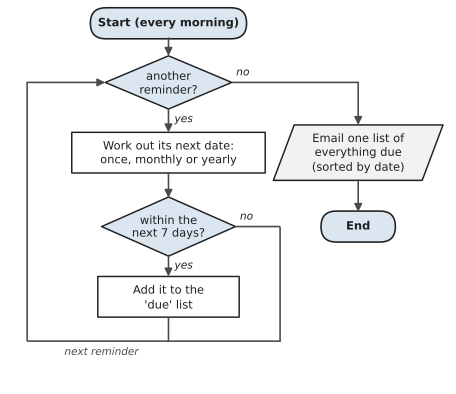
How it works: The tricky part is that a birthday in the spreadsheet says 1960, but you want to know when it next falls this year. The next_date() function, shown in Figure 27.3, handles the three kinds of reminder. A once reminder keeps its date. A yearly one moves its date into the current year with .replace(year=...), and on into next year if this year’s date has already passed. A monthly one does the same with months, using the 28th at the latest so that it works even in February. The try and except cover the one awkward case: someone born on 29 February, whose birthday doesn’t exist in most years.
Once every reminder has a next date, the rest is a simple filter: keep the ones between today and seven days from now, sort them, and put them in one email. One email a day is much easier to live with than one per reminder.
Make it yours:
- Schedule it to run every morning at 7am, as in Chapter 18, with
--sendon the end. This is where the recipe really becomes useful. - Add a
notescolumn, such as an account number for a bill, and include it in the email. - Send the list to a family member too, by giving
build_message()two addresses separated by a comma.
#Recipe 27.5: Combine many spreadsheets into one
The job: Four shops each send a sales spreadsheet at the end of the week. Someone has to open all four, copy the rows into one big sheet, add a column saying which shop each row came from, and total it up. It’s one of the most common office chores there is, and one of the easiest to automate.
To practise, run this script once. It makes four sample spreadsheets in a folder called branch_reports:
1# make_branch_files.py - practice spreadsheets, one per branch
2import random
3from datetime import date, timedelta
4from pathlib import Path
5
6from openpyxl import Workbook
7
8random.seed(27)
9HERE = Path(__file__).parent
10FOLDER = HERE / "branch_reports"
11FOLDER.mkdir(exist_ok=True)
12ITEMS = {
13    "Notebook": 4.5,
14    "Pen pack": 6.0,
15    "Desk lamp": 39.0,
16    "Stapler": 12.0,
17    "Backpack": 55.0,
18}
19
20for branch in ["Carlton", "Fitzroy", "Richmond", "St Kilda"]:
21    wb = Workbook()
22    ws = wb.active
23    ws.title = "Sales"
24    ws.append(["Date", "Item", "Quantity", "Price"])
25    day = date(2026, 11, 2)
26    for _ in range(random.randint(8, 14)):
27        item = random.choice(list(ITEMS))
28        ws.append([day, item, random.randint(1, 5), ITEMS[item]])
29        day += timedelta(days=random.choice([0, 1]))
30    wb.save(FOLDER / f"{branch.lower().replace(' ', '_')}.xlsx")
31
32print(f"Made 4 branch files in {FOLDER.name}/")
Then the recipe itself:
1# combine_sheets.py - many spreadsheets in, one tidy workbook out
2from pathlib import Path
3
4from openpyxl import Workbook, load_workbook
5from openpyxl.styles import Font
6
7HERE = Path(__file__).parent
8FOLDER = HERE / "branch_reports"
9OUTPUT = HERE / "combined.xlsx"
10EXPECTED = ["Date", "Item", "Quantity", "Price"]
11
12
13def read_rows(path):
14    """Return the data rows from the first sheet, after checking the
15    header row is what we expect."""
16    ws = load_workbook(path, data_only=True).active
17    rows = list(ws.iter_rows(values_only=True))
18    if not rows or list(rows[0][:4]) != EXPECTED:
19        raise ValueError(
20            f"unexpected columns: {rows[0] if rows else 'none'}"
21        )
22    return [r[:4] for r in rows[1:] if any(r)]
23
24
25def bold_first_row(ws):
26    for cell in ws[1]:
27        cell.font = Font(bold=True)
28
29
30def main():
31    files = sorted(
32        p
33        for p in FOLDER.glob("*.xlsx")
34        if not p.name.startswith("~$")
35    )  # skip Excel lock files
36    if not files:
37        print(f"No .xlsx files in {FOLDER.name}/")
38        return
39
40    out = Workbook()
41    data = out.active
42    data.title = "All data"
43    data.append(["Branch"] + EXPECTED + ["Revenue"])
44    totals, problems = {}, []
45
46    for path in files:
47        branch = path.stem.replace("_", " ").title()
48        try:
49            rows = read_rows(path)
50        except Exception as error:
51            problems.append(f"{path.name}: {error}")
52            continue
53        for day, item, qty, price in rows:
54            revenue = qty * price
55            data.append([branch, day, item, qty, price, revenue])
56            totals[branch] = totals.get(branch, 0) + revenue
57        print(f"  {path.name}: {len(rows)} row(s)")
58
59    for row in data.iter_rows(min_row=2, min_col=2, max_col=2):
60        row[0].number_format = "dd/mm/yyyy"
61    bold_first_row(data)
62
63    summary = out.create_sheet("Totals", 0)
64    summary.append(["Branch", "Revenue"])
65    for branch, total in sorted(
66        totals.items(), key=lambda t: -t[1]
67    ):
68        summary.append([branch, round(total, 2)])
69    summary.append(
70        ["All branches", round(sum(totals.values()), 2)]
71    )
72    bold_first_row(summary)
73    summary.column_dimensions["A"].width = 16
74
75    out.save(OUTPUT)
76    print(f"Combined {len(totals)} file(s) into {OUTPUT.name}")
77    for problem in problems:
78        print(f"  NOT INCLUDED, please check: {problem}")
79
80
81if __name__ == "__main__":
82    main()
  carlton.xlsx: 13 row(s)
  fitzroy.xlsx: 9 row(s)
  richmond.xlsx: 9 row(s)
  st_kilda.xlsx: 10 row(s)
Combined 4 file(s) into combined.xlsx
Open combined.xlsx. The first sheet, Totals, shows each branch’s revenue, biggest first. The second, All data, has every row from every file, with the branch name in the first column, ready for filtering or a pivot table.
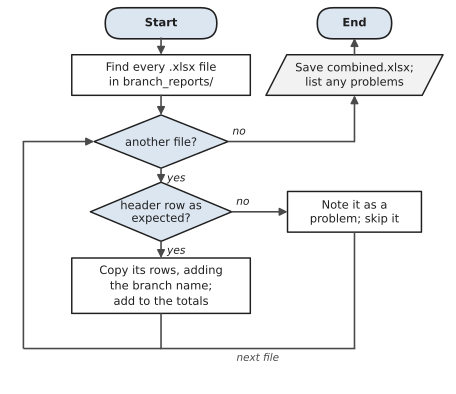
How it works: load_workbook(path, data_only=True) opens each file and reads values rather than formulas, as you saw in Chapter 15. iter_rows(values_only=True) gives each row as a tuple, so the first one is the header. The recipe checks that header before trusting anything else in the file. If someone has added a column, renamed one, or sent the wrong file entirely, that file goes into a list of problems instead of quietly mixing the wrong numbers into everyone else’s, as Figure 27.4 shows. The final report names any file it left out, so a person can follow it up.
Two smaller details are worth noticing. Excel creates hidden files starting with ~$ while a workbook is open, and the program skips them, because they aren’t real spreadsheets. And the branch name comes from the file name, st_kilda.xlsx becoming “St Kilda”, so the shops don’t need to type their own name into their data.
Make it yours:
- Point
FOLDERat a real folder of files you receive, and changeEXPECTEDto match their columns. - Read CSV files as well, using the
csvmodule from Chapter 15 for any file ending in.csv. - Add a third sheet with totals per item, using a dictionary, the same way as the branch totals.
#Recipe 27.6: The weekly summary that writes itself
The job: Put the last two recipes together. Every Friday at 4pm, without anyone touching anything, combine the branch spreadsheets, write a short summary of the totals into an email, attach the full workbook, and send it to the manager:
1# weekly_summary.py - combine the branch files and email the result
2# Schedule it for Friday afternoons (Chapter 18). With cron:
3#   0 16 * * 5  /path/to/python /path/to/weekly_summary.py --send
4import logging
5import sys
6from datetime import date
7from pathlib import Path
8
9from openpyxl import load_workbook
10
11import combine_sheets
12from mailer import build_message, save_to_outbox, send_all
13
14HERE = Path(__file__).parent
15TO = "manager@example.com"
16logging.basicConfig(
17    filename=HERE / "weekly_summary.log",
18    level=logging.INFO,
19    format="%(asctime)s %(levelname)s %(message)s",
20)
21log = logging.getLogger("weekly")
22
23
24def totals_text(path):
25    """Read the Totals sheet back as a few lines of text."""
26    ws = load_workbook(path)["Totals"]
27    lines = []
28    for branch, revenue in ws.iter_rows(
29        min_row=2, values_only=True
30    ):
31        lines.append(f"  {branch:<14}${revenue:>10,.2f}")
32    return "\n".join(lines)
33
34
35def main():
36    try:
37        combine_sheets.main()
38        body = (
39            f"Hello,\n\nHere are this week's sales by branch:\n\n"
40            f"{totals_text(combine_sheets.OUTPUT)}\n\n"
41            f"The full figures are in the attached workbook.\n"
42        )
43        message = build_message(
44            TO,
45            f"Sales summary, week ending {date.today():%d %b %Y}",
46            body,
47            attachments=[combine_sheets.OUTPUT],
48        )
49        if "--send" in sys.argv:
50            send_all([message])
51            log.info("summary sent to %s", TO)
52        else:
53            log.info(
54                "dry run: saved %s", save_to_outbox(message).name
55            )
56        print(body)
57    except Exception:
58        log.exception("weekly summary failed")
59        raise
60
61
62if __name__ == "__main__":
63    main()
Hello,

Here are this week's sales by branch:

  Carlton       $    814.50
  Richmond      $    746.50
  Fitzroy       $    498.50
  St Kilda      $    299.00
  All branches  $  2,358.50

The full figures are in the attached workbook.
How it works: This recipe hardly contains anything new, and that’s the point. import combine_sheets lets it reuse the whole of Recipe 27.5 by calling combine_sheets.main(), which is exactly why that file ends with if __name__ == "__main__": (Chapter 10). totals_text() opens the finished workbook and turns the Totals sheet into a few lines of neatly lined-up text, so the manager can read the numbers without opening the attachment at all. Everything is logged to weekly_summary.log, and any failure is recorded with its full traceback, because this program is meant to run when nobody is watching (Chapter 18).
The comment at the top shows a cron line that runs it at 4pm every Friday. On Windows, use Task Scheduler as described in Chapter 18, with --send in the arguments.
Make it yours:
- Compare this week with last week: save each week’s totals to a small JSON file (Chapter 20) and add an “up 12%” or “down 3%” note next to each branch.
- If any file was left out because of a problem, put a warning at the top of the email, so nobody makes decisions on incomplete numbers.
- Send a different summary to each branch manager, with only their own rows, by combining this with the mail merge from Recipe 27.3.
#On the Job
How it shows up at work: Automated emails are everywhere in business: invoices and receipts, appointment reminders, weekly reports, alerts when something needs attention. In a small organisation, the person who can set up “the report emails itself every Friday” saves their whole team time, every week, for years. In larger companies, the same ideas appear in bigger systems (scheduled jobs, email services with their own APIs, notification tools), but the shape is identical: gather data, build a message, check it, send it, and keep a record.
What employers expect: Never put passwords in code. Default to a dry run, and log everything a scheduled job does. Build in protection against sending twice. And respect the people at the other end: email only those who expect to hear from you, give them a way to stop, and keep personal data safe. In many countries, sending marketing email without consent is against the law, so automated messages at work are usually limited to things like receipts, reminders and internal reports, unless your organisation has a proper system for consent.
Interview questions you might meet:
- “How would you store the password for a script that sends email?” In an environment variable, or a secrets manager at a larger company. Never in the code, and never in a repository.
- “Your bulk email script crashed halfway through. How do you finish without sending duplicates?” Record each successful send as it happens, and skip those on the next run. Recipe 27.3’s
sent.txtis a simple, real example. - “How would you test an email feature without sending real emails?” A dry-run mode that saves messages to files, or a test email server. Mention that you check a sample by eye before the real run.
- “What is SMTP?” The standard protocol for sending email. Your program connects to an SMTP server, logs in, and hands over the message, which the server delivers.
Portfolio task: Push the reminders recipe to GitHub with a sample reminders.csv (made up, not your real bills) and a README explaining how to set the environment variables and schedule it. Then actually use it for a month. A tool you rely on every day is the best kind of portfolio project, because you can talk about it with real enthusiasm.
Professional habit: Send the first real run of any email automation to yourself only. Then to one friendly colleague. Then to everyone.
#Exercises
Solutions are in solutions/chapter_27 in the book’s GitHub repository. Every solution uses dry-run mode, so running them never sends anything; the emails appear in outbox/ instead. Use the mailer.py module from this chapter.
Warm-up
Exercise 27.1. Change send_email.py so it asks for the recipient, the subject and the message with input(), then saves the email to the outbox.
Exercise 27.2. Make an email with two attachments: a small text file and a CSV file you create in the program. Open the .eml file and check both attachments are there.
Exercise 27.3. In mail_merge.py, change the template so it also tells each person the date their course starts. Add a start_date column to contacts.csv and use it.
Practice
Exercise 27.4. Write check_addresses.py, which reads contacts.csv and reports any email address that doesn’t match a simple pattern (something, @, something, a dot, something), using a regular expression from Chapter 16. Run it before a mail merge, so bad addresses are fixed first.
Exercise 27.5. Change the mail merge so it only emails people who still owe money, and adds the total still owed across everyone to the end of the dry-run report.
Exercise 27.6. Add a weekly repeat type to reminders.py: a weekly reminder falls on the same weekday as its date, every week.
Exercise 27.7. Write a script that reads combined.xlsx from Recipe 27.5 and prints the best-selling item (by quantity) for each branch.
Exercise 27.8. Make combine_sheets.py also accept CSV files in the folder, with the same four columns.
Challenge
Exercise 27.9. Write birthday_cards.py. It reads a birthdays.csv of names, email addresses and birthdays, and for anyone whose birthday is today, it saves a personal birthday email to the outbox. Test it by passing a date on the command line, like reminders.py does.
Exercise 27.10. Make the weekly summary compare this week with last week. Save the branch totals to last_week.json each time it runs, and on the next run show the change for each branch as a percentage.
Exercise 27.11. Write an “overdue payments” chaser. Using contacts.csv, find everyone whose due_date has passed and who still owes money, and save a polite, personal reminder for each to the outbox. The second time someone is chased (keep track in a file), the wording should be a little firmer.