Everything you’ve automated so far has had one thing in common: you had to start it. You opened a terminal, typed a command, pressed Enter. That’s still a big improvement on doing the work by hand, but it’s not quite the dream. The dream is coming in on Monday morning and finding the report already made, the Downloads folder already tidy, and a summary of what changed over the weekend waiting for you.
To get there, programs need to understand time. They need to know what day it is, work out how long ago something happened, wait patiently, and, most importantly, run on their own at the right moment. They also need to be able to start other programs, like opening the report they just made. That’s what this final chapter of Part 5 is about. We’ll start with dates and times, including the arithmetic of “how long ago” and “how long until,” then pausing, timing and repeating things. After that comes the satisfying part: making your operating system run your scripts on a schedule, and launching other programs and files from Python.
#Working with time
Python’s datetime module is your toolbox for dates and times. You’ve already seen it in passing, timestamping journal entries in Chapter 9. Let’s look at it properly.
There are three types you’ll use most:
1from datetime import date, datetime, timedelta
2
3today = date.today()             # just a date
4now = datetime.now()             # a date and a time
5print(today)                     # 2026-11-05
6print(now)                       # 2026-11-05 09:41:27.318204
7print(now.year, now.month, now.day, now.hour)
A date is a calendar day. A datetime is a moment: a day plus a time down to the microsecond. And a timedelta, as you’ll see in a moment, is a span of time.
The default way dates print, 2026-11-05, is the international standard format, and it’s a good one for files and logs because it sorts correctly. For people, you’ll usually want something friendlier. The strftime() method (“string format time”) turns a date into text using codes:
1print(now.strftime("%A %d %B %Y"))  # Thursday 05 November 2026
2print(now.strftime("%d/%m/%Y %H:%M"))  # 05/11/2026 09:41
3print(f"{now:%I:%M %p}")  # 09:41 AM
The codes look cryptic at first, but there are only a handful worth remembering: %Y is the four-digit year, %m the month number, %d the day, %H and %M the hour and minute, %A the day name, and %B the month name. As the last line shows, you can use the same codes directly inside an f-string.
The opposite job, turning text into a date, is called parsing, and its method is strptime() (the “p” is for parse). You tell it the format the text is in:
1deadline = datetime.strptime("10/12/2026", "%d/%m/%Y").date()
2print(deadline)                  # 2026-12-10
This matters more than it seems, because dates arrive as text from everywhere: CSV files, forms, file names, emails. And there’s a trap: 10/12/2026 means the 10th of December in Australia and Britain, but the 12th of October in the United States. Your format string decides which, so always be explicit. For dates you write yourself, use YYYY-MM-DD, which nobody misreads. There’s even a shortcut for it: date.fromisoformat("2026-12-10").
Now the useful part: arithmetic. Add a timedelta to a date and you get another date. Subtract two dates and you get a timedelta:
1today = date(2026, 11, 5)
2later = today + timedelta(days=14)
3print(later)                     # 2026-11-19
4
5deadline = date(2026, 12, 10)
6gap = deadline - later
7print(gap.days, "days to go")    # 21 days to go
Figure 18.1 shows those same steps on a calendar line.
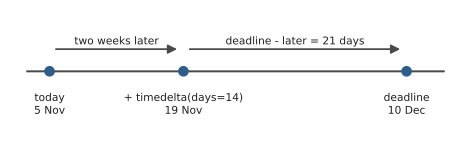
The datetime module handles all the awkward parts for you: months of different lengths, leap years, crossing into a new year. That’s why you should never do date maths by hand with numbers. Here’s a classic example, days until someone’s next birthday:
1def days_until_birthday(birthday, today=None):
2    today = today or date.today()
3    next_one = birthday.replace(year=today.year)
4    if next_one < today:
5        next_one = next_one.replace(year=today.year + 1)
6    return (next_one - today).days
7
8
9print(days_until_birthday(date(1997, 3, 14), date(2026, 11, 5)))
This prints 129. .replace(year=...) makes a copy of a date with one part changed. If this year’s birthday has already passed, we look at next year’s instead. (A birthday on 29 February would make replace complain in a non-leap year, which is exactly the kind of edge case that’s worth a try and except in a real program.) And notice the today=None parameter. It lets us pass in a fixed date when testing, so the answer doesn’t change every day. You’ll see why that’s valuable in Chapter 22.
Dates can be compared with < and > just like numbers, so “is this invoice overdue?” is a one-liner: if due_date < date.today():.
A brief word on time zones, since you may hit them one day. A plain datetime.now() gives your computer’s local time with no time zone attached. For most personal automation that’s fine. If you ever need to compare times across zones, say a meeting in Melbourne and one in London, look up the zoneinfo module in the standard library. It’s beyond what we need here, but it’s good to know it exists.
#Delays and timers
Sometimes a program needs to wait. You met time.sleep() in Chapter 5’s countdown: it pauses the program for a number of seconds, and the number can be a fraction, so time.sleep(0.5) waits half a second.
Waiting is useful more often than you’d think. When a script checks a website, it should pause between requests so it doesn’t hammer the server (Chapter 19 has more on this). When it’s watching a folder for new files, it can check every thirty seconds instead of thousands of times a second. And when it’s showing progress, a tiny pause makes the output readable.
The time module can also measure how long something takes. time.perf_counter() returns a precise reading from a stopwatch that keeps ticking. Read it before and after a piece of work, and subtract:
1import time
2
3start = time.perf_counter()
4total = sum(n * n for n in range(5_000_000))
5elapsed = time.perf_counter() - start
6print(f"Took {elapsed:.2f} seconds")
(Underscores in numbers, like 5_000_000, are just there to make big numbers readable. Python ignores them.) This is a handy way to check whether a change actually made your program faster, rather than guessing.
You can combine waiting and looping into a very simple scheduler, a script that does something every so often for as long as it’s running:
1import time
2from datetime import datetime
3
4INTERVAL = 10 * 60          # ten minutes, in seconds
5
6while True:
7    print(f"{datetime.now():%H:%M} checking for new files...")
8    # ... do the real work here ...
9    time.sleep(INTERVAL)
That works, and for something you want running while you’re at your desk, it’s perfectly reasonable. But it has real weaknesses. The script has to stay running, so if you close the terminal or restart your computer, it stops. And if it crashes at 2am, nobody restarts it. For jobs that should happen reliably every day, there’s a better way: let the operating system do the scheduling.
#Scheduling scripts
Every modern operating system has a built-in scheduler, a service that’s always running in the background and can start programs at set times. On Windows it’s called Task Scheduler. On macOS and Linux, the classic tool is cron. With either, you write your script so it does its job once and exits, and the operating system starts it at whatever times you choose, as Figure 18.2 shows. Your computer can be restarted, and the schedule survives.
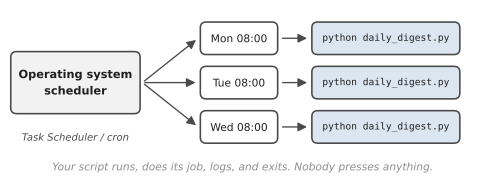
A script that runs on a schedule lives in a slightly different world from the one you tested it in. Three things change. Nobody is watching, so anything it prints disappears; use logging instead, like the toolkit in Chapter 13. Nobody is there to answer an input() question either, so a scheduled script must never ask one. And the current working directory could be almost anywhere, which is why we’ve been building paths from Path(__file__).parent since Chapter 9. A script that does that finds its files whoever starts it.
Marco runs three small bakeries, and he learned all three rules in a single week. His script read the day’s orders from a CSV file and emailed the bakers a list. When he ran it himself, it was perfect. Scheduled for 5am, it did nothing, and since it printed its errors instead of logging them, there was nothing to see. Once he added logging, the log said FileNotFoundError: orders.csv. The scheduler had started the script from a different folder, so plain orders.csv pointed nowhere. He changed it to Path(__file__).parent / "orders.csv", and the next morning the bakers got their first automatic list.
Windows: Task Scheduler
- Open the Start menu, type Task Scheduler, and open it.
- In the right-hand panel, click Create Basic Task. Give it a name, like “Daily digest,” and click Next.
- Choose how often it should run, for example Daily, and set a time.
- For the action, choose Start a program.
- In Program/script, enter the full path to Python. You can find it by typing
where pythonin Command Prompt. The exact path depends on how you installed Python, but it will be a long one ending inpython.exe, inside yourAppDatafolder. - In Add arguments, enter the full path to your script in quotation marks, such as
"C:\Users\Sara\python-projects\daily_digest.py". - Click Next, then Finish. To test it without waiting, find your task in the Task Scheduler Library, right-
click it, and choose Run. Then check the script’s log file to see what happened.
macOS and Linux: cron
cron reads its schedule from a list called a crontab. Open yours for editing by running this in a terminal:
crontab -e
Each line in the crontab is one scheduled job. It starts with five fields that say when, followed by the command to run:
# minute hour day-of-month month day-of-week   command
0 8 * * 1-5   /usr/bin/python3 /Users/sara/daily_digest.py
That line means “at minute 0 of hour 8, on any day of the month, in any month, on days 1 to 5 of the week (Monday to Friday), run this command.” A * means “every.” Some other examples: 30 18 * * * is 6:30pm every day, and 0 9 1 * * is 9am on the first of every month. Use the full path to Python (type which python3 to find it) and the full path to your script. Save and close the editor, and cron picks up the change automatically.
On macOS, the first time cron tries to touch files in protected places like Documents or Desktop, the system may block it. If your scheduled script seems to do nothing, open System Settings > Privacy & Security > Full Disk Access and allow cron, or keep your automation projects in a folder outside the protected locations.
#Launching programs automatically
The last piece of the puzzle is starting other programs from Python. The simplest case is opening a web page, and Python has a module just for that:
1import webbrowser
2
3webbrowser.open("https://docs.python.org/3/")
That opens the page in your default browser. You could use it to open your bank’s site and the timesheet system every morning with one double-click.
Opening a file in whatever app normally handles it, a spreadsheet in Excel, a PDF in your PDF viewer, is slightly different on each operating system. Here’s a small function that handles all three:
1import os
2import subprocess
3import sys
4
5
6def open_file(path):
7    """Open a file with its default app on any system."""
8    if sys.platform.startswith("win"):
9        os.startfile(path)
10    elif sys.platform == "darwin":       # macOS
11        subprocess.run(["open", path])
12    else:                                # Linux
13        subprocess.run(["xdg-open", path])
sys.platform tells you which operating system your program is running on. subprocess.run() runs another program, exactly as if you’d typed its name in a terminal. You give it a list: the program name first, then each argument as a separate item. It’s far more powerful than this one use, since it can run any command-line tool and capture its output, but opening files is the most common reason beginners reach for it.
subprocess.run() can also start ordinary applications. On Windows, subprocess.run(["notepad", "notes.txt"]) opens a file in Notepad. On macOS, subprocess.run(["open", "-a", "Calculator"]) opens the Calculator app. Put a few of those lines in a script, schedule it for 8:55am, and your workday starts itself.
#Project: Scheduled Automation Script
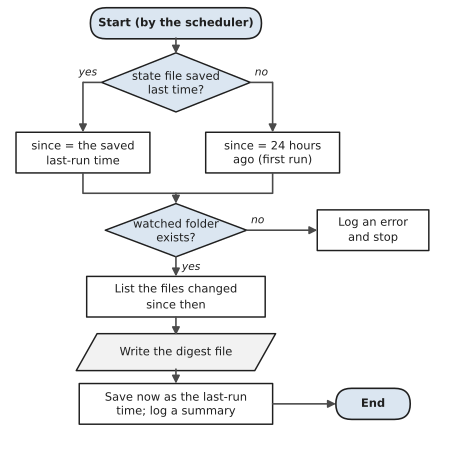
Let’s build a script designed to be run by a scheduler. daily_digest.py watches a folder. Each time it runs, it works out which files are new or changed since the last time it ran, writes a short digest about them, and logs what it did. Because it remembers when it last ran, it doesn’t matter whether you schedule it hourly, daily, or weekly; it always reports exactly what’s changed since last time.
Figure 18.3 shows what happens each time the scheduler starts the script. Notice that there are no questions for a person to answer anywhere in it. A scheduled script has to make every decision for itself.
1# daily_digest.py - report what changed in a folder since last run
2import json
3import logging
4import sys
5from datetime import datetime, timedelta
6from pathlib import Path
7
8HERE = Path(__file__).parent
9WATCH = HERE / "watched_folder"          # the folder to watch
10DIGESTS = HERE / "digests"
11STATE_FILE = HERE / "digest_state.json"
12
13logging.basicConfig(
14    filename=HERE / "daily_digest.log",
15    level=logging.INFO,
16    format="%(asctime)s %(levelname)s %(message)s",
17    datefmt="%Y-%m-%d %H:%M",
18)
19log = logging.getLogger("digest")
20
21
22def last_run_time():
23    """When did we last run? First ever run: look back one day."""
24    try:
25        saved = json.loads(STATE_FILE.read_text())
26        return datetime.fromisoformat(saved["last_run"])
27    except (FileNotFoundError, KeyError, ValueError):
28        return datetime.now() - timedelta(days=1)
29
30
31def save_run_time(moment):
32    data = {"last_run": moment.isoformat()}
33    STATE_FILE.write_text(json.dumps(data))
34
35
36def changed_since(folder, since):
37    changes = []
38    for path in sorted(folder.rglob("*")):
39        if not path.is_file():
40            continue
41        modified = datetime.fromtimestamp(path.stat().st_mtime)
42        if modified > since:
43            changes.append((path.relative_to(folder), modified))
44    return changes
45
46
47def write_digest(changes, since, now):
48    DIGESTS.mkdir(exist_ok=True)
49    digest = DIGESTS / f"digest_{now:%Y-%m-%d_%H%M}.txt"
50    lines = [f"Changes since {since:%a %d %b, %H:%M}", ""]
51    if not changes:
52        lines.append("Nothing new. Enjoy the quiet.")
53    for name, when in changes:
54        lines.append(f"{when:%a %H:%M}  {name}")
55    digest.write_text("\n".join(lines) + "\n", encoding="utf-8")
56    return digest
57
58
59def main():
60    now = datetime.now()
61    since = last_run_time()
62    if not WATCH.exists():
63        log.error("watched folder %s is missing", WATCH)
64        return
65    changes = changed_since(WATCH, since)
66    digest = write_digest(changes, since, now)
67    save_run_time(now)
68    log.info("%d change(s), %s", len(changes), digest.name)
69    if "--open" in sys.argv:
70        print(digest.read_text(encoding="utf-8"))
71
72
73if __name__ == "__main__":
74    main()
A few things here deserve a note. The script remembers its last run in a tiny file called digest_state.json, using the json module. JSON is a text format for storing data like dictionaries, and Chapter 20 is all about it; for now, just know that json.dumps() turns a dictionary into text and json.loads() turns it back. If the state file doesn’t exist yet, or is damaged, the script catches the error and looks back one day instead of crashing. Since nobody’s watching, it logs to a file rather than printing. And it never asks a question.
isoformat() and fromisoformat() are the safe way to store a datetime as text and get it back exactly. The --open check lets you run python daily_digest.py --open yourself to see the digest straight away, while the scheduled version stays silent.
Make a watched_folder next to the script, put a file or two in it, and run the script. Then add another file and run it again:
Changes since Thu 05 Nov, 09:00

Thu 09:12  meeting_notes.txt
Thu 09:14  budget/october.xlsx
The digest only lists what changed between the two runs. Check daily_digest.log too:
2026-11-05 09:00 INFO 1 change(s), digest_2026-11-05_0900.txt
2026-11-05 09:15 INFO 2 change(s), digest_2026-11-05_0915.txt
Now schedule it. Using Task Scheduler or cron, set it to run every weekday at 8am, pointed at a folder you actually care about, maybe a shared project folder. Each morning there’ll be a fresh digest waiting.
Some ways to extend it:
- Use the
open_file()function from this chapter so the digest opens automatically when it’s created, but only if it found changes. - Add files that were deleted since last time. (Hint: save the list of file names in the state file too, and compare.)
- Turn the digest into a task for your Chapter 13 toolkit, and schedule the whole toolkit instead.
That’s the end of Part 5. You can now automate files, spreadsheets, and documents, and make those automations run on their own. In Part 6, we’ll reach beyond your own computer and start getting data from the internet.
#On the Job
How it shows up at work: Scheduled jobs are the quiet backbone of most organisations: the nightly backup, the 6am report, the hourly check that a website is still up, the end-of-month invoice run. In technical teams, these run on servers rather than laptops, often with cron itself or with tools built on the same idea. Dates and times are everywhere too, and they’re a famous source of bugs: time zones, daylight saving changes, and the difference between “30 days” and “a month.”
What employers expect: Comfort with datetime and timedelta, formatting dates with strftime and reading them with strptime, and storing dates in the ISO format, 2026-11-05, which sorts correctly as text. Scheduled scripts that log, use full paths and never ask questions. Being able to read a cron line is genuinely useful; you’ll see them in many workplaces.
Interview questions you might meet:
- “What does
0 8* 1-5mean in a crontab?”* 8:00am, Monday toFriday. - “Why store dates as
2026-11-05rather than05/11/2026?”ISO dates are unambiguous worldwide, and they sort correctly as plain text.05/11means May in some countries and November in others. - “My script works when I run it, but not from the scheduler. What would you check?” The working directory and relative paths, the full path to Python, environment differences, and whether the script asks for input. And then: “I’d look at the log.” Marco’s story fits here perfectly.
- “How do you work out the number of days between two dates?” Subtract them to get a
timedelta, then read its.days.
Portfolio task: Push the daily digest with one of the extensions. In the README, include the exact cron line or Task Scheduler settings you used and a sample of the digest. Then actually schedule it for a week and keep the log. “This has been running daily since...” is a lovely sentence to be able to say in an interview.
Professional habit: Whenever a script deals with dates, write down which time zone it’s assuming. Most date bugs come from two pieces of code silently disagreeing about that.
#Exercises
Solutions are in solutions/chapter_18 in the book’s GitHub repository. None of them actually schedule anything, so they’re safe to run; Exercises 18.11 and 18.12 explain how you’d schedule them.
Warm-up
Exercise 18.1. Print the current date and time in three formats: 2026-11-05 14:30, Thursday 5 November 2026, and 2:30 PM.
Exercise 18.2. Print the date 100 days from today, and the day of the week it falls on.
Exercise 18.3. Use datetime.strptime to turn the text "05/11/2026 09:15" (day first) into a datetime, then print it in ISO format.
Exercise 18.4. Write the crontab time fields for each of these: every day at 7:30am; every Monday at 9am; every 15 minutes; and midnight on the first day of every month. (Searching for “cron step values” will help with the third.)
Practice
Exercise 18.5. Ask for a date as YYYY-MM-DD and print how many days away it is, or how many days ago it was.
Exercise 18.6. Write a countdown to a date the user chooses, showing the days, hours and minutes left.
Exercise 18.7. Time how long it takes to build a list of a million squares, first with a loop and then with a list comprehension. Use time.perf_counter().
Exercise 18.8. Write a script that prints a message three times, two seconds apart, with the current time at the start of each line.
Exercise 18.9. Write working_days_between(start, end) that counts the weekdays (Monday to Friday) between two dates, not counting the end date.
Exercise 18.10. Write a script that opens a web page of your choice in your browser and also opens a text file it has just written with today’s date in it.
Challenge
Exercise 18.11. Marco’s script, done right. Write a script that reads orders.csv (create a small one), writes todays_list.txt with today’s date at the top, logs what it did to bakery.log, uses Path(__file__).parent for every path, and never calls input(). In a comment at the top, write the cron line that would run it at 5am every day.
Exercise 18.12. Write a script that checks whether it has already run today, using a small state file containing the date of its last run. If it has, it logs that and exits. Otherwise it does its job (printing a greeting is fine) and updates the state file. This “run at most once a day” pattern is useful when a scheduler might start a script more than once.
Exercise 18.13. Write human_time_ago(moment) that returns phrases like just now, 5 minutes ago, 3 hours ago, yesterday and 12 days ago. Test it with several datetime values made with timedelta.