This is the chapter where the pieces come together. Over the last twenty-three chapters, you’ve learned to organise files, build spreadsheets, find patterns in text, fetch data from the internet, write logs, read settings, handle errors, test your code, and keep your packages tidy. Each skill had its own chapter and its own small project. Real software doesn’t come in chapters, though. It combines all of those skills in one place, and the hard part, the part that makes someone a programmer rather than a person who knows some Python, is combining them well.
So let’s build something you’ll actually keep using: an everyday automation suite. It’s a single command-line tool, called suite, that bundles several automations behind one consistent interface. One command tidies a folder. Another turns a CSV into an Excel summary. Another gives you today’s weather. And suite morning runs all of them at once, which makes it perfect for scheduling. By the end, you’ll be able to install it on your computer like any other tool and type suite from any terminal.
Along the way we’ll plan a project that combines several skills, reuse earlier work as clean, separate modules, and build a proper command-line interface with argparse. You’ll see configuration, logging and error handling working together, and finish by packaging the project so it installs with pip.
#Combining all skills
Before writing code, let’s plan, the way we did in Chapter 13. Here’s what the suite should do, in plain sentences:
The suite has a few commands. organise sorts a folder’s files into subfolders by type. report reads a CSV file and writes an Excel summary. weather shows today’s forecast for a city. morning runs all three. Settings, like which folder to organise and which city to check, live in a settings file, so nothing is hard-coded. Every command writes to a log. If one job in morning fails, the others still run. And file moves are a dry run by default, so the tool can’t make a mess until you’ve told it you trust it.
That plan maps neatly onto modules, one per area of responsibility, as Figure 24.1 shows. Notice how each module comes from an earlier chapter. We’re not starting from scratch; we’re reusing work, cleaned up and given a proper home.
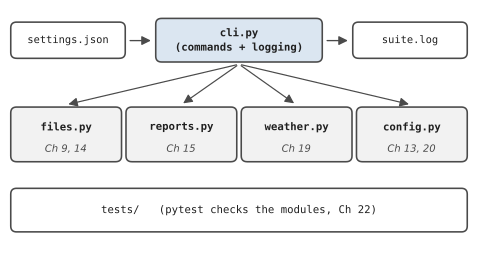
The project folder looks like this:
everyday_suite/
    pyproject.toml          how to install it
    settings.json           your settings
    suite/                  the package
        __init__.py
        __main__.py
        cli.py
        config.py
        files.py
        reports.py
        weather.py
    tests/
        test_files.py
        test_reports.py
        test_cli.py
    data/expenses.csv       sample data
suite is a package, the idea we mentioned in Chapter 10: a folder of modules that belong together. The file __init__.py is what tells Python “this folder is a package.” It can be empty, but we’ll put the version number in it:
1# suite/__init__.py
2__version__ = "1.0.0"
Inside a package, modules import each other using the package name, like from suite.files import organise. That makes it clear where every function comes from.
#Configuration and file automation
The settings module is short. It starts with sensible defaults, then overrides them with anything found in settings.json, using the JSON skills from Chapter 20. This means the suite works even if there’s no settings file at all, and the settings file only needs to mention what you want to change:
1# suite/config.py - settings with sensible defaults
2import json
3from pathlib import Path
4
5DEFAULTS = {
6    "organise_folder": "practice_folder",
7    "dry_run": True,
8    "csv_file": "data/expenses.csv",
9    "group_by": "category",
10    "value": "amount",
11    "report_file": "expense_report.xlsx",
12    "city": "Melbourne",
13    "log_file": "suite.log",
14}
15
16
17def load_settings(path="settings.json"):
18    """Defaults, updated by anything in settings.json."""
19    settings = dict(DEFAULTS)
20    path = Path(path)
21    if path.exists():
22        text = path.read_text(encoding="utf-8")
23        settings.update(json.loads(text))
24    return settings
dict(DEFAULTS) makes a copy of the defaults, so changing settings never changes the original. .update() copies every key from one dictionary into another, overwriting any that already exist. A settings file to organise your real Downloads folder for real would look like this:
1{
2    "organise_folder": "~/Downloads",
3    "dry_run": false,
4    "city": "Brisbane"
5}
The file module is a trimmed version of the Chapter 14 organizer, with the user-interaction parts removed. That’s important. Modules in a package should do their job and return results; deciding how to talk to the user is the command-line interface’s job:
1# suite/files.py - sort a folder into subfolders by type
2import shutil
3from pathlib import Path
4
5CATEGORIES = {
6    "Images": [".jpg", ".jpeg", ".png", ".gif", ".heic"],
7    "Documents": [".pdf", ".docx", ".txt", ".pptx", ".md"],
8    "Spreadsheets": [".xlsx", ".csv"],
9    "Audio": [".mp3", ".wav", ".m4a"],
10    "Archives": [".zip", ".tar", ".gz"],
11}
12
13
14def category_for(path):
15    ext = Path(path).suffix.lower()
16    for category, extensions in CATEGORIES.items():
17        if ext in extensions:
18            return category
19    return "Other"
20
21
22def free_name(path):
23    candidate, n = path, 1
24    while candidate.exists():
25        new_name = f"{path.stem}_{n}{path.suffix}"
26        candidate = path.with_name(new_name)
27        n += 1
28    return candidate
29
30
31def plan_moves(folder):
32    folder = Path(folder).expanduser()
33    if not folder.is_dir():
34        raise FileNotFoundError(f"no such folder: {folder}")
35    moves = []
36    for item in sorted(folder.iterdir()):
37        if item.is_file() and not item.name.startswith("."):
38            moves.append((item, folder / category_for(item)))
39    return moves
40
41
42def organise(folder, dry_run=True):
43    """Move files into category folders; return the plan."""
44    moves = plan_moves(folder)
45    if not dry_run:
46        for source, target_dir in moves:
47            target_dir.mkdir(exist_ok=True)
48            destination = free_name(target_dir / source.name)
49            shutil.move(source, destination)
50    return moves
Path(folder).expanduser() turns ~, which means “my home folder,” into the real path, like /Users/sara. That’s what lets the settings file say ~/Downloads and work on anyone’s computer. And organise() defaults to dry_run=True, so forgetting to pass the argument is safe: the worst that happens is that nothing moves.
#Report generation and API integration
The report module generalises the Chapter 15 report. Instead of being tied to café sales, it can total any numeric column of any CSV file, grouped by any other column. The settings decide which:
1# suite/reports.py - summarise a CSV and save it as Excel
2import csv
3from collections import defaultdict
4
5from openpyxl import Workbook
6from openpyxl.styles import Font
7
8
9def summarise_csv(path, group_by, value):
10    """Total the `value` column for each different `group_by`."""
11    totals = defaultdict(float)
12    with open(path, newline="", encoding="utf-8") as file:
13        for row in csv.DictReader(file):
14            totals[row[group_by]] += float(row[value])
15    return dict(sorted(totals.items()))
16
17
18def write_excel(totals, out_path, headings=("Group", "Total")):
19    wb = Workbook()
20    ws = wb.active
21    ws.append(list(headings))
22    for cell in ws[1]:
23        cell.font = Font(bold=True)
24    for key, total in totals.items():
25        ws.append([key, round(total, 2)])
26    last = ws.max_row
27    ws.append(["TOTAL", f"=SUM(B2:B{last})"])
28    ws.column_dimensions["A"].width = 18
29    wb.save(out_path)
Splitting “work out the numbers” from “write the file” is the same principle as before, and it pays off immediately in testing: summarise_csv() returns a plain dictionary, which is easy to check in a test without opening Excel.
The weather module is a compact version of Chapter 19’s fetcher, returning a single line of text for today. It keeps the offline fallback, because a morning routine that crashes whenever the Wi-Fi is slow isn’t much of a routine:
1# suite/weather.py - a one-line forecast, with an offline fallback
2import json
3from pathlib import Path
4
5import requests
6
7GEO_URL = "https://geocoding-api.open-meteo.com/v1/search"
8FORECAST_URL = "https://api.open-meteo.com/v1/forecast"
9CACHE = Path("weather_cache.json")
10
11
12def today_forecast(city, timeout=10):
13    """Return something like 'Melbourne 11° to 19°, rain 35%'."""
14    try:
15        query = {"name": city, "count": 1}
16        geo = requests.get(GEO_URL, params=query, timeout=timeout)
17        geo.raise_for_status()
18        results = geo.json().get("results")
19        if not results:
20            return f"{city}: place not found"
21        place = results[0]
22        params = {
23            "latitude": place["latitude"],
24            "longitude": place["longitude"],
25            "daily": "temperature_2m_max,temperature_2m_min,"
26                     "precipitation_probability_max",
27            "timezone": "auto",
28            "forecast_days": 1,
29        }
30        r = requests.get(FORECAST_URL, params=params,
31                         timeout=timeout)
32        r.raise_for_status()
33        daily = r.json()["daily"]
34    except requests.RequestException:
35        if CACHE.exists():
36            saved = json.loads(CACHE.read_text(encoding="utf-8"))
37            return saved["line"] + " (saved earlier, offline now)"
38        return f"{city}: weather unavailable (offline)"
39
40    name = place["name"]
41    low = daily["temperature_2m_min"][0]
42    high = daily["temperature_2m_max"][0]
43    rain = daily["precipitation_probability_max"][0]
44    line = f"{name} {low:.0f}° to {high:.0f}°, rain {rain}%"
45    CACHE.write_text(json.dumps({"line": line}), encoding="utf-8")
46    return line
Notice how the try block only wraps the network part. Turning the data into a sentence happens afterwards, outside the try, so a genuine bug in that code would show up as a real error instead of being mistaken for a network problem. Keeping try blocks as small as possible is a good habit: catch only the problems you’re expecting, exactly where you expect them.
#Packaging a usable tool
Now for the part that turns a collection of modules into a tool: the command-line interface, or CLI. You’ve seen command-line tools all through the book. pip install requests is one: a program name (pip), a command (install), and an argument (requests). git, pytest, and python itself work the same way. We’ll give our suite the same shape.
You could handle command-line words yourself with sys.argv, as the organizer did in Chapter 14. But once a tool has several commands, options, and help text, that gets messy fast. Python’s standard library includes argparse, which does all of it for you, including automatic --help messages and friendly errors when someone types a command wrong. Here’s the whole interface:
1# suite/cli.py - the command-line interface
2import argparse
3import logging
4
5from suite import __version__
6from suite.config import load_settings
7from suite.files import organise
8from suite.reports import summarise_csv, write_excel
9from suite.weather import today_forecast
10
11log = logging.getLogger("suite")
12
13
14def setup_logging(log_file):
15    logging.basicConfig(
16        level=logging.INFO,
17        format="%(asctime)s %(levelname)s %(message)s",
18        datefmt="%Y-%m-%d %H:%M",
19        handlers=[
20            logging.FileHandler(log_file, encoding="utf-8"),
21        ],
22    )
23
24
25def cmd_organise(folder, dry_run):
26    moves = organise(folder, dry_run=dry_run)
27    for source, target_dir in moves:
28        print(f"  {source.name:<20} -> {target_dir.name}/")
29    done = "would be moved (dry run)" if dry_run else "moved"
30    print(f"  organise: {len(moves)} file(s) {done}")
31    log.info("organise %s: %d file(s) %s",
32             folder, len(moves), done)
33
34
35def cmd_report(settings):
36    group, value = settings["group_by"], settings["value"]
37    totals = summarise_csv(settings["csv_file"], group, value)
38    write_excel(totals, settings["report_file"],
39                (group.title(), f"Total {value}"))
40    print(f"  report:   {settings['report_file']} written "
41          f"({len(totals)} groups)")
42    log.info("report written to %s", settings["report_file"])
43
44
45def cmd_weather(city):
46    line = today_forecast(city)
47    print(f"  weather:  {line}")
48    log.info("weather: %s", line)
49
50
51def cmd_morning(settings):
52    """Run every job. One failure doesn't stop the others."""
53    jobs = [
54        ("organise", lambda: cmd_organise(
55            settings["organise_folder"], settings["dry_run"])),
56        ("report", lambda: cmd_report(settings)),
57        ("weather", lambda: cmd_weather(settings["city"])),
58    ]
59    for name, job in jobs:
60        try:
61            job()
62        except Exception:
63            log.exception("morning job '%s' failed", name)
64            print(f"  {name}: FAILED (details in the log)")
65
66
67def build_parser():
68    parser = argparse.ArgumentParser(
69        prog="suite", description="Small everyday automations.")
70    parser.add_argument("--version", action="version",
71                        version=f"suite {__version__}")
72    sub = parser.add_subparsers(dest="command", required=True)
73
74    org = sub.add_parser("organise",
75                         help="sort a folder by file type")
76    org.add_argument("folder", nargs="?", help="folder to tidy")
77    org.add_argument("--dry-run", action="store_true",
78                     help="only show what would happen")
79    org.add_argument("--for-real", action="store_true",
80                     help="actually move the files")
81
82    sub.add_parser("report", help="summarise the CSV into Excel")
83    wea = sub.add_parser("weather", help="today's forecast")
84    wea.add_argument("city", nargs="?",
85                     help="defaults to settings")
86    sub.add_parser("morning", help="run every job")
87    return parser
88
89
90def main(argv=None):
91    args = build_parser().parse_args(argv)
92    settings = load_settings()
93    setup_logging(settings["log_file"])
94
95    if args.command == "organise":
96        folder = args.folder or settings["organise_folder"]
97        if args.for_real:
98            dry_run = False
99        else:
100            dry_run = args.dry_run or settings["dry_run"]
101        cmd_organise(folder, dry_run)
102    elif args.command == "report":
103        cmd_report(settings)
104    elif args.command == "weather":
105        cmd_weather(args.city or settings["city"])
106    elif args.command == "morning":
107        cmd_morning(settings)
It’s the longest listing in the chapter, but there’s nothing in it you haven’t met. Let’s look at the new parts.
argparse.ArgumentParser describes the whole tool. add_subparsers() lets it have separate commands, like organise and report, each with its own arguments. add_argument("folder", nargs="?") adds an optional word after the command; nargs="?" means “zero or one,” so suite organise and suite organise ~/Desktop both work. Arguments starting with -- are options. action="store_true" makes an option into an on/off switch: if you type --dry-run, args.dry_run is True, otherwise False. And help= text appears automatically when someone types --help.
parse_args(argv) reads the command line and returns an object with one attribute per argument. When argv is None, it reads the real command line. When we pass a list, it reads that instead, which is exactly what makes main() testable, as you’ll see shortly.
The if args.for_real lines in main() decide whether files really move. The rule they encode is: --for-real always moves files, and otherwise, files only move if neither --dry-run nor the settings ask for a dry run. Safety wins unless you explicitly say otherwise.
cmd_morning() uses the same pattern as the Chapter 13 runner: a list of jobs, each run inside its own try, failures logged with the full traceback and reported briefly. The jobs are stored as small lambda functions so they can be called later, inside the loop.
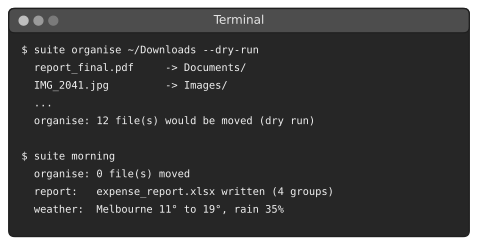
Figure 24.2 shows that loop as a flowchart. Whatever happens inside a job, the arrows always lead back to “another job?”, so the morning routine always finishes.
There’s one more tiny file. Python can run a package directly with python -m suite, and when it does, it looks for a module called __main__.py inside the package:
1# suite/__main__.py - lets you run: python -m suite
2from suite.cli import main
3
4main()
Now, from the project folder, python -m suite --help works. The final step is to make suite a real command that works from anywhere. That’s what packaging is for. Create a pyproject.toml file in the project folder:
1# pyproject.toml - tells pip how to install the suite
2[build-system]
3requires = ["setuptools>=61"]
4build-backend = "setuptools.build_meta"
5
6[project]
7name = "everyday-suite"
8version = "1.0.0"
9description = "Small everyday automations from Hands-On Python"
10requires-python = ">=3.10"
11dependencies = ["requests", "openpyxl"]
12
13[project.scripts]
14suite = "suite.cli:main"
15
16[tool.setuptools]
17packages = ["suite"]
18
19[tool.pytest.ini_options]
20pythonpath = ["."]
This file is written in TOML, a settings format similar to the INI files from Chapter 13. It tells pip the project’s name, its version, which packages it depends on, and, most importantly, under [project.scripts], that installing it should create a command called suite that runs the main function in suite/cli.py. The last section tells pytest where to find the suite package when running tests.
With a virtual environment active (Chapter 23), install the project in editable mode:
pip install -e .
The . means “the project in this folder,” and -e means editable: pip links to your code instead of copying it, so any change you make takes effect immediately without reinstalling. pip also installs requests and openpyxl, because the project said it depends on them. Now type:
suite --help
usage: suite [-h] [--version] {organise,report,weather,morning} ...

Small everyday automations.

positional arguments:
  {organise,report,weather,morning}
    organise            sort a folder by file type
    report              summarise the CSV into Excel
    weather             today's forecast
    morning             run every job
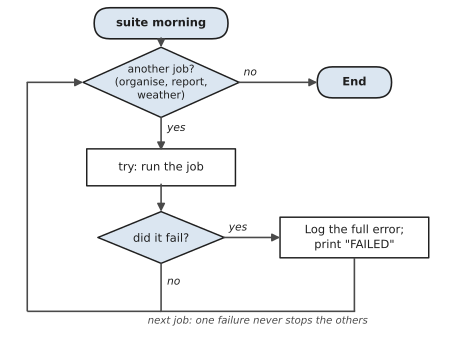
That’s a real command-line tool, with help text you didn’t have to write by hand. Figure 24.3 shows a few commands in action.
#Testing the suite
A tool you’ll rely on deserves tests. Because each module does its job and returns results, testing is straightforward. Here are tests for the file and report modules, using pytest’s tmp_path fixture from Chapter 22, so they never touch your real files:
1# tests/test_files.py
2from suite.files import category_for, organise
3
4
5def test_categories():
6    assert category_for("photo.JPG") == "Images"
7    assert category_for("notes.txt") == "Documents"
8    assert category_for("mystery.xyz") == "Other"
9
10
11def test_dry_run_moves_nothing(tmp_path):
12    (tmp_path / "a.pdf").write_text("x")
13    moves = organise(tmp_path, dry_run=True)
14    assert len(moves) == 1
15    assert (tmp_path / "a.pdf").exists()
16
17
18def test_real_run_moves_files(tmp_path):
19    (tmp_path / "a.pdf").write_text("x")
20    (tmp_path / "b.mp3").write_text("x")
21    organise(tmp_path, dry_run=False)
22    assert (tmp_path / "Documents" / "a.pdf").exists()
23    assert (tmp_path / "Audio" / "b.mp3").exists()
1# tests/test_reports.py
2from suite.reports import summarise_csv
3
4
5def test_summarise_groups_and_totals(tmp_path):
6    data = tmp_path / "spend.csv"
7    rows = "category,amount\nfood,10\ntravel,5\nfood,2.5\n"
8    data.write_text(rows, encoding="utf-8")
9    totals = summarise_csv(data, "category", "amount")
10    assert totals == {"food": 12.5, "travel": 5.0}
And because main() accepts an argument list, even the command-line interface can be tested, without typing anything:
1# tests/test_cli.py
2from suite.cli import build_parser
3
4
5def test_organise_command_is_understood():
6    args = build_parser().parse_args(["organise", "x", "--dry-run"])
7    assert args.command == "organise"
8    assert args.folder == "x"
9    assert args.dry_run is True
Run pytest from the project folder, and all five tests should pass.
#Using it every day
Here’s the moment the whole book has been building towards. Write a settings.json pointing at a folder you really want tidied, run suite organise to see the dry run, and when you’re happy with the plan, set "dry_run": false. Then schedule suite morning with Task Scheduler or cron, exactly as in Chapter 18. Because the suite is installed as a command, the scheduled job is a single line. On macOS or Linux, a crontab line like this runs it every weekday at 8am from your project folder:
0 8 * * 1-5 cd ~/everyday_suite && .venv/bin/suite morning
Each morning, your folder gets tidied, your report gets made, the weather gets checked, and everything that happened is written to suite.log.
Tools like this have a way of spreading. Nikhil, a teaching assistant who worked through a book much like this one, built his own suite to tidy his downloads and summarise his marking spreadsheet. A month later, two other tutors asked for a copy. Because it had a README, a settings file and a pip install, he could just send them the link, and neither of them had to read a line of Python. One of them added a command of her own and sent it back. That’s the moment a script becomes software: when someone who isn’t you can install it, configure it and trust it.
And here’s the best part: the suite is designed to grow. To add a new automation, you write a module that does one job and returns a result, add a cmd_ function and a subparser in cli.py, and optionally add it to the morning jobs. Some ideas to try:
- Add a
digestcommand using the daily digest from Chapter 18. - Add an
invoicescommand that wraps the invoice processor from Chapter 17. - Add an undo option to
organise, bringing back the undo log from Chapter 14. - Publish the project on GitHub, with a README explaining how to install it, so other people can use your suite too.
Take a moment, too, to notice what you’ve just done. You planned a project, split it into modules, reused earlier work, gave it a professional command-line interface, configured it with a settings file, made it log its work and survive failures, tested it, and packaged it so it installs with one command. That is genuinely what building software looks like. The tools get bigger from here, but the shape stays the same.
In the next chapter, we’ll take a different direction and build something you use through a web browser instead of a terminal: your first web app.
#On the Job
How it shows up at work: Most professional software is shaped exactly like this suite: separate modules that each do one job, a thin layer that connects them to the outside world, settings in a file, logs of what happened, tests that guard it, and packaging so it installs cleanly. Internal command-line tools are especially common. Teams build them for deployments, data jobs, report runs and housekeeping, and being able to add a well-behaved subcommand to one is a very practical skill.
What employers expect: A project structure someone else can find their way around. A command-line interface with --help that actually helps. Errors that explain themselves, logs that tell the story, and a README that gets a stranger from zero to running in a few minutes. In a job application, a finished project like this is worth more than a dozen half-built ones.
Interview questions you might meet:
- “Walk me through a project you built.” This is the big one, and the suite is your answer. Explain what it does, how it’s structured, one design decision you made and why, one thing that went wrong, and what you’d add next. Practise saying it out loud in under three minutes.
- “Why separate the command-line code from the logic?” So the logic can be tested and reused without the interface, and the interface can change without touching the logic.
- “How do you handle one job failing in
morning?” Each job runs in its owntry/except, logs the full error, and the rest carry on, with a summary at the end. - “What does
pyproject.tomldo?” It describes the project to pip: its name, version, dependencies and the commands it installs.
Portfolio task: This is your centrepiece. Pin it to the top of your GitHub profile. Give it a README with a one-paragraph description, installation steps, an example of each command with its output, a “how to add a command” section, and a link to the tests. Ask a friend to install it by following only the README, and fix whatever confuses them.
Professional habit: Keep a CHANGELOG.md: a short, dated list of what changed in each version. It helps the people who use your tool, and it’s a running record of your progress.
#Exercises
Solutions are in solutions/chapter_24 in the book’s GitHub repository. Each solution is a small standalone command-line program, so you can try argparse without changing your suite. Once one works, try adding it to the suite as a new command.
Warm-up
Exercise 24.1. Write a script greet.py that uses argparse to take a name and prints a greeting, so that python greet.py Sara prints Hello, Sara!. Run it with --help and read what argparse wrote for you.
Exercise 24.2. Add an optional --shout flag to greet.py that prints the greeting in capitals, and a --times option that repeats it, defaulting to 1.
Exercise 24.3. Run the suite’s tests with pytest. Then deliberately break one function in suite/files.py and run the tests again. Which test catches it?
Practice
Exercise 24.4. Write a command-line tool count.py with two subcommands: count.py words FILE prints the number of words in a file, and count.py lines FILE prints the number of lines. Show a clear error if the file doesn’t exist.
Exercise 24.5. Write a convert.py tool that converts temperatures: convert.py 100 --to f and convert.py 212 --to c. Use choices=["c", "f"] so argparse rejects anything else.
Exercise 24.6. Add a --verbose flag to a small tool that switches the logging level from INFO to DEBUG, and add a couple of DEBUG messages to show it working.
Exercise 24.7. Write a notes.py tool with add TEXT and list subcommands that stores notes in a JSON file next to the script, with the date each note was added.
Challenge
Exercise 24.8. Add a find command to your suite (or write it as a standalone tool first) that searches every .txt file in a folder for a regular expression given on the command line, and prints each match with its file name and line number.
Exercise 24.9. Write a tool with a morning-style command that runs three small jobs in turn, where one of them fails. It should log the failure with its traceback, carry on with the others, print a summary like 2 of 3 jobs succeeded, and exit with status code 1 if anything failed, so a scheduler can tell. (sys.exit(1))
Exercise 24.10. Write tests for count.py from Exercise 24.4 that call its main() function with a list of arguments, using tmp_path for the test file and pytest’s capsys fixture to check what was printed.