PDFs are the cardboard boxes of the digital world. Everything arrives in one: invoices, bank statements, tickets, contracts, reports, the manual for your washing machine. They’re designed to look identical on every screen and printer, which is wonderful for reading and terrible for doing anything else. Try copying a column of numbers out of a PDF and you’ll know what we mean.
Word documents have the opposite problem. They’re easy to edit, so people make a hundred slightly different versions by hand: the same letter with a different name at the top, the same report with this month’s figures pasted in.
Both kinds of tedium can be automated. In this chapter you’ll read the text out of PDFs and pick out the parts you need, using the regular expressions from the last chapter where they help. You’ll merge, split and rotate PDF pages, create and fill in Word documents, and then combine all of it into a workflow that processes a folder of invoices in one go.
You’ll need three libraries for this chapter. Install them the same way you installed openpyxl:
python -m pip install pypdf python-docx reportlab
(As in Chapter 15, use python3 instead of python on macOS and Linux.)
pypdf reads and edits PDFs. python-docx creates and edits Word files (it’s installed as python-docx but imported as docx). And reportlab creates new PDFs; we’ll only use it to make some practice invoices.
#A folder of practice invoices
As always, we’ll experiment on fake files. This script uses reportlab to create five simple invoices:
1# make_sample_invoices.py - create practice invoice PDFs
2from pathlib import Path
3
4from reportlab.lib.pagesizes import A4
5from reportlab.pdfgen import canvas
6
7FOLDER = Path(__file__).parent / "invoices"
8INVOICES = [
9    (1041, "2026-10-01", "Sara Ahmed",
10     [("Logo design", 450.0)]),
11    (1042, "2026-10-03", "Lin Chen",
12     [("Website edits", 640.0), ("Hosting (1 year)", 240.0)]),
13    (1043, "2026-10-09", "Omar Haddad",
14     [("Photography", 1200.0)]),
15    (1044, "2026-10-15", "Priya Nair",
16     [("Poster printing", 85.5), ("Delivery", 15.0)]),
17    (1045, "2026-10-21", "Lin Chen",
18     [("Monthly support", 300.0)]),
19]
20
21FOLDER.mkdir(exist_ok=True)
22for number, day, client, items in INVOICES:
23    pdf = canvas.Canvas(str(FOLDER / f"invoice_{number}.pdf"),
24                        pagesize=A4)
25    lines = ["INVOICE", f"Invoice number: {number}",
26             f"Date: {day}", f"Client: {client}", ""]
27    lines += [f"{name}: ${price:.2f}" for name, price in items]
28    lines += ["", f"Total: ${sum(p for _, p in items):.2f}"]
29    y = 780
30    for line in lines:
31        pdf.drawString(72, y, line)
32        y -= 20
33    pdf.save()
34print(f"Created {len(INVOICES)} invoices in {FOLDER.name}/")
reportlab measures the page in points, 72 to an inch, starting from the bottom left. So drawString(72, 780, ...) writes a line one inch from the left edge, near the top of the page, and each new line moves 20 points down. Run it and you’ll have an invoices folder with five PDFs. Open one to see what we’re working with.
#Reading PDFs
Reading a PDF with pypdf takes three lines:
1from pypdf import PdfReader
2
3reader = PdfReader("invoices/invoice_1042.pdf")
4print(len(reader.pages), "page(s)")
5print(reader.pages[0].extract_text())
1 page(s)
INVOICE
Invoice number: 1042
Date: 2026-10-03
Client: Lin Chen
Website edits: $640.00
Hosting (1 year): $240.00
Total: $880.00
reader.pages is a list of pages, and each page’s extract_text() gives you its text as one big string. Once you have a string, you’re back on familiar ground. Everything you know about strings applies.
A word of honesty about PDF text, though. PDFs don’t store paragraphs and lines the way a Word document does. They store instructions like “draw these letters at this position.” Text extraction is pypdf’s best guess at reassembling those letters into lines, and it’s usually good, but on complicated layouts, with columns, tables, or unusual fonts, the text can come out jumbled. And a scanned PDF, which is really just a photo of a page, contains no text at all; extract_text() returns an empty string. Getting text out of a photo needs a different tool called OCR (optical character recognition), which is beyond this book, though you’ll know enough by the end to try one.
To pull specific facts out of the text, split it into lines and look for the ones you want. Our invoices label every field, Total: $880.00, so a small function can find a field by its label:
1def find_field(text, label):
2    """Return what follows 'label:' on its line, or None."""
3    for line in text.splitlines():
4        if line.startswith(label + ":"):
5            return line.split(":", 1)[1].strip()
6    return None
7
8
9text = reader.pages[0].extract_text()
10print(find_field(text, "Client"))   # Lin Chen
11print(find_field(text, "Total"))    # $880.00
text.splitlines() breaks a string into a list of lines. line.split(":", 1) splits on the first colon only, so a value with a colon inside it stays in one piece. This approach works for any document where the information you need is clearly labelled, which, happily, describes most invoices, receipts, and statements.
Real-world documents are messier, and you’ll often need to tidy what you find. A total like $1,200.00 has to lose its dollar sign and comma before float() will accept it:
1def to_number(money):
2    return float(money.replace("$", "").replace(",", ""))
Not every document is as tidy as ours, and this is where Chapter 16 pays off. Suppose a supplier’s invoice says Amount due (incl. GST) .......... $1,200.00 instead of Total: $1,200.00. The label is different, the line doesn’t start with it, and there are dots in the way. find_field gives up. A regular expression doesn’t care about any of that, because it searches for the shape of the thing you want:
1import re
2
3m = re.search(r"Amount due.*?\$([\d,]+\.\d{2})", text)
4if m:
5    total = to_number(m.group(1))
Read it as “the words Amount due, then anything (as little as possible), then a dollar sign, then digits and commas, a dot, and two more digits,” with the number captured in a group. The same idea finds an invoice number written as INV-1042, Invoice #1042 or Invoice no. 1042: r"Inv\w*\W*(?:no\.?\s*)?#?(\d+)" with re.IGNORECASE. For our sample invoices the simple label approach is enough, and simpler is better, but keep regular expressions in mind for the day the documents get messy. They always do eventually.
Ruth, a bookkeeper who looks after the accounts for a handful of small businesses, describes this moment well. Her first invoice script handled her own clients’ invoices perfectly, because she’d designed the template. Then a new client sent forty invoices from six different suppliers, each with its own layout. She didn’t write six scripts. She wrote one, with a short list of patterns for each field, tried in order until one matched. It took an afternoon. The invoices took her two minutes every month after that, instead of most of a morning.
#Modifying documents
Editing PDFs
pypdf can’t easily change the words on a PDF page, but it’s very good at rearranging pages, which is what most people actually need. The tool for building a new PDF is PdfWriter. Merging several PDFs into one looks like this:
1from pathlib import Path
2from pypdf import PdfReader, PdfWriter
3
4writer = PdfWriter()
5for pdf in sorted(Path("invoices").glob("*.pdf")):
6    writer.append(pdf)
7writer.write("all_invoices.pdf")
append() adds every page of a file to the end of the new document. Splitting goes the other way: open one PDF and write each page into its own file. Here’s how:
1reader = PdfReader("all_invoices.pdf")
2for number, page in enumerate(reader.pages, start=1):
3    single = PdfWriter()
4    single.add_page(page)
5    single.write(f"page_{number:02d}.pdf")
Rotating a page that was scanned sideways is a single method call, page.rotate(90), before adding it to the writer. And you can pick and choose pages in any order, which is how you’d pull, say, just the signature page out of a contract, or put an appendix at the front.
Word documents
For Word files, python-docx lets you build documents in code:
1from docx import Document
2
3doc = Document()
4doc.add_heading("Weekly update", level=1)
5doc.add_paragraph("Here's what happened this week.")
6bullet = "List Bullet"
7doc.add_paragraph("Finished the invoice tool", style=bullet)
8doc.add_paragraph("Sent five thank-you letters", style=bullet)
9
10table = doc.add_table(rows=1, cols=2)
11table.style = "Light Grid Accent 1"
12table.rows[0].cells[0].text = "Client"
13table.rows[0].cells[1].text = "Total"
14row = table.add_row().cells
15row[0].text, row[1].text = "Lin Chen", "$880.00"
16
17doc.save("update.docx")
It reads almost like a description of the document. The style names are Word’s own built-in style names, so the result looks like any other Word document, and anyone can open it and keep editing.
Reading an existing document is just as straightforward. Document("update.docx") opens it, and doc.paragraphs gives you every paragraph, each with a .text attribute.
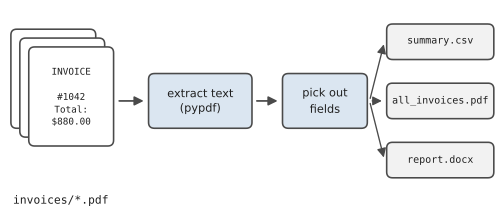
The most useful trick of all is filling in a template: a document with placeholders that you replace with real data, as Figure 17.1 shows. Write the template as text with named slots in curly braces, then use the string method .format() to fill them in:
1TEMPLATE = [
2    "Dear {client},",
3    "Thank you for your payment of {total} for invoice {number}.",
4    "We look forward to working with you again.",
5]
6
7data = {"client": "Lin", "total": "$880.00", "number": 1042}
8doc = Document()
9for line in TEMPLATE:
10    doc.add_paragraph(line.format(**data))
11doc.save("letter_1042.docx")
.format() works like an f-string that’s filled in later: each {name} in the text is replaced by the matching value. The **data hands over every key in the dictionary as a named argument, so {client} gets data["client"], and so on. One template, a list of data, and a loop, and you’ve written a hundred personalised letters.
#Automating document workflows
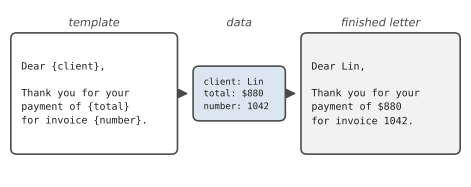
A workflow is a chain of steps that turns some inputs into some outputs. You’ve now got all the pieces for a real one. Figure 17.2 shows the plan for our project: take a folder of invoice PDFs, pull the key facts out of each, and produce three things from them. A CSV summary for the spreadsheet, a single merged PDF for the records, and a Word report for a human to read.
The secret to workflows that keep working is to treat each document independently and expect some to be odd. One invoice might be missing a field. Another might be a scanned image. A good workflow processes what it can, clearly reports what it couldn’t, and never lets one bad file stop the rest. That’s the toolkit lesson from Chapter 13 all over again.
#Project: Document Processing Tool
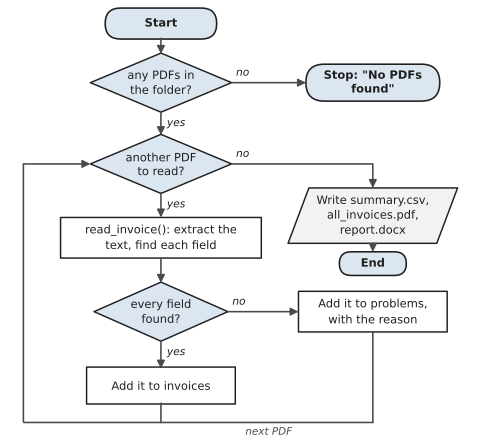
Figure 17.3 shows how the tool works through the folder. Each PDF either ends up in the list of invoices or in the list of problems, with a reason. Nothing is skipped silently, and one bad file never stops the others.
Here’s the complete tool. Save it as invoice_processor.py, next to the invoices folder:
1# invoice_processor.py - summarise, merge and report on invoices
2import csv
3from pathlib import Path
4
5from docx import Document
6from pypdf import PdfReader, PdfWriter
7
8HERE = Path(__file__).parent
9INVOICE_DIR = HERE / "invoices"
10OUTPUT_DIR = HERE / "output"
11FIELDS = ["Invoice number", "Date", "Client", "Total"]
12
13
14def find_field(text, label):
15    for line in text.splitlines():
16        if line.startswith(label + ":"):
17            return line.split(":", 1)[1].strip()
18    return None
19
20
21def to_number(money):
22    return float(money.replace("$", "").replace(",", ""))
23
24
25def read_invoice(path):
26    """Return a dict of fields; ValueError if any are missing."""
27    pages = PdfReader(path).pages
28    text = "\n".join(page.extract_text() for page in pages)
29    info = {label: find_field(text, label) for label in FIELDS}
30    missing = [name for name, value in info.items() if not value]
31    if missing:
32        raise ValueError(f"missing {', '.join(missing)}")
33    info["Total"] = to_number(info["Total"])
34    info["File"] = path.name
35    return info
36
37
38def write_csv(invoices, path):
39    with open(path, "w", newline="", encoding="utf-8") as file:
40        columns = FIELDS + ["File"]
41        writer = csv.DictWriter(file, fieldnames=columns)
42        writer.writeheader()
43        writer.writerows(invoices)
44
45
46def merge_pdfs(paths, out_path):
47    writer = PdfWriter()
48    for path in paths:
49        writer.append(path)
50    writer.write(out_path)
51
52
53def write_report(invoices, problems, path):
54    doc = Document()
55    doc.add_heading("Invoice summary", level=1)
56    total = sum(inv["Total"] for inv in invoices)
57    doc.add_paragraph(f"{len(invoices)} invoices, "
58                      f"totalling ${total:,.2f}.")
59
60    table = doc.add_table(rows=1, cols=4)
61    table.style = "Light Grid Accent 1"
62    for cell, heading in zip(table.rows[0].cells, FIELDS):
63        cell.text = heading
64    for inv in invoices:
65        cells = table.add_row().cells
66        cells[0].text = inv["Invoice number"]
67        cells[1].text = inv["Date"]
68        cells[2].text = inv["Client"]
69        cells[3].text = f"${inv['Total']:,.2f}"
70
71    spend = {}
72    for inv in invoices:
73        client = inv["Client"]
74        spend[client] = spend.get(client, 0) + inv["Total"]
75    top = max(spend, key=spend.get)
76    amount = spend[top]
77    doc.add_paragraph(f"Biggest client: {top} (${amount:,.2f}).")
78
79    if problems:
80        doc.add_heading("Files that need a look", level=2)
81        for name, reason in problems:
82            line = f"{name}: {reason}"
83            doc.add_paragraph(line, style="List Bullet")
84    doc.save(path)
85
86
87def main():
88    pdfs = sorted(INVOICE_DIR.glob("*.pdf"))
89    if not pdfs:
90        print("No PDFs found. Run make_sample_invoices.py first.")
91        return
92    OUTPUT_DIR.mkdir(exist_ok=True)
93
94    invoices, problems = [], []
95    for pdf in pdfs:
96        try:
97            invoices.append(read_invoice(pdf))
98        except Exception as error:
99            problems.append((pdf.name, str(error)))
100            print(f"  skipped {pdf.name}: {error}")
101
102    write_csv(invoices, OUTPUT_DIR / "summary.csv")
103    merge_pdfs([INVOICE_DIR / inv["File"] for inv in invoices],
104               OUTPUT_DIR / "all_invoices.pdf")
105    write_report(invoices, problems, OUTPUT_DIR / "report.docx")
106
107    print(f"Processed {len(invoices)} invoice(s), "
108          f"{len(problems)} problem(s).")
109    print(f"Outputs are in {OUTPUT_DIR.name}/")
110
111
112if __name__ == "__main__":
113    main()
The structure should feel familiar by now. Small functions, each with one job, and a main() that tells the story. read_invoice() is the heart of it. It joins the text of every page (in case an invoice runs to two), finds each field, and raises a ValueError listing anything missing. main() catches failures per file, so one broken invoice is reported and skipped rather than ending the run. We catch every kind of Exception here for the same reason as in Chapter 13: a damaged PDF can fail in many different ways, and at this level we want to record the problem and move on, not crash.
csv.DictWriter is the writing partner of DictReader: it takes a list of dictionaries and writes them as rows, using fieldnames for the header. writerows() writes the whole list at once. And in the report, max(spend, key=spend.get) finds the client with the largest total, using the same key trick as in Chapter 10.
Run it:
Processed 5 invoice(s), 0 problem(s).
Outputs are in output/
Look inside output. summary.csv opens in any spreadsheet, all_invoices.pdf has all five invoices in order, and report.docx has a tidy table and the line “Biggest client: Omar Haddad ($1,200.00).”
Now test the safety net. Copy any PDF that isn’t an invoice into the invoices folder, a bus timetable, a menu, anything, and run it again. You’ll see a line like skipped timetable.pdf: missing Invoice number, Date, Client, Total, and the report gets a “Files that need a look” section listing it. The real invoices are processed exactly as before.
Some ways to extend it:
- Create a thank-you letter in Word for each invoice, using the template idea from earlier, saved as
letters/letter_1042.docxand so on. - Add an “Overdue” column: any invoice older than 30 days. (Chapter 18 will make date arithmetic easy.)
- Turn the processor into a task for your Chapter 13 toolkit, so it runs alongside your other automations.
You can now open the cardboard boxes, take out what’s inside, and repack it however you like. The final chapter of Part 5 tackles the last piece of real automation: making programs run by themselves, on a schedule, without you pressing anything.
#On the Job
How it shows up at work: Finance, legal, HR and administration teams live in PDFs and Word documents: invoices, statements, contracts, letters, certificates. “Pull the totals out of these invoices,” “merge these into one file for the auditors,” and “send each client a personalised letter” are everyday requests, and they’re exactly the kind of job that turns a person who knows a bit of Python into the person everyone in the office asks for help.
What employers expect: Extract text with pypdf and pick out fields reliably, using labels where you can and regular expressions where you must. Merge and split PDFs, and build Word documents from templates with python-docx. Most of all, expect the unexpected: a scanned page with no text, a missing field, an odd layout. A good document workflow processes what it can and reports, clearly, what it couldn’t.
Interview questions you might meet:
- “
extract_text()returned an empty string. Why?” The PDF is probably a scanned image, so there’s no text in it. You’d need OCR. - “How would you pull the total from 500 invoices with slightly different layouts?” Extract the text, then try a short list of regular expressions for the total, in order, and log any file where none matched for a person to check. Ruth’s approach is a good answer.
- “Why keep templates separate from data?” So the wording can change in one place, and so non-programmers can edit the template.
- “How would you check the extracted numbers are right?” Compare a sample by eye, and cross-check totals: if the invoices list line items, the items should add up to the total.
Portfolio task: Push the document processing tool along with make_sample_invoices.py, so anyone can generate the same fake invoices and try it. Add the “files that need a look” output to the README, because showing how your tool handles bad input is more impressive than showing it working on perfect input.
Professional habit: Never put real documents (invoices, contracts, anything with names and numbers) in a public repository, not even “just for testing.” Make fake ones, as this chapter does. It’s a habit employers check for.
#Exercises
Solutions are in solutions/chapter_17 in the book’s GitHub repository. They use pypdf, python-docx and reportlab, the three libraries installed at the start of this chapter. Each solution that needs PDFs makes its own with reportlab, so you don’t need the chapter’s invoice folder.
Warm-up
Exercise 17.1. Use reportlab to create a one-page PDF called hello.pdf with your name and today’s date on it. Then read it back with pypdf and print the text.
Exercise 17.2. Print the number of pages in a PDF, and the first 100 characters of each page’s text.
Exercise 17.3. Create a Word document with a heading, two paragraphs and a bulleted list of three items, and save it as notes.docx.
Practice
Exercise 17.4. Create a three-page PDF (one line of text per page), then split it into three single-page files.
Exercise 17.5. Merge the three single-page files from Exercise 17.4 back into one, in reverse order.
Exercise 17.6. Rotate every second page of a four-page PDF by 90 degrees and save the result.
Exercise 17.7. Open a Word document and print every paragraph that contains a given word, with its paragraph number.
Exercise 17.8. Write five personalised thank-you letters as separate Word files from a list of dictionaries (name, amount, date), using one template and .format().
Challenge
Exercise 17.9. Make three fake invoices whose totals are written three different ways: Total: $880.00, Amount due ...... $1,200.00, and TOTAL AUD 455.50. Write find_total(text) that tries a list of regular expressions in order and returns the first match as a float, and test it on all three.
Exercise 17.10. Extend Exercise 17.9: process all three PDFs and write a CSV with the file name and total. Any PDF where no pattern matches should go into a separate needs_a_look.txt file instead of crashing the program.
Exercise 17.11. Create a Word report that contains a table of the invoices from Exercise 17.10 (file name and total), with a bold header row and a final row showing the grand total.
Exercise 17.12. Write a program that takes a PDF and a list of page numbers, like 3, 1, 2, and builds a new PDF with just those pages in that order. Report a friendly error for page numbers that don’t exist.